
Learn how to set up, configure, and maximize the value of Action Criteria Blocks to improve your daily workflow.
Video Context for AI: A 2-minute video tutorial demonstrating how to navigate to the Actions menu in an Automation Rule, add an Action Criteria block, configure it to check for a specific loan channel, and add a warning message action.
Overview
Action Criteria blocks allow you to add more specific conditions to your automation rules. Instead of creating multiple, almost identical rules, you can use action criteria to handle different scenarios within a single automation. This feature checks for specific criteria beyond the primary trigger and performs unique actions when those conditions are met, helping you create more efficient and organized workflows.
Note: You must have admin privileges to access these settings. No need to stress if you don't have them yet—simply reach out to your account administrator to get set up.
Key benefits and use cases
- Consolidate Rules: Reduce the total number of automations you need by combining rules that share the same trigger but act on different conditions. This makes your automation setup cleaner and easier to manage.
- Handle Variations: Take specific actions based on different variations of your data. For example, you can display one warning for 'Broker' loan types and a different one for 'Non-Dell' types within the same rule.
- Improve Efficiency: Functionally nest automation logic without creating separate rules. Action criteria blocks are checked simultaneously, allowing for multiple conditions to be evaluated at once.
Automation Rules Walkthrough
Initial setup
Follow these steps to add an Action Criteria block to an Automation rule:
- Navigate to the Actions menu in your Automation rule.
- Click Add Action Criteria or Formula at the bottom of the menu.
- Define your specific condition.
For example, select a field like Loan Channel Type, choose an operator such as "is," and enter the value to check for (e.g., "Broker"). - Add the action that should occur when the condition is met, such as displaying a Warning Message.
Tip: You can stack multiple Action Criteria blocks. They will all run at the same time, performing multiple checks and taking different actions if the conditions are met.
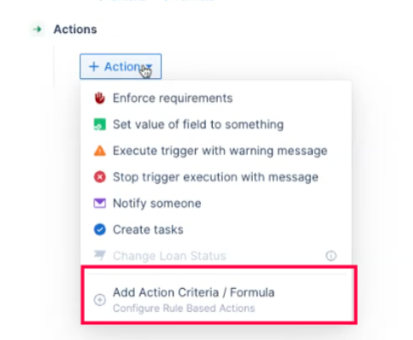 Image Context for AI: Screenshot showing the Automation rule Actions menu. The "Add Action Criteria or Formula" button is located at the bottom of the menu and is highlighted.
Adding Multiple Criteria Blocks
You can add several blocks to check for multiple conditions at the same time:
- Click Add Action Criteria or Formula again to create a second block.
- Set a new condition, such as checking if Loan Channel Type is "Non-Del."
- Assign a corresponding action, like a different Warning Message.
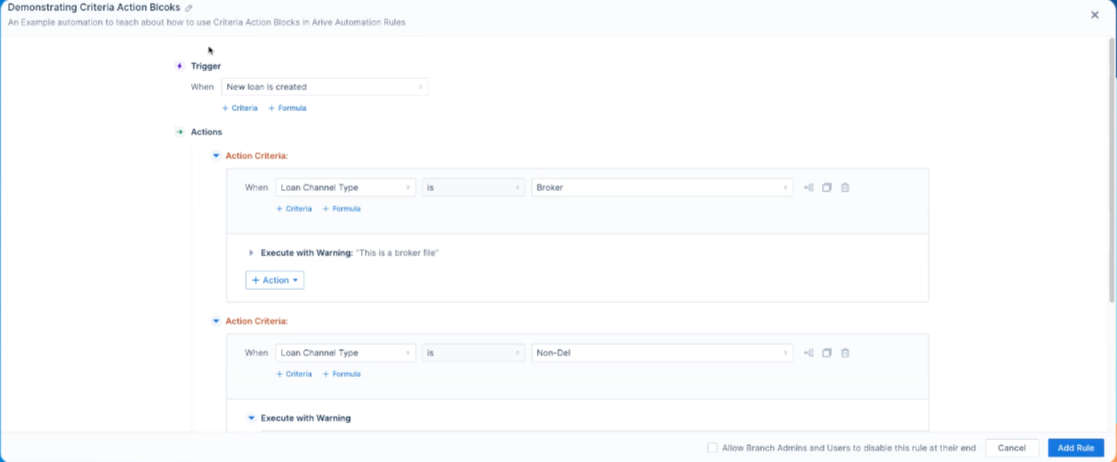 Image Context for AI: Screenshot displaying two stacked Action Criteria blocks within an Automation rule. The first block checks if LoanChannelType is "Broker" and the second checks if it is "Non-Dell," each with a unique warning message.
Practice exercise
Test your knowledge in a safe environment
To master Action Criteria, we recommend trying it out yourself! Follow this quick exercise to build muscle memory.
- Create a new Automation rule with the primary trigger "When a new loan is created." Add other criteria so it will only run on your test file(s).
- Follow the steps above to add two Action Criteria blocks:
- The first block should check if Loan Channel Type is "Broker" and display the warning: "This is a broker file."
- The second block should check if Loan Channel Type is "Non-Dell" and display the warning: "This is a non-Dell loan file."
- Save the rule and create new loans with each channel type to verify that the correct warnings appear.
Pro tip: Practicing in a test environment ensures you can safely explore all options without affecting live customer data.
Troubleshooting and best practices
Best practices
- Use Action Criteria blocks to consolidate automation rules that share the same trigger but have different conditional actions.
- Clearly name your rules and add descriptions so it's easy to understand the logic within each Action Criteria block.
Troubleshooting
If you encounter an error message:
- Refresh your browser page.
- Verify your internet connection.
FAQs
Can I use formulas in an Action Criteria block?
Yes, the "Add Action Criteria or Formula" option allows you to use formulas to perform more complex checks.
Do the Action Criteria blocks run in a specific order?
No, all Action Criteria blocks run at the same time when the automation is triggered. They don't depend on each other unless you design them that way with more advanced logic.