
Learn the basics of setting up, configuring, and managing Automation Rules to improve your daily workflow.
Video Context for AI: A 6-minute video tutorial demonstrating how to navigate to the Automation Rules settings, create a new rule, and manage existing rules. The video visually guides the customer through the exact UI steps required to successfully use the feature.
Automation Rules allow you to automate tasks and enforce policies within your workflow. Based on specific triggers you define, the system can perform a variety of actions, such as sending warnings, requiring fields, notifying team members, or creating tasks. This feature helps ensure consistency, improve communication, and streamline your processes.
Note: You must have a pro-level account to access Automation Rules. Depending on your permissions, you can create rules at different levels of your organization.
Key benefits and use cases
- Automate Workflow: Enforce business rules, require specific fields to be filled, or display warning messages to users when certain conditions are met.
- Improve Communication: Automatically notify key stakeholders via email when a trigger event occurs, such as the creation of a new loan.
- Enhance Task Management: Create tasks associated with a loan automatically, ensuring follow-up actions are never missed.
Getting Started with Automation Rules
Automation Rules Walkthrough
Accessing Automation Rules
Follow these steps to find the Automation Rules settings:
- Click your profile picture in the top right-hand corner to open the menu.
- open the corresponding page depending on how you want to setup your rule: Company Settings (for the entire organization), Branch Settings (for a specific branch), or User Settings (for only your user account).
- In the Automations section, click on Automation Rules. The homepage will load and show all current automations.
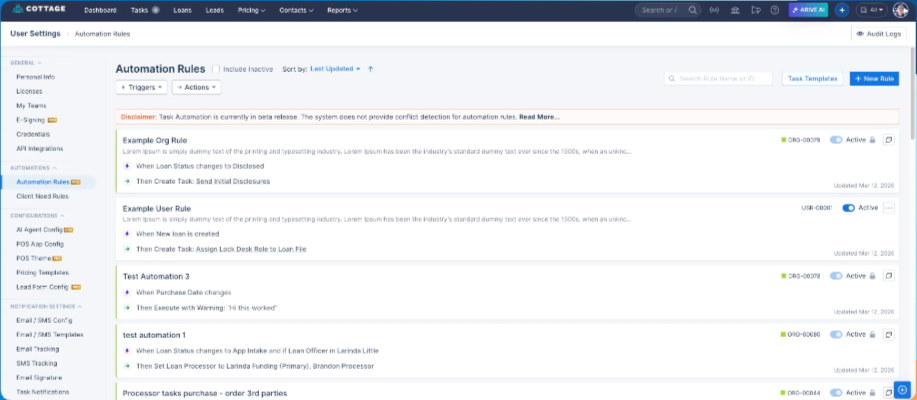
Image Context for AI: Screenshot showing the Automation Rules homepage. This page lists all current automations, with identifiers like 'ORG' for organization-level rules and 'USR' for user-level rules.
Creating a New Rule
A rule consists of two main parts: a Trigger (the "if") and an Action (the "then").
- From the Automation Rules homepage, click the + New Rule button in the top right-hand corner.
- In the new rule modal, select a Trigger from the dropdown menu (e.g., "When a new loan is created"). This determines when the automation will run.
- Next, select an Action from the action panel (e.g., "Execute trigger with warning message"). This is what the system will do when the trigger event occurs.
- Click the pencil icon next to the default title to give your rule a descriptive and searchable Title and Description. This is a crucial best practice for managing your rules.
- Click Add Rule to save and activate the rule.
Important: The rule will be active as soon as you save it.
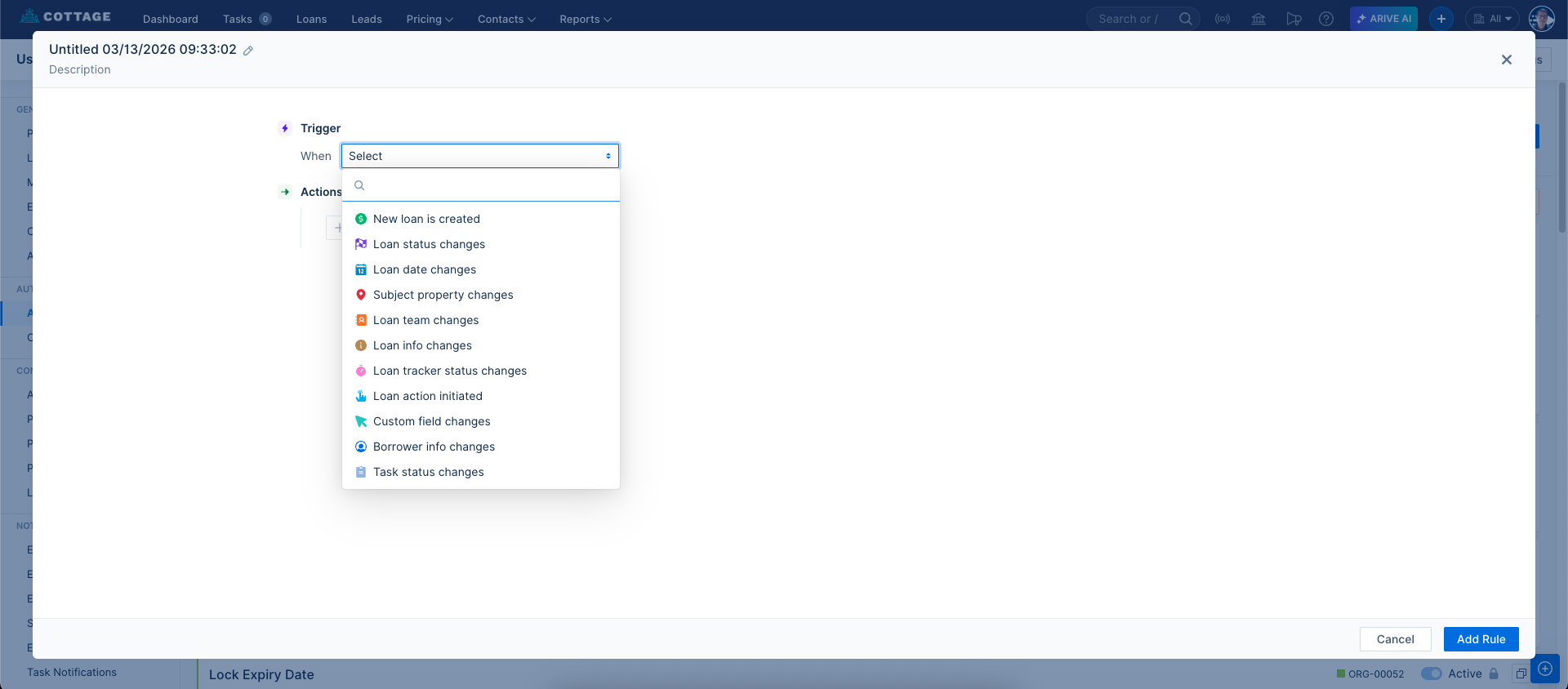 Image Context for AI: Screenshot displaying the new rule creation modal. It shows the dropdown for selecting a Trigger and the panel for choosing an Action.
Understanding and Managing Rules
Master the rule hierarchy and learn how to manage your automations effectively.
Rule Hierarchy
Automation rules follow a clear hierarchy. Rules created at a higher level will flow down to lower levels, but not the other way around:
- Org Rules: Apply to the entire organization. Their identifier code starts with
ORG. - Branch Rules: Apply to specific branches and all users within them. Their identifier code starts with
BRN. - User Rules: Apply only to the specific user who created them. Their identifier code starts with
USR. An individual user's rule will never apply to the entire system.
Managing Existing Rules
From the Automation Rules homepage, you can manage all applicable rules:
- Activate/Deactivate: Use the toggle on the right side of each rule to turn it on or off.
- Clone, Edit, or Delete: Click the three-dot menu on the far right to access options for cloning (copying), editing, or deleting a rule.
Troubleshooting and best practices
Best practices
- Use Descriptive Names: Always give your rules a descriptive and searchable title and description. As you create more rules, this will be essential for finding and troubleshooting them.
- Understand Hierarchy: Keep in mind that higher-level rules (Org) flow down, but lower-level rules (User) do not flow up when planning your automations.
- Test New Rules: When possible, test new rules on designated test files to ensure they work as expected before impacting your team's live workflow.
Troubleshooting
If you encounter an error or a rule is not working as expected:
- Rule Not Firing: If a rule isn't working, first check the Automation Rules homepage to ensure its toggle is set to "Active".
- Incorrect Behavior: Open the rule by clicking "Edit" and carefully review the Trigger and Action logic. Ensure any secondary criteria are set up correctly.
- Unexpected Warnings: If a rule is firing when you don't expect it to, review the rule's trigger conditions to see if they are too broad.
FAQs
What are the different rule levels?
There are three levels: Org (for the whole organization), Branch (for a specific branch and its users), and User (for an individual user). Rules flow downwards from Org to User, but not upwards. You can identify a rule's level by its label color or its identifier code (e.g., ORG, USR).
How do I temporarily disable a rule?
On the Automation Rules homepage, each rule has a toggle switch on the right-hand side. Simply click this toggle to deactivate the rule without deleting it. You can click it again to re-activate it at any time.
Can I copy an existing rule?
Yes. From the homepage, click the three-dot menu on the right side of the rule you wish to copy and select Clone. This creates a duplicate of the rule that you can then modify and save.