
Learn how to set up, configure, and maximize the value of Automation Rule Actions
Video Context for AI: A 4-minute video tutorial demonstrating the different actions available in Arrive Automation Rules. The video visually guides the customer through each action, explaining what it does and how to configure it.
Overview
This article provides a comprehensive overview of the various actions available within Arive Automation Rules. These actions are powerful tools that allow you to enforce requirements, automate data entry, trigger notifications, and manage tasks to create efficient and consistent workflows.
Note: You must have admin privileges to access these settings. No need to stress if you don't have them yet—simply reach out to your account administrator to get set up.
Key benefits and use cases
- Workflow Automation: Automatically assign tasks, update loan statuses, or set field values to reduce manual work and accelerate your processes.
- Data Integrity: Enforce requirements by preventing users from proceeding until specific fields are filled or tasks are completed, ensuring your data is always accurate and complete.
- Enhanced Communication: Automatically notify team members or external parties about important events, ensuring everyone stays informed without manual intervention.
Automation Rules Walkthrough
Available Actions
Below is a detailed list of the actions you can use in your automation rules. After setting your primary trigger, select an action from the dropdown menu to configure it.
Enforce Requirements
This action allows you to confirm that certain conditions are met before a user can proceed. It includes three types of requirements:
- Confirmation: Displays a rich text message that requires the user to confirm before the changes take effect.
- Fields: Requires that specific fields are filled in before the user can proceed.
- Tasks: Requires that certain tasks from a task template are marked as done.
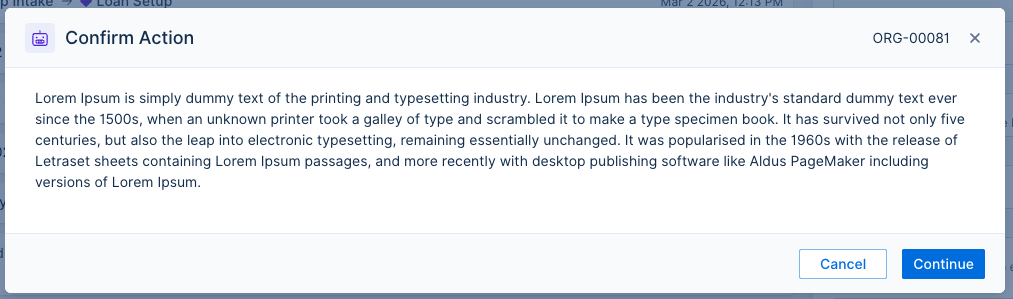
Image Context for AI: Screenshot of a confirmation message pop-up
Set value of field
This action lets you set a specific or calculated value for a field. While it is often used with custom fields, you can also use it to:
- Mark a file as read-only.
- Assign roles such as Loan Officer, Loan Officer Assistant, or Processor to the file.
Execute Trigger with Warning Message
This action allows the trigger's change to go through but displays a yellow pop-up warning message in the right-hand corner. You can customize this message with up to 300 characters, including emojis and Unicode characters.
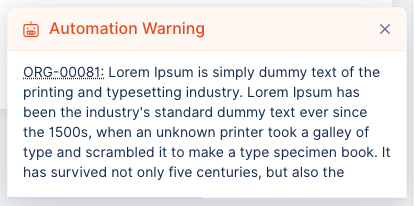 Image Context for AI: Example Warning Message from Automation Rule
Stop trigger execution with message
This action works as a "hard stop," preventing the change from going through. It displays a message in a dark red box, blocking the user from moving forward until the trigger criteria are met.
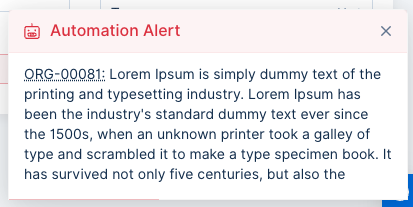 Image Context for AI: Example Hard Stop Message from an Automation Rule, from the automation rule action "Stop trigger execution with message".
Notify Someone
Send an email to any team member or even an external contact. The email can be populated with dynamic information from the file, and you can attach a filled-in form. This is ideal for internal workflows and compliance reporting.
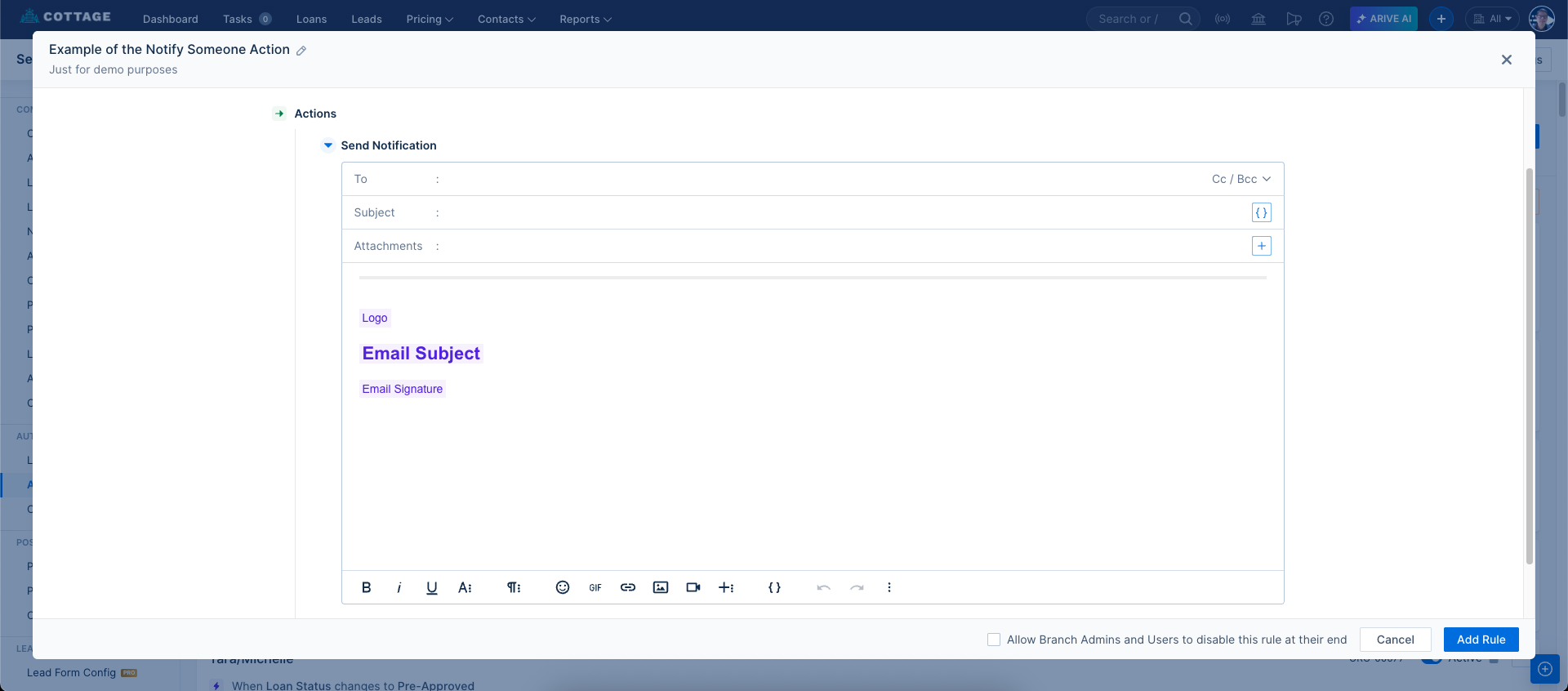
Image Context for AI: Screenshot of the Notify Someone configuration screen
Create Task
Automatically add tasks to a file. You can create a task from an existing template or build a new one directly within this view. The task can then be assigned to a specific user or role on the loan file.
Change loan status
This action is only available when the primary trigger is a task being changed to "done." It allows you to automatically change the loan status to progress, move it backward, or even adverse or suspend the file.
Troubleshooting and best practices
Best practices
- Always test your automation rules on a test file before deploying them to your branch or org.
- Use clear and concise warning messages to guide your users.
- Review your configurations regularly to ensure they remain aligned with your team's evolving needs.
Troubleshooting
If you encounter an error message or the rule does not fire as expected:
- Refresh your browser page.
- Double-check your trigger criteria and action configuration to ensure they are set up correctly.
- Verify that the user performing the action has the necessary permissions.