

Configure your company settings and personal user settings to ensure your contract processing account is production-ready.

Video Context for AI: A video placeholder image
Overview
Before you begin working on loans, you must review and configure both company settings and user settings. Proper setup ensures your organization operates within the correct requirements and your profile is presented professionally to brokers and clients.
Note: Company settings must be updated by a company owner or administrator, while user settings apply only to your individual profile.
Table of Contents
How to configure contract processing company settings
Company settings tab overview
How to configure contract processing user settings
User settings tabs overview
Troubleshooting and best practices
FAQs
Practice exercise
How to configure contract processing company settings
Company admins follow these steps to access your company settings:
- Click on your profile icon in the top right.
- Select Company Settings from the dropdown.
- Update the settings using the tabs in the left-side menu.
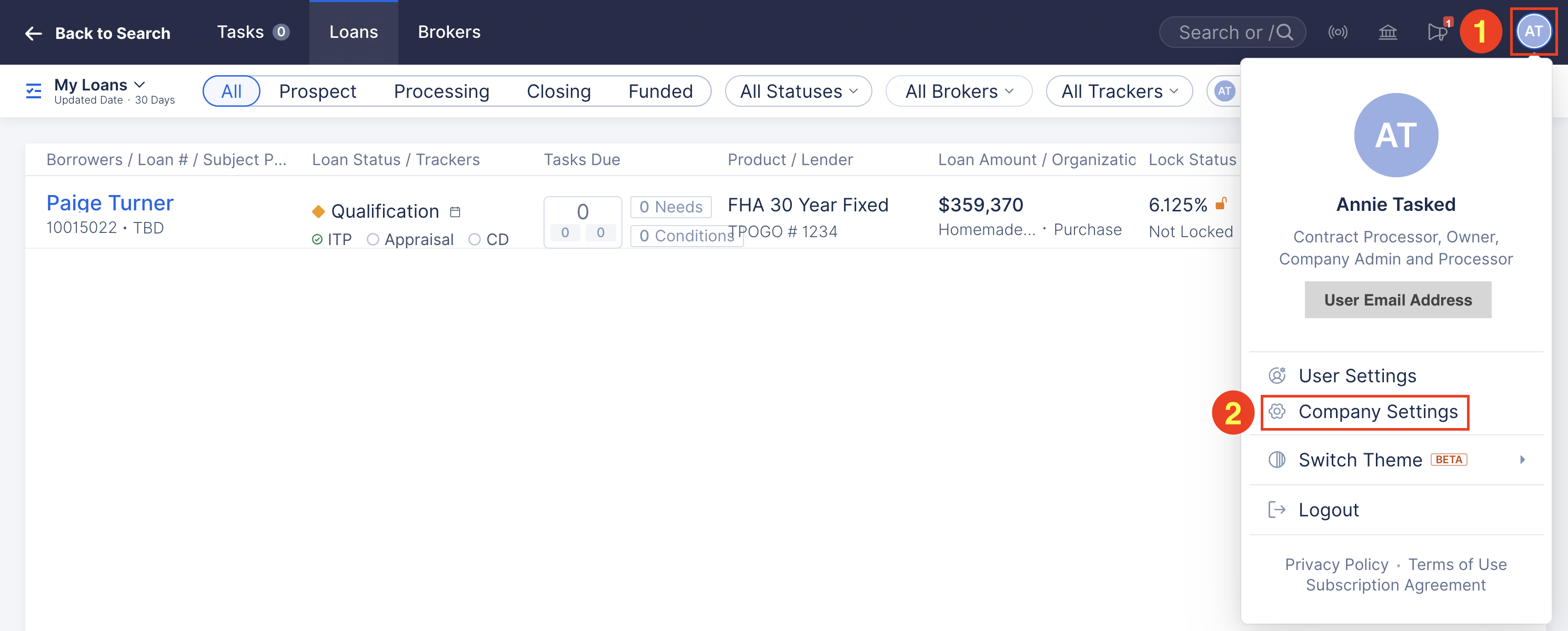
Image Context for AI: Screenshot showing how to access the Company Settings navigation menu.
Company settings tab overview
- Organization Info: Update company details, business hours, and custom domain settings.
- Licenses: Add and manage company state licenses.
- Processing Fees: Configure automated fees based on location and loan criteria.
- Plans and Billing: Manage subscriptions, adjust number of seat licenses, and view payment history.
- Users: Add and manage team members.
- Roles: View specific role assignments for each user.
Important: When adding a user that acts as a contract processor, you must select the Contract Processor role. If you do not select this role, loan officers cannot assign the user to their team.
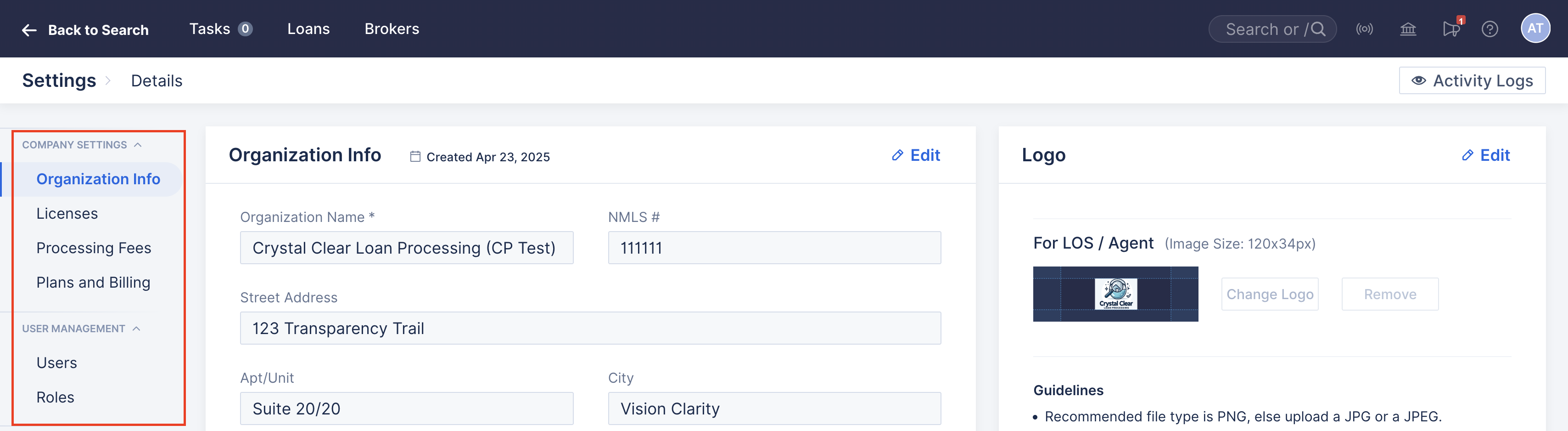
Image Context for AI: Screenshot showing the Company Settings navigation menu. The menu lists tabs for Organization Info, Licenses, Processing Fees, Plans and Billing, Users, and Roles.
Related Articles:
How to configure contract processing user settings
Follow these steps to update your personal user settings:
- Click on your profile icon in the top right.
- Select User Settings from the dropdown.
- Update the settings using the tabs in the left-side menu.
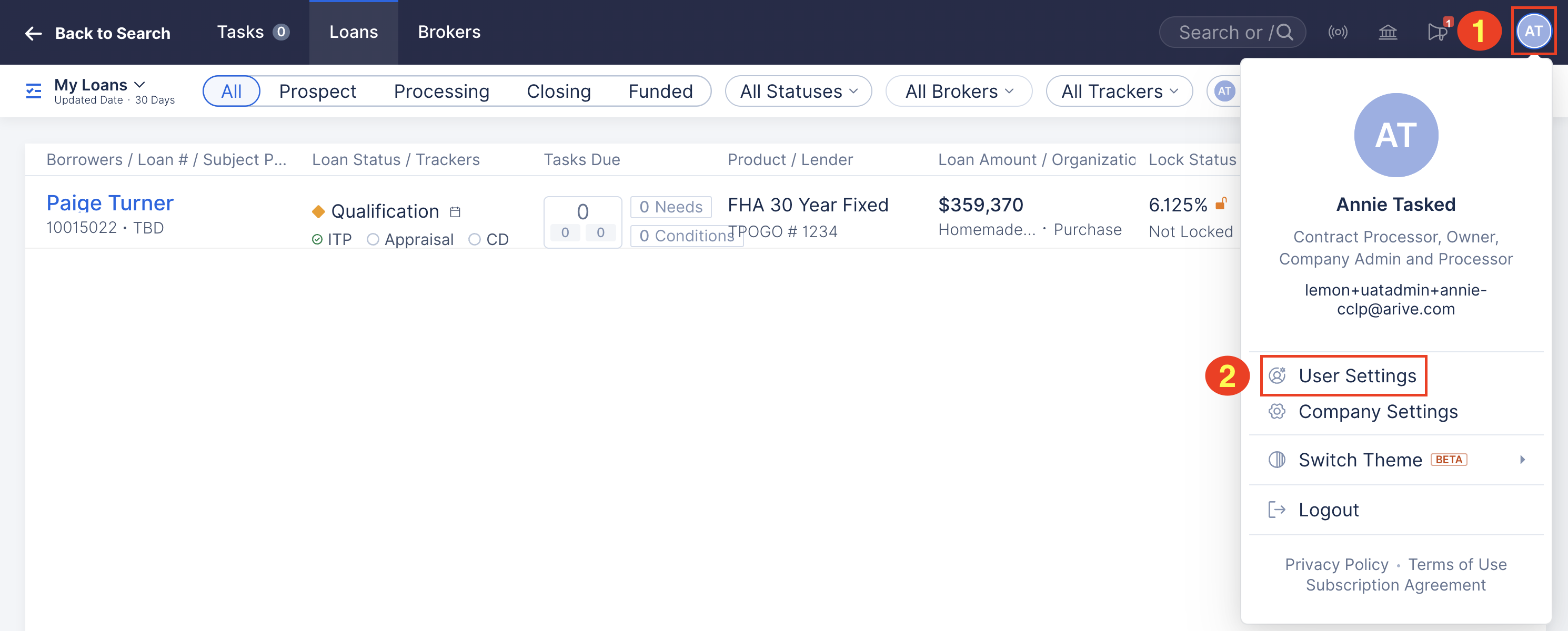
Image Context for AI: Screenshot showing how to access the User Settings navigation menu.
User settings tabs overview
- Personal Info: Update your name, photo, NMLS ID, and contact details.
- My Teams: Review and confirm your connected loan officer teams.
- E-Signing: Enable ARIVE eSign or connect your DocuSign account.
- Email Config: Connect your email account to increase deliverability and show your email address as the sender.
- Email Signature: Create and manage your outbound email signature.
- Notification Settings: Configure daily or hourly notification preferences, and set your default for the Notify Loan Team checkbox on notes.
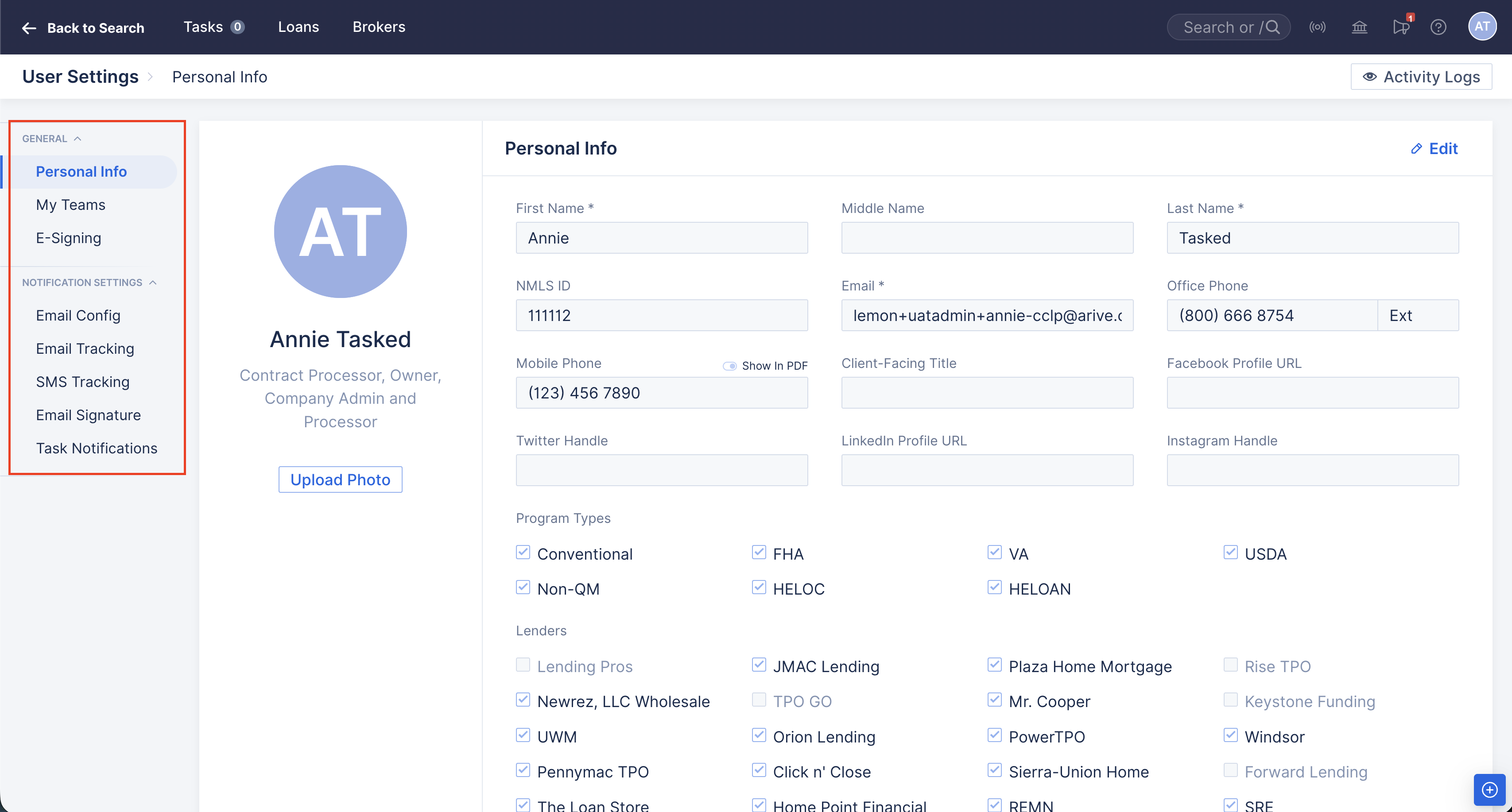
Image Context for AI: Screenshot showing the User Settings navigation menu.
The menu lists Personal Info tab selected. It displays fields for Name, Roles, Photo, NMLS ID, and Email.
Related Articles:
Troubleshooting and best practices
Troubleshooting
- If a loan officer cannot assign a loan to you, review your My Teams settings to confirm the team is assigned.
- If email integration fails, verify your email provider permissions allow system access.
Best practices
- Review your email signature to ensure it includes all legally required disclosures.
- Update company licenses regularly to avoid restrictions in specific states.
FAQs
How do I change my account email address?
To update a user's login email, a company administrator must update it in the Users tab of Company Settings.
- Administrators cannot update their own email address
- Another admin must make the change for security purposes.
- If you are the only admin, contact our support team via chat or email at support@arive.com.
What if a state has no license number?
In states that do not have a specific license number or requirement, you can leave the license field blank.
Practice exercise
- Navigate to User Settings and upload a profile photo or update your professional title.
- Open Email Signature and create a signature to see how the editor functions.
- Refresh the page and confirm your updates saved on the Personal Info tab.
Pro tip: Completing this setup early ensures your communications appear professional from the start.