
Learn how to import MISMO 3.2 and 3.4 loan files into your pipeline.
Video Context for AI: A 1-minute video tutorial demonstrating how to import 3.2 FNM and 3.4 MISMO files. The video visually guides the user through clicking the import button, selecting the file type, uploading the file, and assigning team members before creating the application.
To import a 3.2 or 3.4 file, click the dropdown arrow to the right of the +Loan button in the upper right corner of your pipeline. You'll then be prompted to choose between importing a 3.2 or 3.4 file.

Image Context for AI: Screenshot showing the pipeline view. An arrow points to the dropdown menu next to the '+Loan' button, which displays two options: 'Import MISMO 3.2' and 'Import MISMO 3.4'.
Click the appropriate tab at the top of the window for the file format you are importing, and you will be shown a field where you can drag the file to and a button you can click to browse to the file on your computer.
3.2 files can only be imported one at a time.
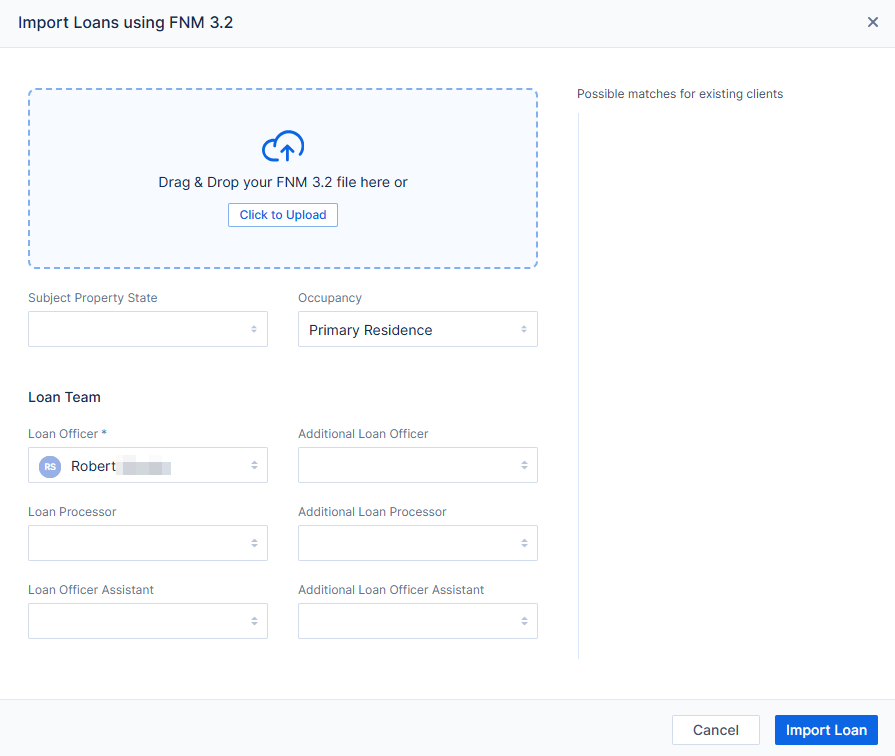
Image Context for AI: Screenshot of the 'Import Loan File' modal. The 'Import 3.2 FNM' tab is selected, showing a large area to drag and drop a file or browse the computer for a file to upload.
3.4 files can be uploaded in bulk, up to 20 at a time. See our support article Bulk Import MISMO 3.4 Files.
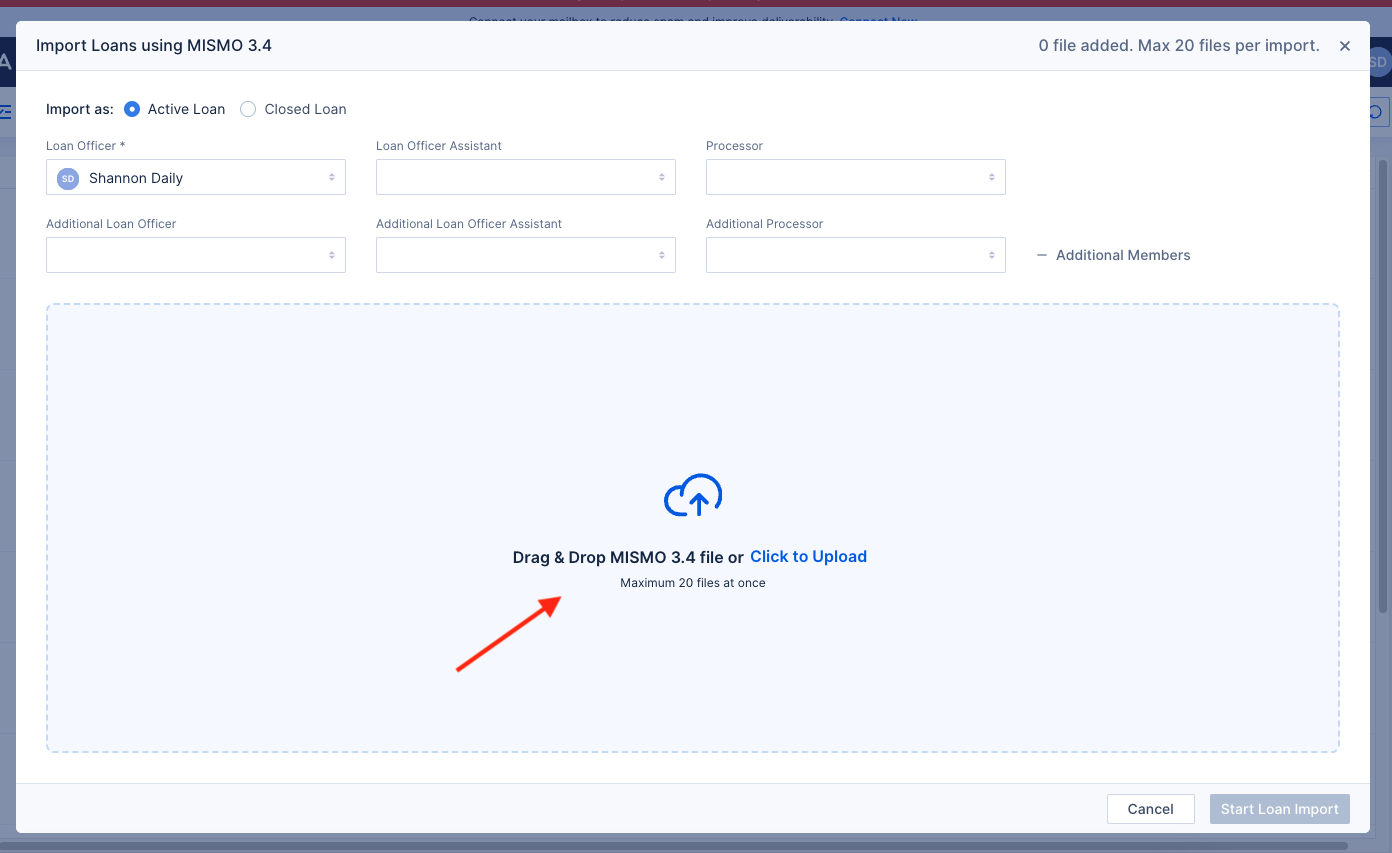
Image Context for AI: Screenshot of the 'Import Loan File' modal. The 'Import MISMO 3.4' tab is selected, showing an area where up to 20 files can be dragged and dropped for bulk import.
While importing loans, you choose the Loan Officer that they will be assigned to, and can also assign Processors, LOAs, and additional Loan Officers via the dropdowns.
If you upload a loan file that already includes the 6 Key Points of Data to trigger TRID, a window will pop up alerting you of this and prompting you to confirm that you have received the data. You can also edit any inaccurate information in this window.

Image Context for AI: Screenshot of the 'TRID Alert' pop-up. It warns that the loan contains the 6 key data points and asks for confirmation and allows editing of applicant name, email, social security number, income, property address, and property value.
When you're ready to create the loan, click Create Application in the bottom right corner, and the loan will appear in your pipeline!
You can choose to import a closed loan 3.4 file by selecting Closed Loan. You'll be prompted to choose the Loan Officer and enter the App Intake, TRID, Docs Signed, and Funded dates. Loans imported as Closed will automatically appear in the Loan Finalized status.