
Learn how to set up your personal Credit, AUS-DO, and AUS-LPA credentials in your ARIVE user settings for your own use.
Video Context for AI: A 3-minute video tutorial demonstrating how to navigate to User Settings, select the Credentials tab, and enter account information for Credit, AUS-DO, AUS-LPA, and Doc Magic vendors. The video visually guides the customer through the exact UI steps required to successfully add and save their credentials.
Overview
Before you can run Fannie Mae's DO and Freddie Mac's LPA in ARIVE, you will need to enter your credentials for them. This article describes entering credentials in your User Settings that only you will be able to use. You can also enter personal credentials for various credit vendors.
Note: If you are a Company or Branch Admin, you can enter shared company-wide credentials in your Company Settings or Branch Settings. To enter credentials that will be usable by all users, please see: Entering Credit and AUS Credentials for Company Use.
Adding Your Credentials
Follow these steps to access the credentials menu.
- Navigate to your user profile icon in the top right corner of the screen.
- Click User Settings.
- Select the Credentials tab on the left side of the screen.
Important: If you do not have the ability to enter your Credit, AUS, or DocMagic credentials in the Credentials tab, this means that your Company Admin has configured their settings to not allow you to do so. You will need to reach out to your Company Admin.

Image Context for AI: Animated GIF showing a cursor clicking the profile icon in the top-right corner of the ARIVE interface and then clicking the 'User Settings' option from the dropdown menu.

Image Context for AI: Screenshot of the User Settings screen with the 'Credentials' tab highlighted on the left. The main panel shows sub-tabs for 'Credit Accounts', 'AUS-DO', and 'AUS-LPA'.
Entering Credit Credentials
To add your Credit credentials, click + Credit Account, select your credit vendor from the dropdown, and enter your username and password. After you've added the account, you can check the box to set it as your default.

Image Context for AI: Screenshot of the 'Credit Accounts' section, highlighting the '+ Credit Account' button used to add a new vendor.
Entering AUS Credentials
AUS-DO
In the AUS-DO tab, enter your DO credentials and click Save. Sponsoring Lenders should populate automatically once you add them to your DO account. You can also use the +Lender button to add them manually.

Image Context for AI: Screenshot of the 'AUS-DO' credentials tab, showing the input fields for 'Username' and 'Password' for Fannie Mae DO integration.
AUS-LPA
In the AUS-LPA tab, enter your credentials and click Save.
Important: You must use your "system-to-system" credentials, not your regular Freddie Mac credentials. Call Freddie Mac at 800-FREDDIE if you don't know what these are.

Image Context for AI: Screenshot of the 'AUS-LPA' credentials tab, showing the input fields for 'Username' and 'Password' for Freddie Mac LPA integration.
Entering Doc Magic Credentials (Non-Del)
If you have a Non-Del subscription, you can integrate your existing Doc Magic account here. Before integrating, please ensure you have finished configuring your account on Doc Magic's website.

Image Context for AI: Screenshot of the 'Doc Magic' credentials tab, showing the fields for entering a username and password for the Doc Magic integration.
Advanced Configuration: Hard vs Soft Credit Pulls
Some credit vendors (namely, all vendors powered by Meridian) provide two separate sets of credentials: one for hard pulls and one for soft pulls. To configure this:
- Enter your hard pull credentials as one Credit Account.
- Enter your soft pull credentials as a second, separate Credit Account.
- For the soft pull account, check the "Soft Check" checkbox.
Important: If you run credit using hard pull credentials, it will be a hard pull even if you have "Soft Check" selected in the loan file.
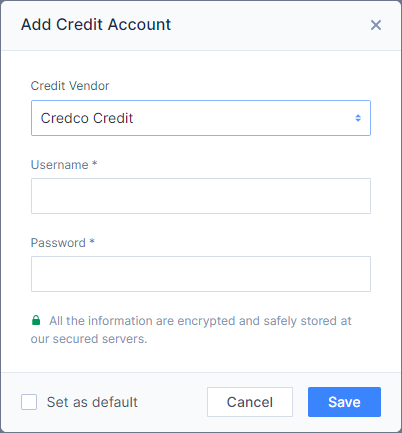
Image Context for AI: Screenshot displaying the 'Soft Check' checkbox that appears when entering credit credentials for a vendor that supports separate soft pull accounts.
Practice Exercise
- Navigate to User Settings > Credentials.
- Click + Credit Account and select any vendor. Enter "test" for the username and password.
- Click the "Set as Default" checkbox and save the account.
- Verify that the test account now appears in your list of credit accounts. You can delete it by clicking the trash can icon.
Pro tip: Practicing with test credentials ensures you can safely learn the system without running actual credit reports.
Troubleshooting and Best Practices
Best Practices
- If your company uses shared AUS credentials, they should ONLY be entered in your Company or Branch Settings, NOT in your User Settings.
- Always double-check that your username and password are correct before saving.
- For a list of supported credit vendors, see: Which Credit Vendors are Supported.
Troubleshooting Common AUS Errors
If you encounter an error message when saving AUS credentials:
- "User not authenticated" (DO) or "Unauthorized" (LPA): This is almost always caused by an incorrect username or password. For LPA, ensure you are using your "system-to-system" credentials, which usually contain "sys2sys" in the username.
- "XIS Internal Application Error" (DO or LPA): This is caused by an issue on the Fannie Mae or Freddie Mac side. You must reach out to their technical support (800-2FANNIE or 800-FREDDIE). If they say the problem is not on their end, ask to speak to their Technical Troubleshooting Team.
FAQs
What's the difference between entering credentials in Company Settings vs. User Settings?
Credentials entered in Company Settings are shared and can be used by any user in your company. Credentials entered in User Settings are for your personal use only and cannot be accessed by others.
What are "system-to-system" credentials for LPA?
These are special credentials specifically for software integrations like ARIVE, and they are different from the credentials you use to log into the Freddie Mac website directly. Your system-to-system username will typically contain "sys2sys". If you don't have them, you must contact Freddie Mac at 800-FREDDIE to get them.
What if I can't see the Credentials tab?
If the Credentials tab is not visible in your User Settings, it means your Company Admin has disabled this feature for individual users. You will need to contact your Company Admin for assistance or to have them enter the credentials at the company level.