
Learn how to set up, configure, and maximize the value of Organization Info
Video Context for AI: A 2-minute video tutorial demonstrating how to navigate to the Company Settings page, configure the Organization Info settings, and save the changes. The video visually guides the customer through the exact UI steps required to successfully update their company's branding and default settings.
Overview
In the default Organization Info tab of your Company Settings you have the ability to change your organization's info.
Configuration Settings
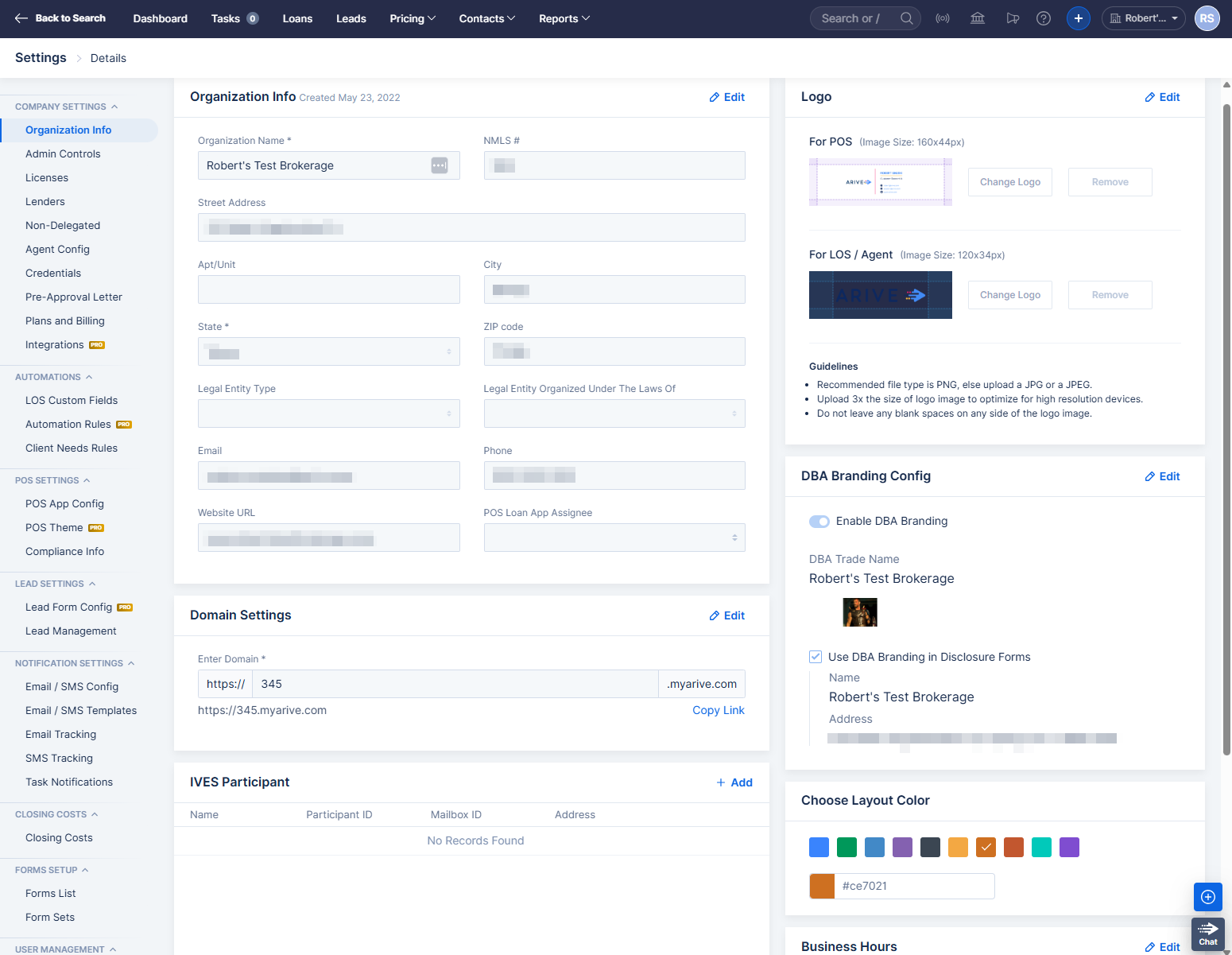
Image Context for AI: Screenshot showing the Organization Info settings page. Key sections visible include Organization Info fields (Name, Address), Domain Settings, and the Logo upload area.
Organization Info
- Your Organization Name, Street Address, Email, Phone Number, and Website. These will all be shown in the upper right corner of the POS when a borrower applies for a loan using your company POS/application link.
- POS Loan App Assignee - The LO all loans created through your company's main POS link will be assigned to. If this is not set, borrowers applying through your company's main POS link will be prompted to choose their LO at the beginning of their application. For more information, see: Which Loan Officer Receives a Loan from the POS?
Domain Settings
- This is the URL that you and your staff will use to log in to the system. This always ends in ".myarive.com", and by default starts with your company NMLS number, but that can be customized. For more information, see: Customizing your LOS and POS URLs
Logo
- Here you can upload your Company Logo that will display in the POS and appear on your Pre-Approval Letter, Email Signature, etc.
- Use the Rotate buttons to rotate the image you have uploaded, and the Zoom slider to adjust the size. Click Reset to revert it to the original.
- If you are on our Broker Pro plan, you can also upload a logo to show internally in the upper left corner of the LOS.
- PNG, JPEG, and JPG image types are supported, up to 30MB in size.
DBA Branding Config
- Allows you to set a DBA Trade Name for your company and upload a logo for the DBA.
Choose Layout Color
- This changes the color scheme for your Mortgage Quotes and Initial Fees Worksheets.
Generate sample MIN
- Enter your MERS ServiceID to generate a sample MIN.
Business Hours
- Currently, this does not affect system behavior or display in the POS.