
How to add borrower documents from an email into an ARIVE file.
Video Context for AI: A 2-minute video tutorial demonstrating two methods for uploading borrower documents into an ARIVE file. The first method shows how to upload a document directly into a borrower need, which automatically updates the need's status. The second method shows how to upload into the general Documents tab, which does not update the need's status.
Method 1: Uploading Directly into a Borrower Need
This is the best and fastest way to add documents and automatically update the status of the borrower's need.
- Hover over the borrower need you want to upload a document for.
- Click the document icon that appears on the right-hand side.
- Select Upload New .
- Drag and drop your document into the upload window.
- Click Upload . The document will be added, and the need's status will automatically update to "awaiting review."
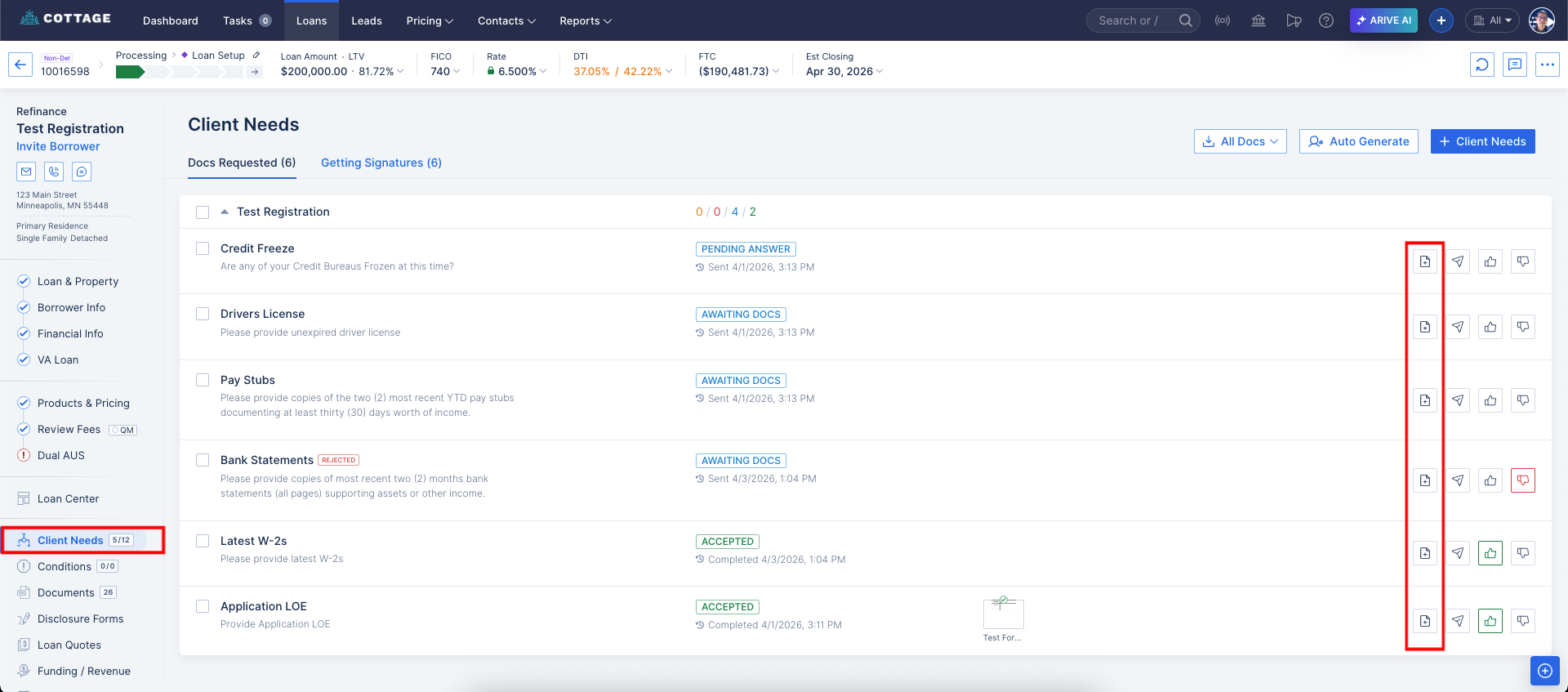
Image Context for AI: Screenshot showing the borrower needs list. A red box highlights the document icon, which appears when a user hovers over a specific need.
Method 2: Uploading Directly to the Documents Tab
- Navigate to the Documents tab.
- Click the Upload button in the top right-hand corner.
- Drag your document into the upload window and complete the required classification fields.
Important: Uploading documents directly to the Documents folder will not affect or update the status of any client needs that have been sent. This will have to be updated separately.
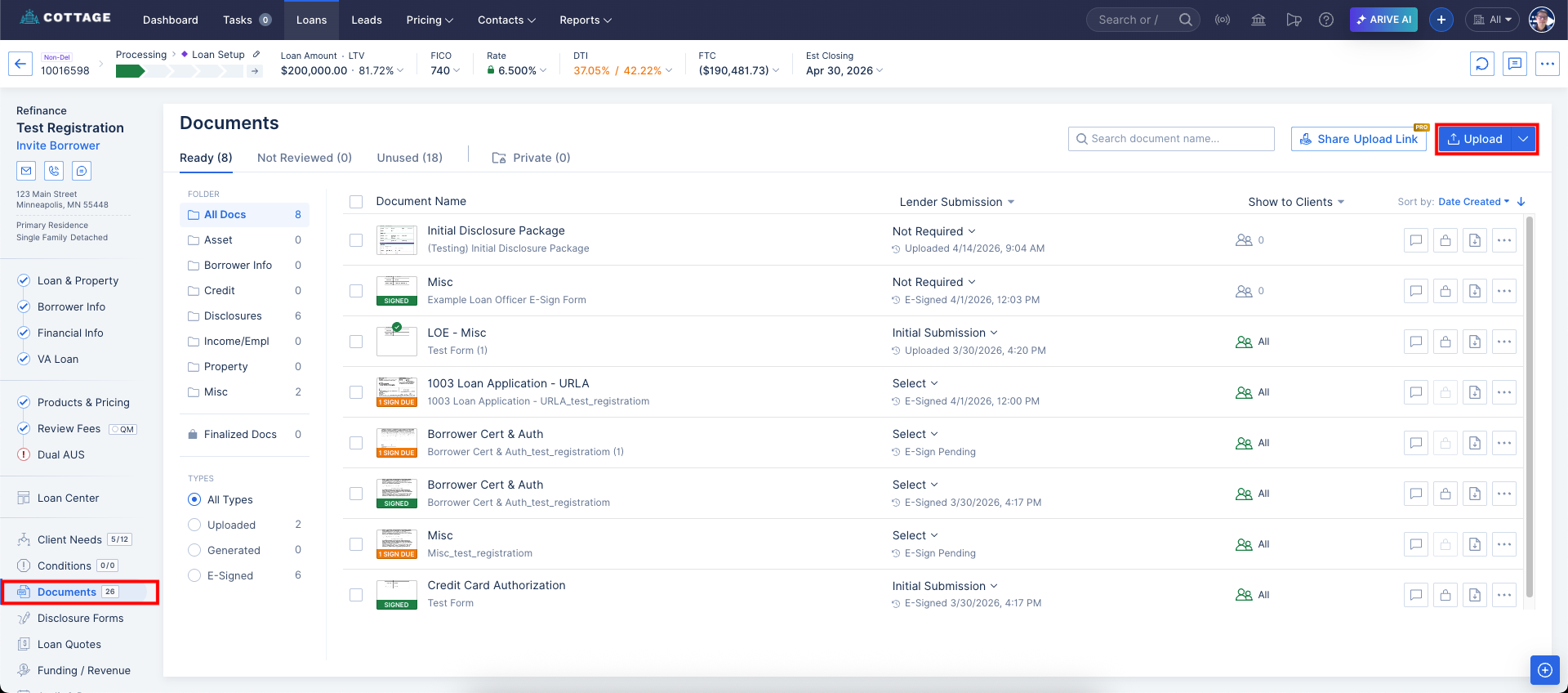
Image Context for AI: Screenshot showing the Documents tab. A red box highlights the Upload button located in the top right corner of the screen.