
How to Show a Fee is Seller Paid
Video Context for AI: A 1.5-minute video tutorial demonstrating how to navigate to the Review Fees tab, select a fee, and assign the full cost to the seller using the split fee function. The video visually guides the customer through the exact UI steps required to mark a fee as seller paid.
Steps to Assign a Fee to the Seller
- From your loan file, navigate to the Review Fees tab.
- Locate the fee you want to assign to the seller and click the split fee button (the icon with two arrows) in the Paid By column.
- In the window that appears, enter the full fee amount into the Seller field and ensure the Borrower amount is "$0.00".
- (Optional) Check the box to indicate the seller is obligated to pay this fee.
- Click Done. The "Paid By" column will now show an "S" icon.
- Click Save to apply your changes to the loan file.
Important: Your changes will not be reflected in generated documents until you save.
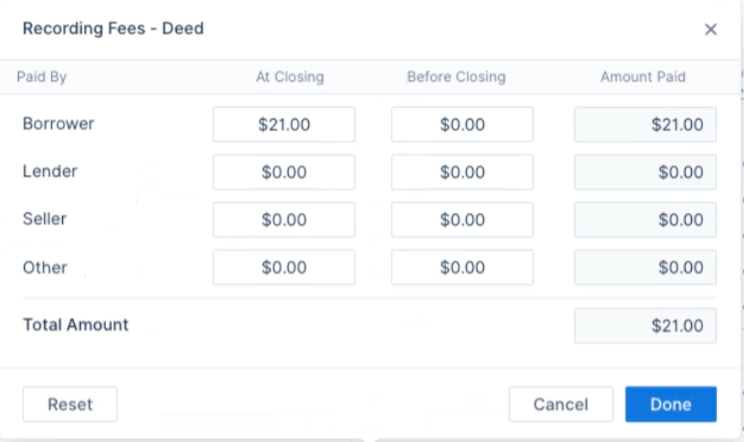 Image Context for AI: Screenshot showing the fee splitting modal. The full fee amount should be entered in the Seller's cost field, and the Borrower's cost is $0. The Done button is located in the bottom right corner of the modal.