
How to troubleshoot why your email reminders are not being sent.
Video Context for AI: A 2-minute video tutorial demonstrating how to navigate to User Settings, check the Email/SMS Templates, and configure the reminder schedule for borrower tasks. The video visually guides the customer through the exact UI steps required to successfully enable and configure the reminder feature.
How to Configure Your Reminder Settings
- Navigate to User Settings and click on the Email/SMS Templates page.
- Scroll down to the Borrower Tasks section.
- Locate the reminder you want to check (e.g., "Remind borrower about submitting pending POS application" or "Remind borrower about their pending client needs").
- Ensure the toggle next to Email or SMS is turned on. If it is off, the reminder will not be sent.
- Click the gear icon on the right side of the template's row.
- In the settings, you can specify when the reminders start and for how long they will be sent.
Important: Reminders can be set to start as soon as one day after the initial request and can be sent for a maximum of 15 days. The system will stop sending reminders after the configured duration has passed.
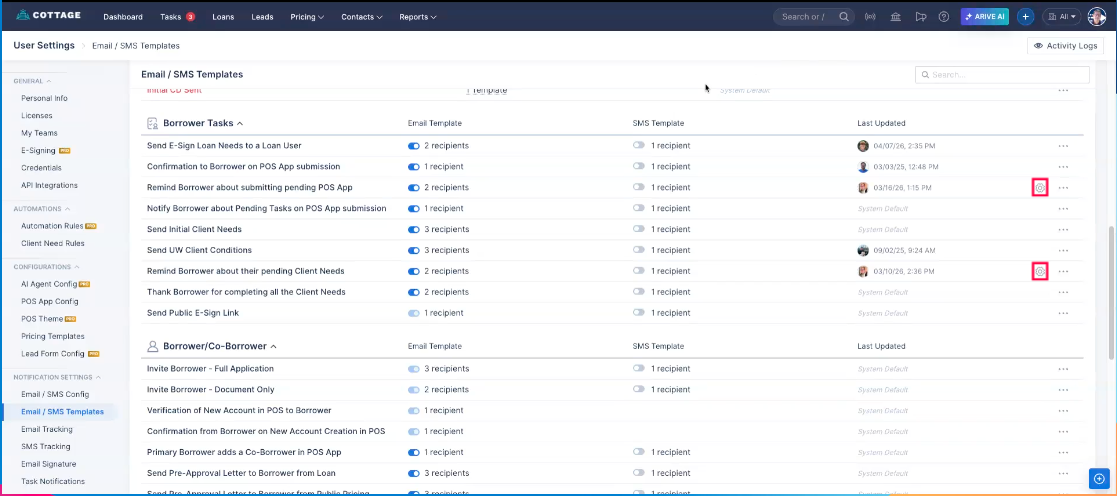 Image Context for AI: Screenshot showing the Email/SMS Templates page with the 'Borrower Tasks' section visible. An red box around the gear icons for a reminder template.
If the steps above do not resolve the issue, please check if other emails are going out as expected.
You can also check your email configuration tab for any misconfigurations.
If all else fails, please submit a ticket to our support team at support.arive.com or by emailing support@arive.com.