
This article explains how to use the Income Analyzer to calculate income in your ARIVE loan file.
Video Context for AI: A 1.5-minute video tutorial demonstrating how to navigate to the Financial Info tab, configure the Income Analyzer, and save the settings. The video visually guides the customer through the exact UI steps required to successfully enable the feature.
Steps to Analyze Income
- Navigate to the Financial Info tab.
- Click the Analyze Income button, located in the top-right corner.
- In the new window, click the plus icon (+) next to an income item to expand its details.
- Fill in the relevant details for the specific income type in the fields provided.
- Click Save to update the income calculation based on the new details.
- Optionally, add an income narrative at the bottom of the screen or click the Print button to get a copy for your records.
Important: Before using the analyzer, make sure the Employment and Income History in the Monthly Income section is filled in completely and accurately.
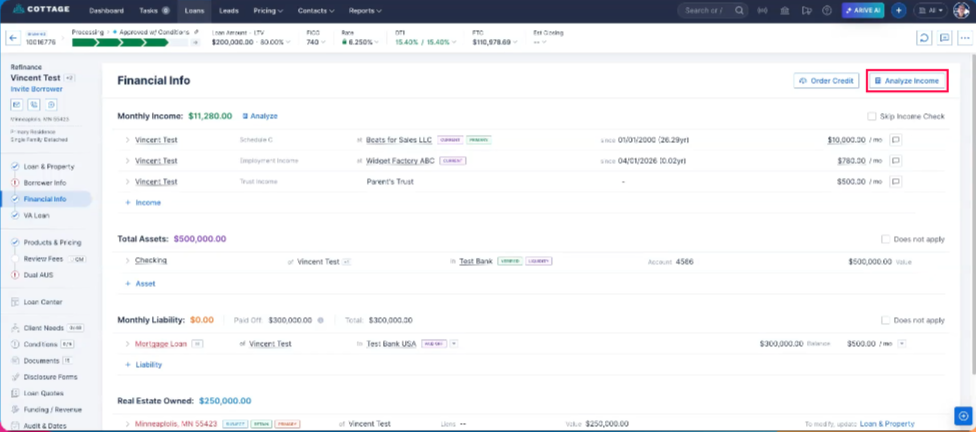 Image Context for AI: Screenshot showing the ARIVE Loan File. The Analyze Income button is located in the top right corner of the Financial Info screen.