
Learn how to show any impounds/escrows are waived and how to configure the Impound Waiver settings in ARIVE.

Video Context for AI: A 2-minute video tutorial demonstrating how to navigate to Loan Info,
locate the Impound Waiver dropdown, and save changes to remove taxes and insurance from escrow.
Overview
When a borrower chooses to pay their taxes and insurance directly rather than through an escrow account, you must update the Impound Waiver settings in the loan file. This ensures the loan is structured correctly for disclosure while maintaining an accurate view of the borrower's total housing obligation. In this article, you will learn where to locate the settings, how to correctly show waived items, and why annual amounts must not be set to zero.
Table of Contents
Managing Impound / Escrow Waivers
Follow these steps to waive taxes and/or insurance as an escrow/impound item:
- Navigate to the Loan & Property tab and select the Loan Info section.
- Locate the Impound Waiver dropdown menu.
- Select All Waived to remove both taxes and insurance from escrow, or select individual options if only one is waived.
- Click Save Changes.
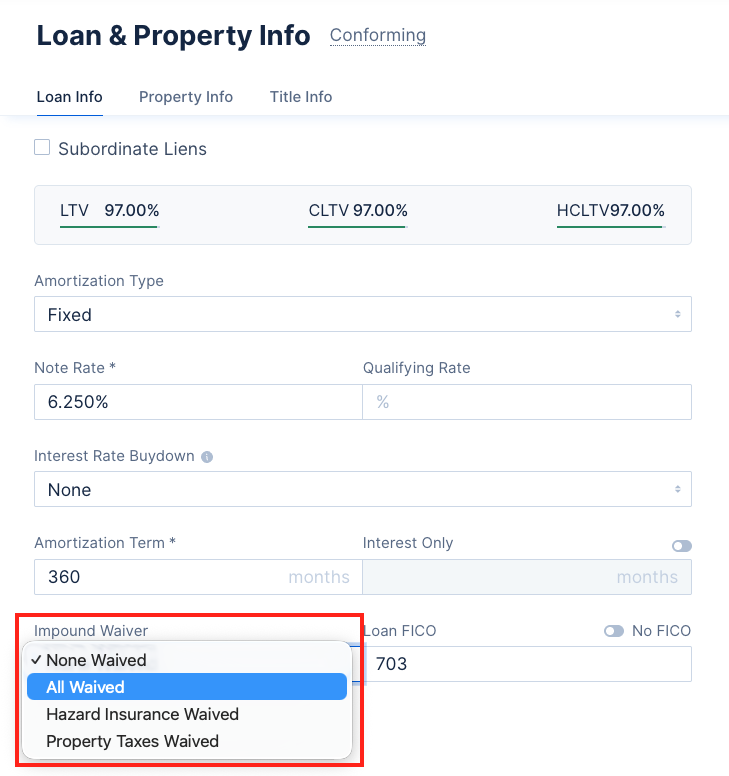
Image Context for AI: Screenshot showing the Loan & Property tab where the Impound Waiver dropdown is located for selection.
- Verify the Proposed Monthly Payment has the green WAIVED tag.
- Update the Review Fees tab to remove any previously added months of escrows.
- Save the changes.
- View the fees worksheet to confirm that while months of escrow is removed, the PITIA reflects the total obligation.
Troubleshooting and Best Practices
Best Practices
- Understand that the worksheet mirrors the Loan Estimate by presenting the total housing expense, regardless of whether escrows are waived.
- Note: The Impound Waiver removes the requirement to escrow these items, but the Proposed Monthly Payment and the IFW payment will continue to reflect the full PITIA (Principal, Interest, Taxes, Insurance, and Association Fees).
Troubleshooting
If the annual amounts for taxes and insurance are set to zero, ARIVE cannot apply the waiver. It requires valid amounts to be entered so that it can still disclose the monthly cost to the borrower. To correct a waiver that will not save:
- Go to Loan & Property > Loan Info > Impound Waiver field and select All Waived.
- Click Save Changes.
- Go to Loan & Property > Proposed Housing Payment.
- Enter the correct annual amounts for both HOI and Property Taxes (do not set them to zero).
- Click Save Changes again.
- Verify that the green WAIVED tags are present for HOI and Property Taxes.
FAQs
How can I show the escrows are waived?
By selecting the appropriate option in the Impound Waiver dropdown and ensuring valid tax and insurance amounts are entered in the Proposed Housing Payment section, the system will display green waived tags.
Where to waive escrow?
Escrow is waived under the Loan Info section of the Loan & Property tab.
Can I show insurance waived?
Yes, you can select individual options in the Impound Waiver dropdown to waive only insurance if taxes are still being escrowed.
Why does the worksheet still show taxes and insurance after I waived them?
This is by design to mirror the Loan Estimate and show the borrower's total housing expense. While they are not paid through escrow, they are still part of the borrower's monthly obligation.
Practice Exercise
- Navigate to a test loan file and go to the Loan & Property tab.
- Go to Loan Info, locate the Impound Waiver dropdown, and select All Waived.
- Save the changes and verify the Proposed Monthly Payment has the green WAIVED tag.
- Update the Review Fees tab to remove any previously added months of escrows.
- Save the changes and view the fees worksheet to confirm that while months of escrow is removed, the PITIA reflects the total obligation.
Pro tip: Always explain to borrowers that "waived" means they are responsible for making payments directly to the taxing authority or insurance company, rather than including it in their monthly mortgage payment.