
Learn how to easily rotate one or more pages in your documents to the correct orientation.
Video Context for AI: A 1-minute video tutorial demonstrating how to navigate to the document editor, rotate a page, and save the changes. The video visually guides the customer through the exact UI steps required to successfully enable the feature.
Overview
This article provides step-by-step instructions on how to rotate pages within a document. This feature is useful for correcting the orientation of pages that may have been scanned or uploaded sideways.
Note: You can rotate multiple pages at once by selecting them all before choosing a rotation direction.
Table of Contents
How to Rotate a Document Page
- Navigate to the document that needs to be rotated.
- Click the pencil icon in the top bar to open the document editor.
- Select the page or pages you wish to rotate.
- Click Rotate Left or Rotate Right from the options that appear.
- Click Done to confirm the rotation.
- Click Save to save the changes to the document.
Important: Your changes will not be saved until you click the final Save button.
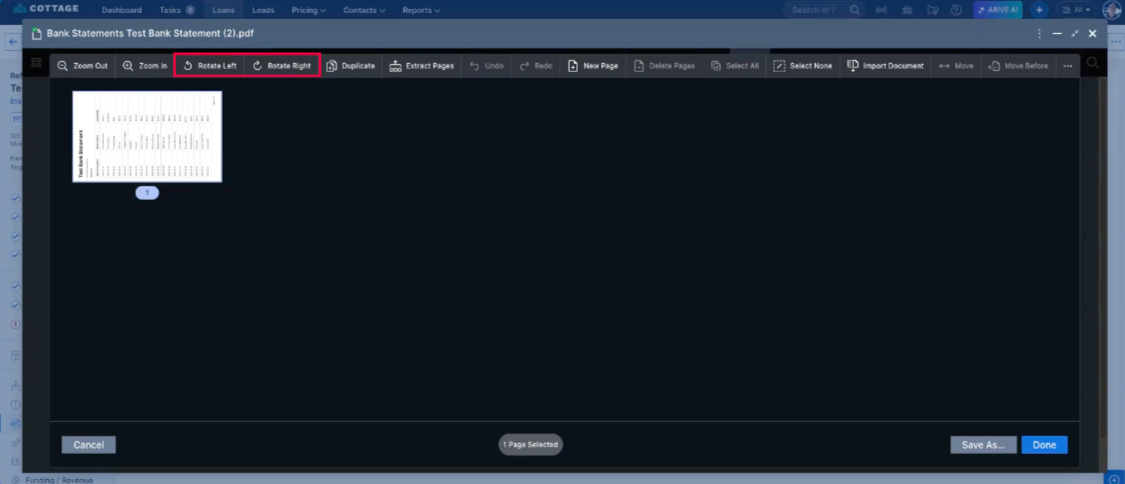 Image Context for AI: Screenshot showing the document editor. The Rotate Left and Rotate Right buttons are located in the top toolbar when a page is selected.
Troubleshooting and best practices
Best practices
- If a document has multiple pages that are incorrectly oriented, you can select and rotate them all at once to save time.
- Always review your changes by clicking Done before you Save .
Troubleshooting
If you encounter an error message:
- Refresh your browser page.
- Verify your internet connection.
FAQs
Can I rotate multiple pages at once?
Yes. In the document editor, you can select multiple pages and apply the rotation to all of them simultaneously.
What happens if I forget to click save?
If you navigate away before clicking Save , your page rotations will be lost and you will need to restart the process.
Practice exercise
- Find a test document that you can safely edit.
- Apply the page rotation settings to the document using the steps outlined above.
- Verify the outcome matches the expected result.
Pro tip: Practicing with a test document ensures you can safely explore all options without affecting live data.