
Learn three different methods to quickly rename your documents from the document list or the editor.
Video Context for AI: A 1-minute video tutorial demonstrating three ways to rename a document in the Documents folder. The video visually guides the user through the exact UI steps required to successfully rename their files.
Overview
This article outlines the three different methods available for renaming a document within your Documents folder. You can rename documents directly from the document list or from within the document editor. Keeping documents properly named and classified helps you and your team stay organized and find important files faster.
How to Rename a Document
Method 1: From the Additional Options Menu
- Navigate to your Documents folder.
- Click the Additional Options (three dots) button on the right-hand side of the document you wish to rename.
- Select Rename from the menu.
- Enter the new name for your document and update its classification if needed.
- Click Rename to save the change.
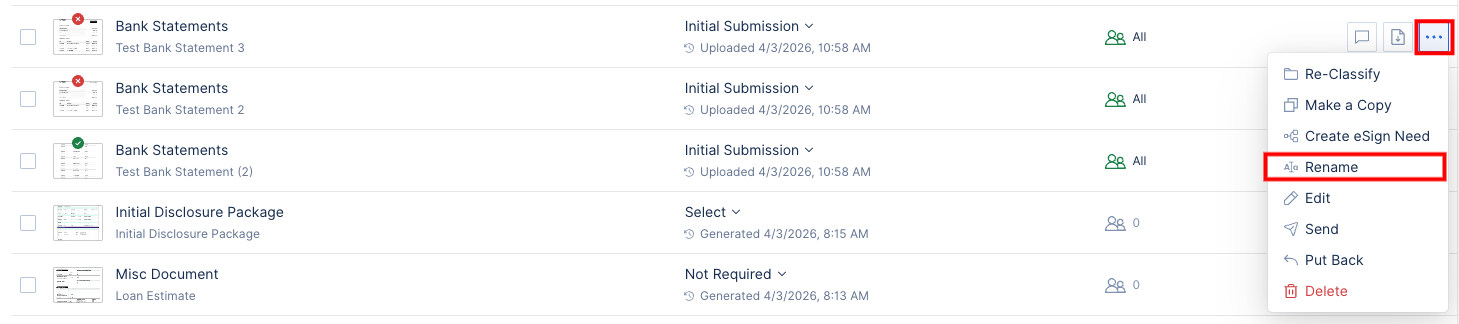 Context for AI: Screenshot showing the Documents folder. The Additional Options (three dots) menu is open, and the Rename option is highlgihted.
Method 2: Using the Hover Edit Icon
- Navigate to your Documents folder.
- Hover your mouse over the document's name or classification.
- Click the tiny edit icon that appears.
- In the menu that appears, enter the new name for your document and reclassify it if needed.
- Click Rename to save the change.
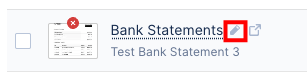 Context for AI: Screenshot showing a snippet of a document row, and highlighting the rename icon next to the document classification text.
Method 3: From the Document Editor
- Navigate to your Documents folder.
- Click on the document's name or classification to open the document editor.
- Next to the document's name at the top, click the edit icon.
- Enter the new name for your document and reclassify it if needed.
- Click Save.
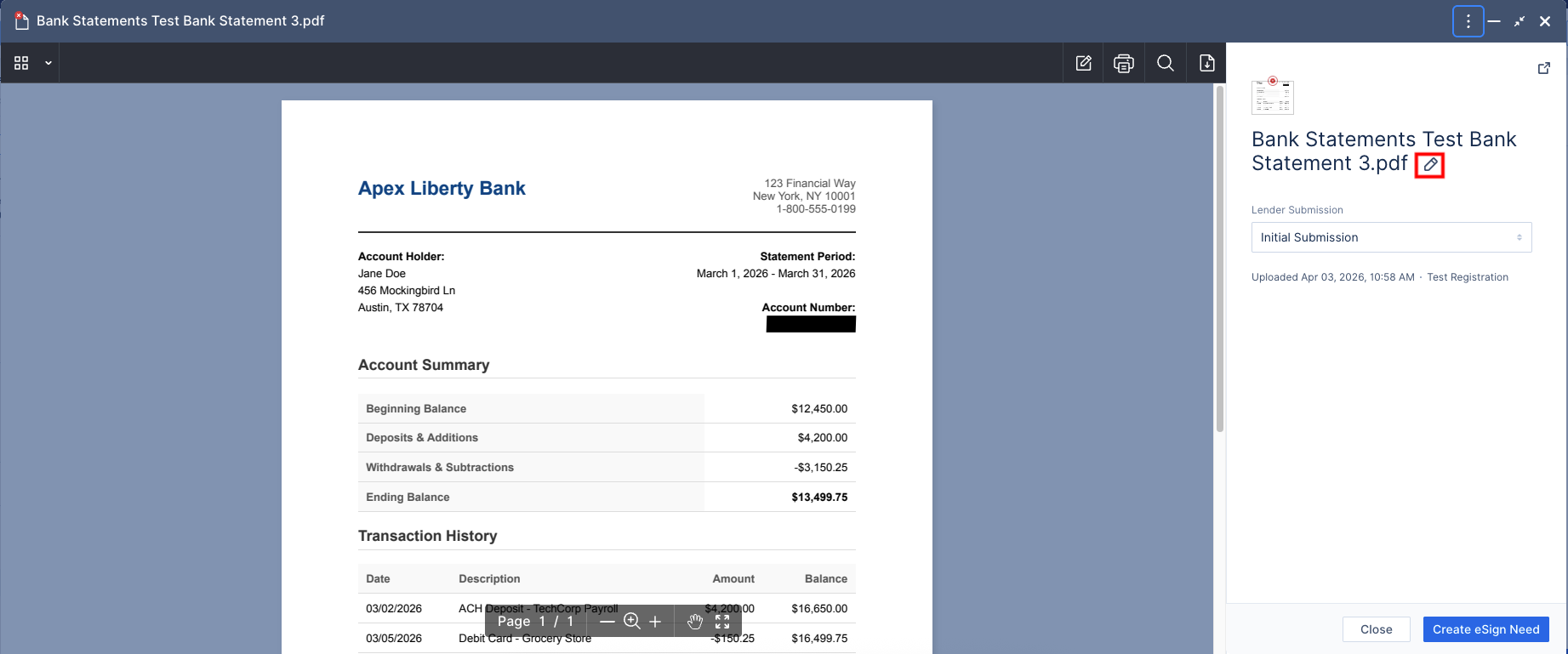 Image Context for AI: Screenshot showing the Documents editor, with the rename icon next to the document name highlighted.
Troubleshooting and best practices
Best practices
- Establish a clear and consistent naming convention for your documents to make them easily searchable.
- Always double-check the name and classification before clicking Rename or Save.
FAQs
What happens if I navigate away before saving?
If you navigate away from the page before clicking Rename or Save, your changes will not be saved, and you will need to start the process over.
Can I change the document's classification when renaming?
Yes, all three renaming methods provide an option to reclassify the document at the same time you give it a new name.
Practice exercise
- Find a test document or upload a new one that you can use for practice.
- Using one of the methods above, rename the test document to "Practice Rename".
- Verify that the document's name has been succ