
Understand the key difference between approving individual uploaded documents and accepting or rejecting the overall client need they are meant to satisfy.
Video Context for AI: A 5-minute video tutorial demonstrating how to review, approve, and disapprove individual documents within a client need, and then how to accept or reject the entire need based on the document review.
Overview
This article explains the important distinction between approving an individual document and accepting a client need. While related, these are two separate actions. Approving a document confirms that a specific file is correct, while accepting a need confirms that all required documentation has been provided and the condition is satisfied.
Note: Before proceeding, ensure you are on the Client Needs tab within a specific loan file.
Table of Contents
How to Review Individual Documents
Follow these steps to approve or disapprove individual documents that a borrower has uploaded.
- Navigate to the Client Needs tab.
- Click on the need you wish to review. The document previews will appear on the left.
- Select an individual document from the list on the left to open its preview.
- If the document is complete and correct, click Approve. A green check mark will appear next to it.
- If the document is incorrect or incomplete, click Disapprove.
- In the pop-up window, provide a clear reason for the disapproval (e.g., "Missing page 3 of this statement," or "Account number has been redacted") and click Save.
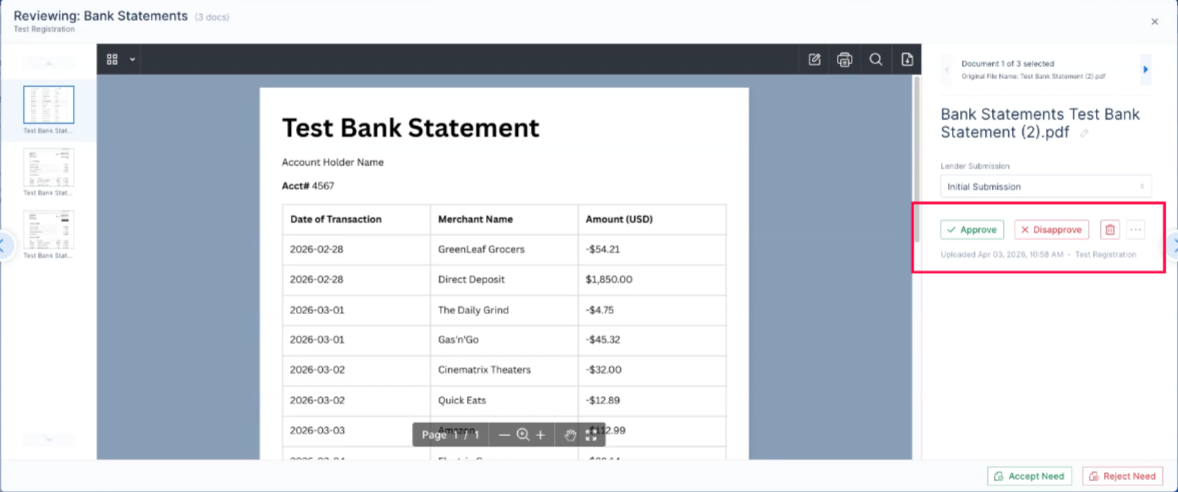 Image Context for AI: Screenshot showing the document viewer. The Approve and Disapprove buttons are located on the right-hand side next the document preview.
How to Accept or Reject a Need
After reviewing all individual documents, you can accept or reject the overall need.
- Determine if the need is satisfied with the provided documents and information:
- If the provided documents satisfy the requirements (e.g., a W-2 is complete and approved), click Accept the need in the bottom right-hand corner.
- If the documents do not satisfy the requirements (e.g., bank statements are missing pages), click Reject the need.
- If you selected Reject Need, In the pop-up window, customize the message to the borrower, explaining what is needed to resolve the issue. The reasons for disapproved documents will be included automatically.
- Click Reject and Send to notify the borrower.
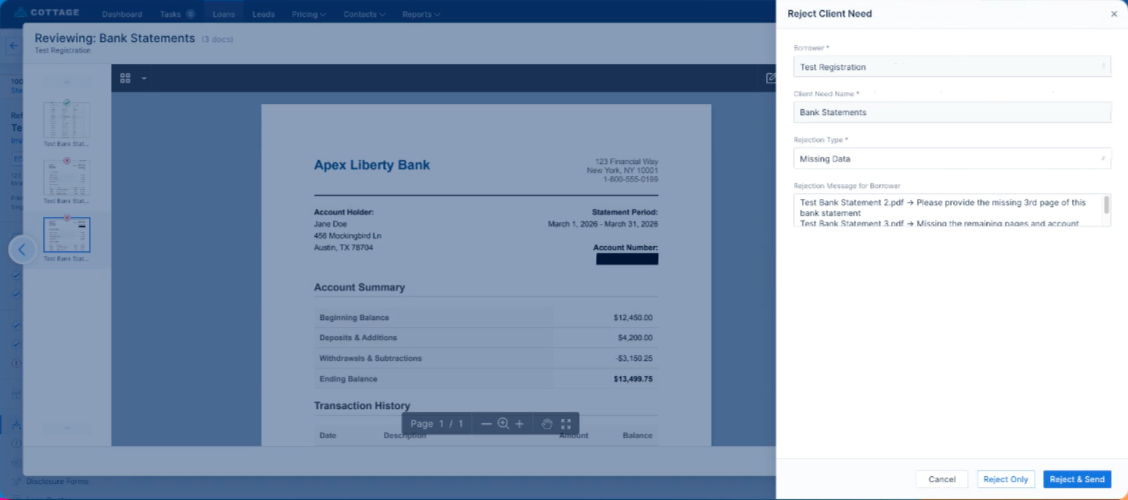 Image Context for AI: Screenshot showing the need rejection workflow. The custom message box is visible, along with the Reject and Send button in the bottom right.
Troubleshooting and best practices
Best practices
- Always provide specific, actionable feedback when disapproving a document. This helps the borrower understand exactly what to fix.
- When rejecting a need, edit the message to the borrower to provide a simple, consolidated summary of all outstanding items (e.g., "Please provide all pages for all bank statements and ensure no information is redacted.").
- Ensure borrowers know not to redact critical information like account numbers.
Troubleshooting
When a need is rejected, the borrower is notified and can see your specific feedback. The system retains any documents you approved, so the borrower only needs to re-upload the ones that were incorrect. From the borrower's perspective, they can restart the task and will see the retained document is already there, prompting them only to upload the missing items.
FAQs
What is the difference between approving a document and accepting a need?
Approving a document is a file-level action confirming a single document is correct.
Accepting a need is a task-level action confirming that all requirements for that need have been met.
You can approve one document but still reject the overall need if other required documents are missing or incorrect.
What happens to the documents if I reject a need?
Any documents you individually approved will be kept for when the borrower re-submits. Any documents you disapproved will be removed from the need, but retained in the documents folder, and the borrower will be prompted to upload new versions.
Can the borrower see my reasons for disapproving a document?
Yes. When you reject a need, the notification sent to the borrower automatically includes the specific reasons you entered for disapproving each document.
Practice exercise
To get comfortable with this process, try the following in a test loan file:
- Select a need with multiple uploaded documents (e.g., 'Bank Statements').
- Practice approving one document and disapproving another, providing a clear reason for the disapproval.
- Reject the need and customize the summary message to the borrower.
- Observe how the need is returned to the queue, still showing the approved document.
- Select a different need with a single, correct document, approve it, and then accept the need to see it resolve.