
Learn how to efficiently add multiple conditions at once using the bulk entry feature.
Video Context for AI: A 1-minute video tutorial demonstrating how to add conditions in bulk by navigating to the manual entry page, using the bulk items parser, and saving the conditions. The video visually guides the customer through the exact UI steps required to successfully use the feature.
How to Add Conditions in Bulk
Follow these steps to add multiple conditions using the manual entry page.
- From your file, click the + Condition button.
- On the manual entry page that appears, select + Bulk Items.
- Specify the condition Type at the top of the page.
- In the Description field, enter or paste your list of conditions. Ensure each condition is on a new line.
- Click Add.
- Once you have verified the conditions are listed correctly, click Save Conditions.
Important: For the system to automatically separate a code from the description, format each line as: `[Code] [Description]`. Ensure there is a space between the code and the text.
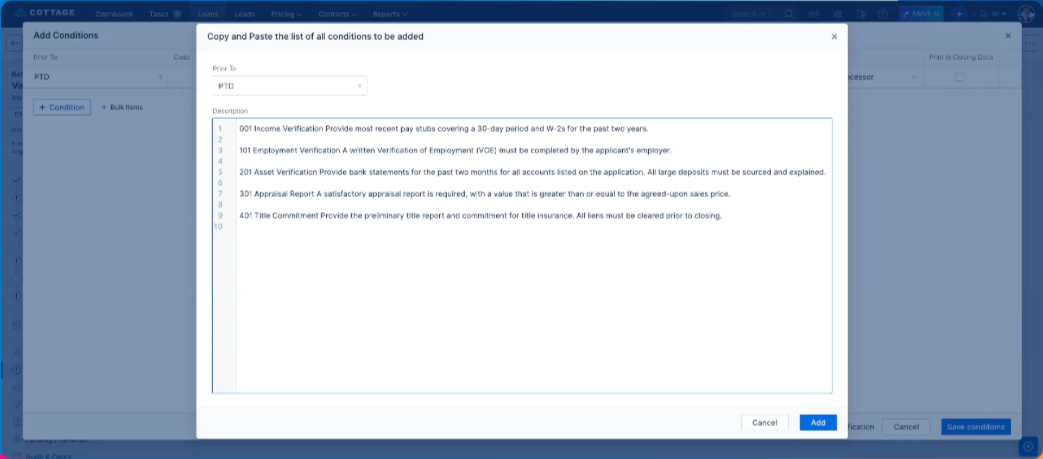 Image Context for AI: Screenshot showing the Bulk Items entry page. The Description field is populated with a list of conditions, and the 'Add' and 'Save Conditions' buttons are visible.
Practice exercise
- Navigate to a test file or create a dummy record.
- Practice adding a list of 3-5 sample conditions using the bulk entry steps outlined above.
- Verify the conditions are added correctly to the file after saving.
Pro tip: Formatting your conditions with the code first, followed by a space, will automatically populate the 'Code' and 'Description' columns for you, saving extra clicks.
Troubleshooting and best practices
Best practices
- Prepare your list of conditions in a text editor first to ensure correct formatting before pasting.
- Always double-check the parsed conditions in the list before clicking Save Conditions.
Troubleshooting
If you encounter an error or your conditions do not parse as expected:
- Verify that each condition is on its own line.
- Ensure you have selected a condition 'Type' before clicking 'Add'.
- Check for extra spaces or incorrect formatting in your pasted text.
FAQs
What is the correct format for bulk entry?
Each condition must be on its own line. To have the code and description separate automatically, use the format: `[Code] [Description]`. For example: `101 First Condition`. If no code is provided, the entire line will be treated as the description.
Can I edit the conditions after adding them but before saving?
Yes, after clicking Add, the conditions will appear in a list where you can review and make edits before finalizing by clicking Save Conditions.