
Learn how to easily resend client needs to your borrowers with this step-by-step guide.
Video Context for AI: A 1-minute video tutorial demonstrating how to resend client needs by selecting them on the Client Needs page and using the Preview and Send feature.
How to Resend Client Needs
Follow these steps to send a reminder for outstanding client needs.
- Navigate to your Client Needs page.
- Select the client needs you wish to resend by using the checkbox on the left-hand side of each need.
- Click Preview and Send in the bottom right-hand corner.
- Review the email preview to ensure the correct needs are included.
- Click Send.
Important: A new email with the borrower needs selected will be sent to the borrower that was selected to fill the need.
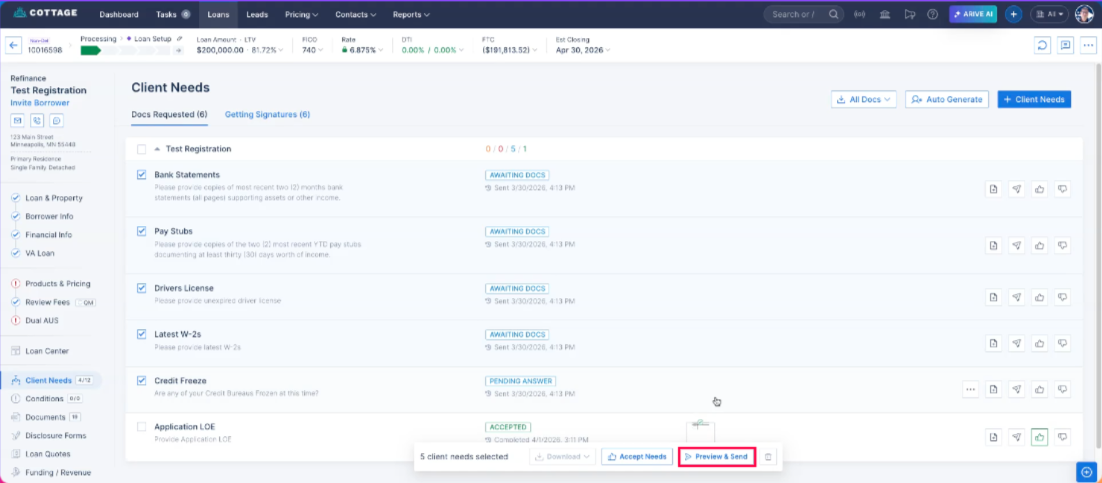 Image Context for AI: Screenshot showing the Client Needs page. The Preview and Send button is located in the bottom right corner of the screen.
Troubleshooting and best practices
Best practices
- Always double-check which needs are selected before clicking Send.
- Review your configurations regularly to ensure they meet your team's needs.
Troubleshooting
If you encounter an error message:
- Refresh your browser page.
- Verify your internet connection is stable.
FAQs
What happens if I select a client need that has already been completed?
The system will still include the completed need in the email. It is important to uncheck any completed or received needs before sending to prevent confusion for your client.
Can I customize the email before sending?
The Preview and Send step allows you to see exactly what will be sent to the client. This ensures you are aware of the email's contents before it is delivered.