
Learn how to efficiently link new or existing client needs directly to loan conditions to streamline your workflow.
Video Context for AI: A 2-minute video tutorial demonstrating how to navigate to the loan file's condition list, configure the Client Needs attachment feature, and save the settings. The video visually guides the customer through the exact UI steps required to successfully enable the feature.
Generate a New Client Need from a Condition
Follow these steps to create and link a new client need.
- From the loan file, navigate to the list of conditions.
- Locate the condition you want to link and click the Add/Attach Client Need icon (a user icon with a plus sign).
- Select Add New Client Need from the dropdown.
- Choose a template from the list (e.g., 'Letter of Explanation Asset').
- The need's description will pre-fill from the condition. You can optionally click the provided link to use the default client need language instead.
- Click Preview and Send or Save. The icon will turn green with a checkmark, confirming the link is successful.
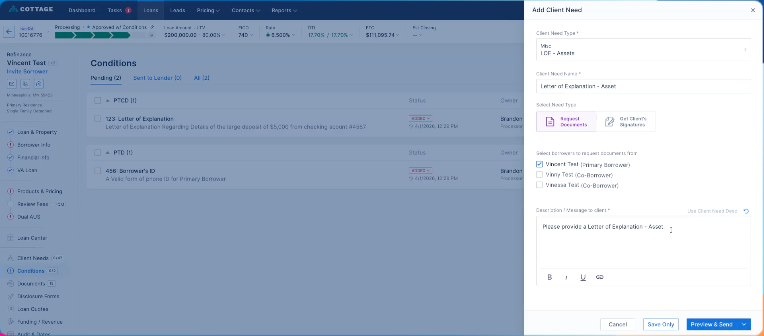 Image Context for AI: Screenshot showing the "Add New Client Need" modal. The "Preview and Send" button is located in the bottom right corner.
Attach an Existing Client Need to a Condition
Follow these steps to link a pre-existing client need.
- From the loan file, navigate to the list of conditions.
- Locate the condition you want to link and click the Add/Attach Client Need icon.
- Select Attach Existing Client Need from the dropdown.
- Scroll and select the appropriate client need from the list (e.g., 'Driver's License').
- Click Attach. The icon will turn green with a checkmark, confirming the link is successful.
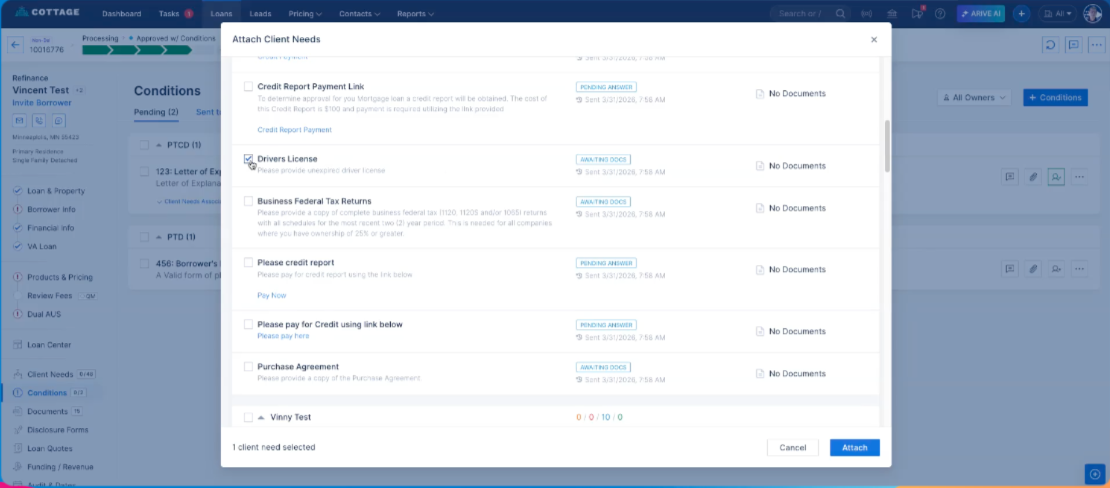 Image Context for AI: Screenshot displaying the "Attach Existing Client Need" modal with the "Attach" button in the bottom right corner.
Troubleshooting and best practices
Best practices
- Always double-check you are linking the correct client need to the correct condition.
- Use templates for new client needs whenever possible to maintain consistency.
- A green checkmark icon is your confirmation that the link was successful.
Troubleshooting
If you encounter an issue:
- Icon does not turn green: Refresh the page. If the issue persists, ensure you clicked 'Save' or 'Attach'.
- Cannot find an existing need: The client need may not have been created yet. Use the 'Generate a New Client Need' workflow first, or check for typos in your search.
FAQs
Can I attach multiple client needs to one condition?
Yes. As shown in the tutorial, you can generate or attach multiple client needs from a single condition, and they will all link back to it.