
Learn how to input the VA Net Tangible Benefit by correctly setting up your loan file and entering the required information.
Video Context for AI: A 1.5-minute video tutorial demonstrating how to input the VA Net Tangible Benefit by configuring the loan type and entering details in the Loan Info or Disclosure Forms sections.
- Navigate to Loan Info.
- Set the Mortgage Type to VA.
- Ensure the loan is set as a Refinance.
- Set the Refinance Type to VA Cash Out Type 1 or VA Cash Out Type 2.
- Scroll to the bottom of the Loan Info Section and locate the Net Tangible Benefit field.
- Select the applicable benefit from the dropdown menu. If you choose Other, a new field will appear where you can enter a custom description.
- Click the blue text for adding the existing Loan Info to open a window to enter the details of the current loan.
- Click Save to confirm the details.
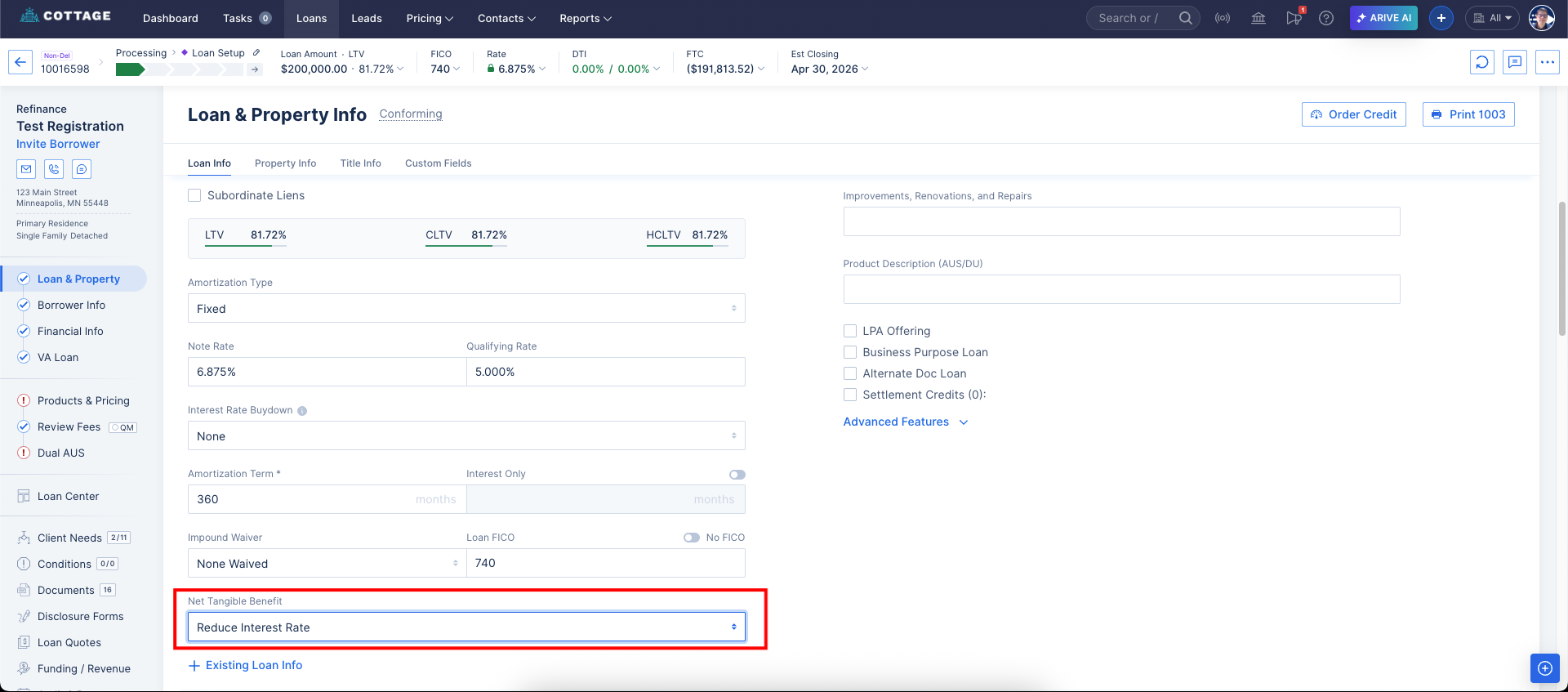 Image Context for AI: Screenshot showing the Loan Info setup screen. The Net Tangible Benefit dropdown is located at the bottom of the page and is ready for selection.
Alternative Method
You can also access the existing loan details modal from the Disclosure Forms tab.
- Navigate to the Disclosure Forms tab.
- Click the Net Tangible Benefit submenu.
- Click the Edit button in the top right-hand corner to open the details modal.
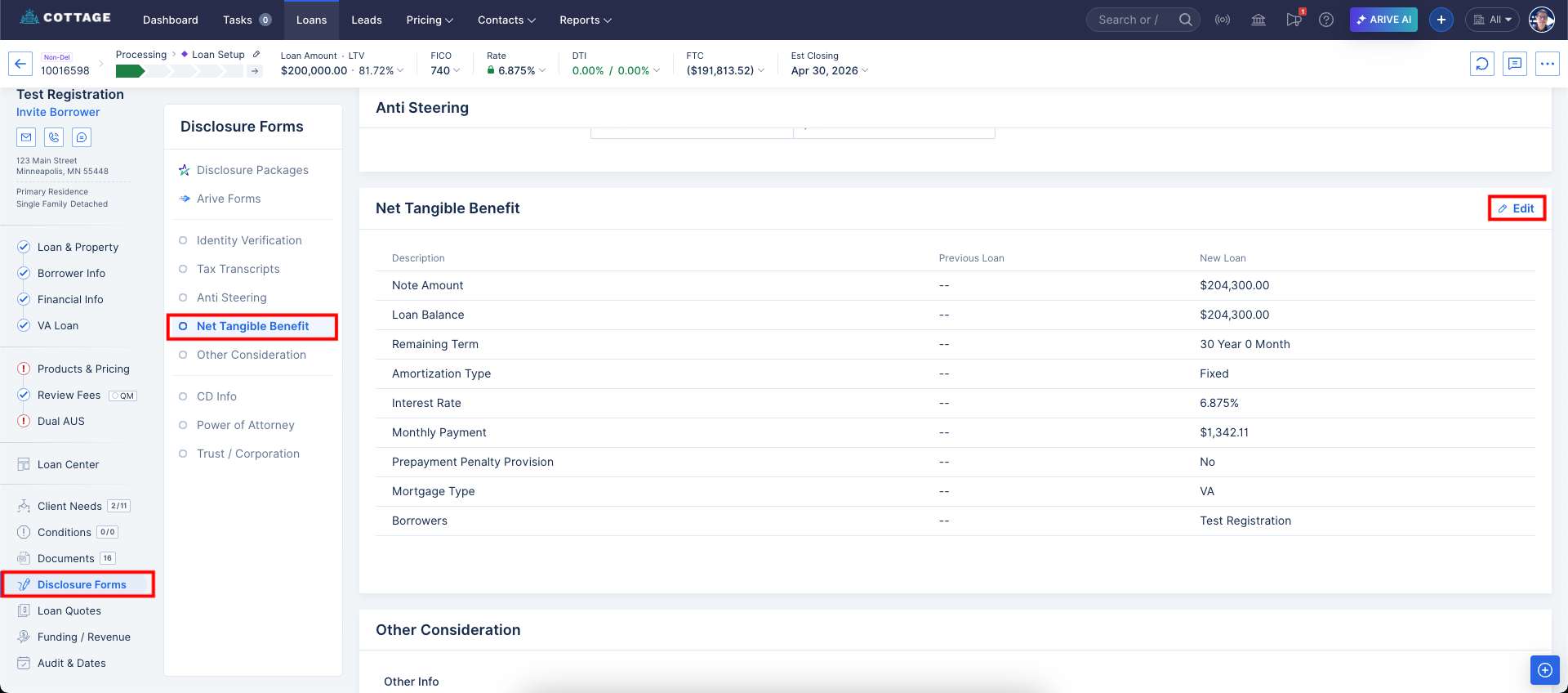 Image Context for AI: Screenshot displaying the Net Tangible Benefit submenu within the Disclosure Forms tab. The Edit button is located in the top right corner.