
Learn how to easily input and manage construction loan details within your loan file's property information section.
Video Context for AI: A 1-minute video tutorial demonstrating how to navigate to the Loan and Property tab, configure Construction Loan Details, and save the settings. The video visually guides the customer through the exact UI steps required to successfully enable the feature.
- Navigate to the Loan and Property tab and scroll to the Property Info section.
- Under the Transaction Detail heading on the left, check the Construction Loan box.
- Enter the required details in the newly enabled fields, such as improvement costs, lot value, and construction period.
Important: Always save your changes after entering or updating details to ensure they are not lost.
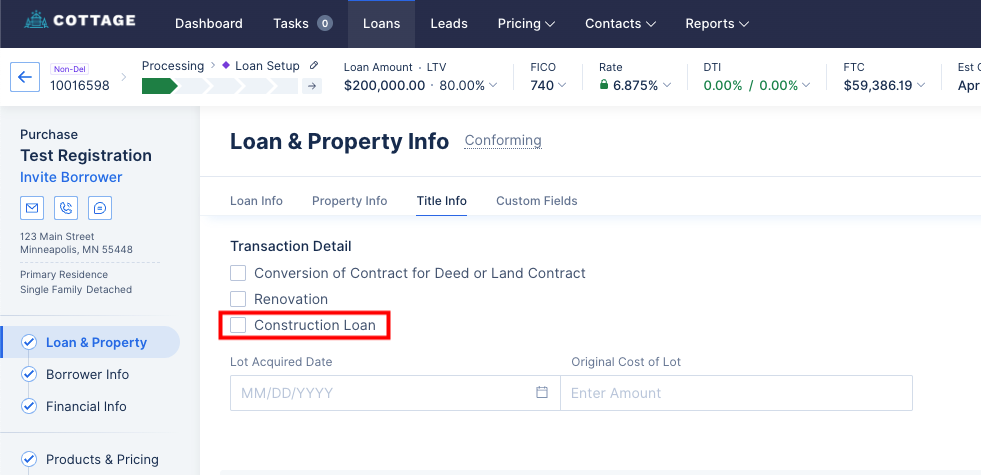 Image Context for AI: Screenshot of the Property Info section in the loan file. The 'Construction Loan' checkbox under the 'Transaction Detail' heading is highlighted to show users where to click.
How to Update Construction Status
To reflect the current status of the construction project:
- In the Property Info section, locate the Constructions drop-down menu on the right side.
- Click the drop-down and select the current status of the project.
- Click Save to apply your changes.
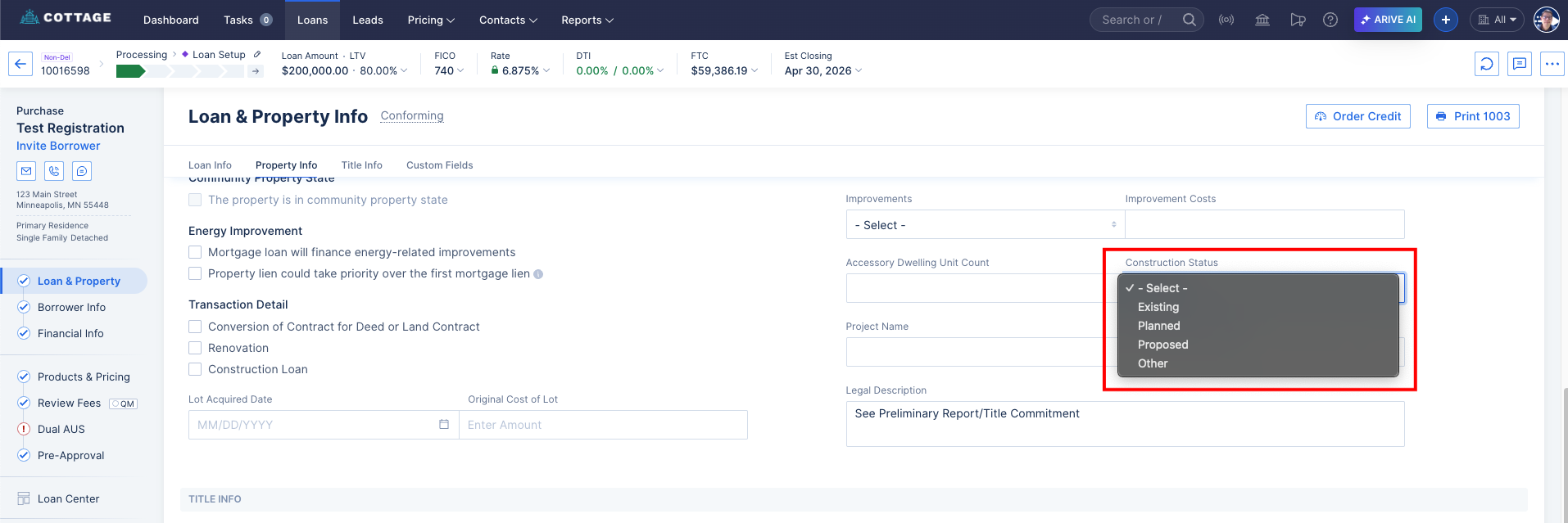 Image Context for AI: Screenshot of the right side of the Property Info section. The 'Constructions' drop-down menu is highlighted to show users where to select the project status.