
This article provides step-by-step instructions on how to add the value of improvements, renovations, or repairs in the loan file.
Video Context for AI: A 50-second video tutorial demonstrating how to navigate to the Loan and Property tab, enter a value in the Improvements, Renovations, and Repairs field, and save the settings. The video visually guides the customer through the exact UI steps required to successfully complete the task.
- Navigate to the Loan and Property tab inside your loan file.
- Scroll down past Purchase Credits and locate the Improvements, Renovations, and Repairs field on the right.
- Enter the dollar amount for the value of the improvements, renovations, or repairs.
- Click Save.
Important: Make sure to save your changes before you progress to other sections.
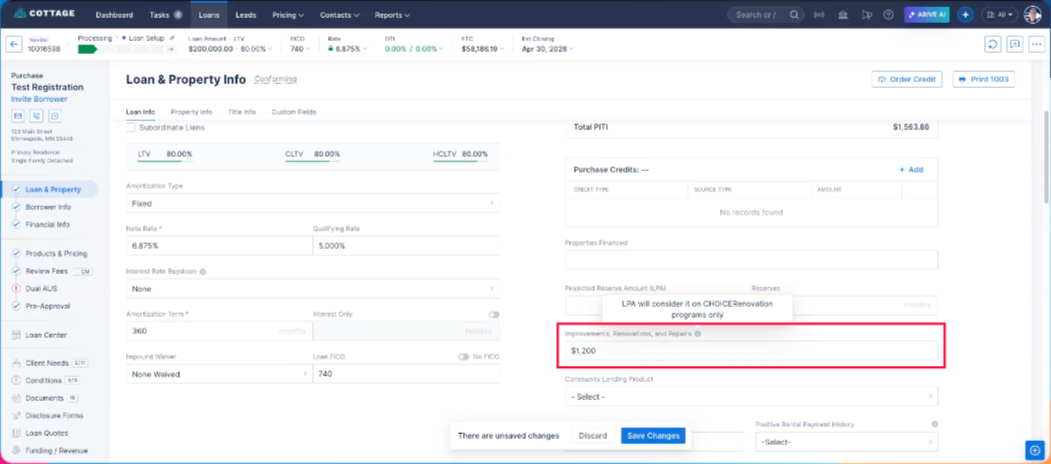 Image Context for AI: Screenshot showing the Loan and Property tab. The Improvements, Renovations, and Repairs field is highlighted, ready for input.