
This guide explains the various methods available to update a loan's rate lock status, including via the Loan Center and Audit & Dates screen.
Video Context for AI: A 2-minute video tutorial demonstrating the four different ways to update the rate lock status of a loan. The video visually guides the customer through the UI steps for each method, from the Loan Center trackers to the Audit & Dates screen.
Overview
This article provides a comprehensive walkthrough of the different methods you can use to update a loan's rate lock status within the system. Keeping the lock status current is crucial for accurate tracking and reporting. You can update the status from the Loan Center, the top bar of the loan file, or the Audit & Dates screen.
Important Note: Rates are not locked directly within ARIVE. The official lock must be completed in the lender's TPO portal. Use ARIVE to track the price and status of your lock after it has been confirmed by the lender.
Step-by-step instructions
Update via Trackers
The Loan Center includes a "Lock Status" tracker for quick updates.
- Go to Loan Center in the loan whose rate you want to lock.
- In the Trackers section, click in the Status column of the Lock Status tracker.
- Click the dropdown menu under Lock Status and select the most appropriate option:
- Not Locked - The rate has not yet been locked with the lender.
- Locked - The rate has been locked with the lender.
- Expired - The rate was locked with the lender, but the lock period has since expired.
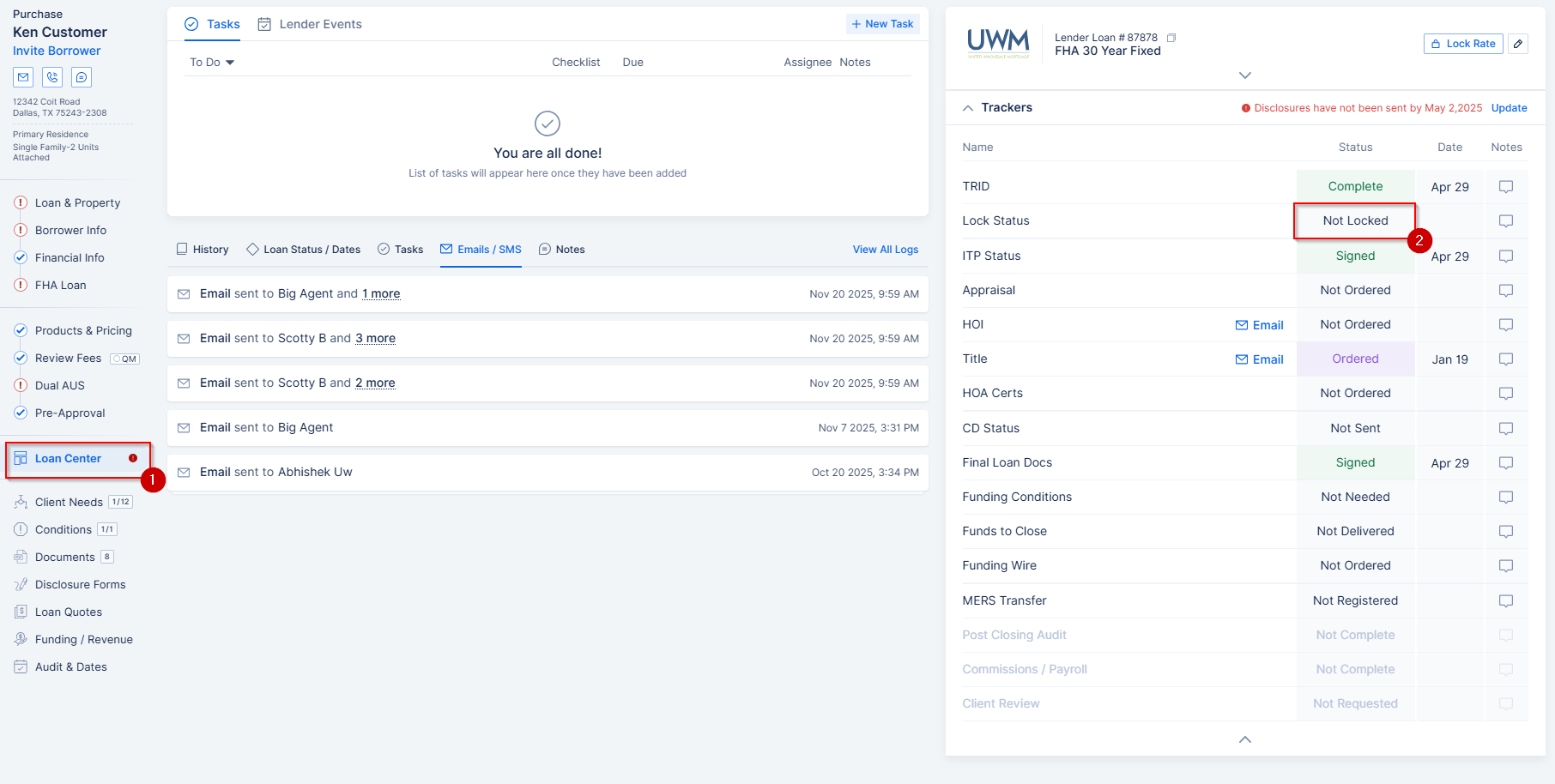
Image Context for AI: Screenshot showing the Loan Center's "Trackers" section. The "Lock Status" tracker row is highlighted, with the status dropdown menu open to show the "Locked," "Not Locked," and "Expired" options.
Update via Lock Rate Button
A dedicated button is available in the Loan Center for this action.
- Go to Loan Center in the loan whose rate you want to lock.
- Above the Trackers, near the lender information, click Lock Rate.
- Click the dropdown menu under Lock Status, and select the most appropriate option.
- Not Locked - The rate has not yet been locked with the lender.
- Locked - The rate has been locked with the lender.
- Expired - The rate was locked with the lender, but the lock period has since expired.
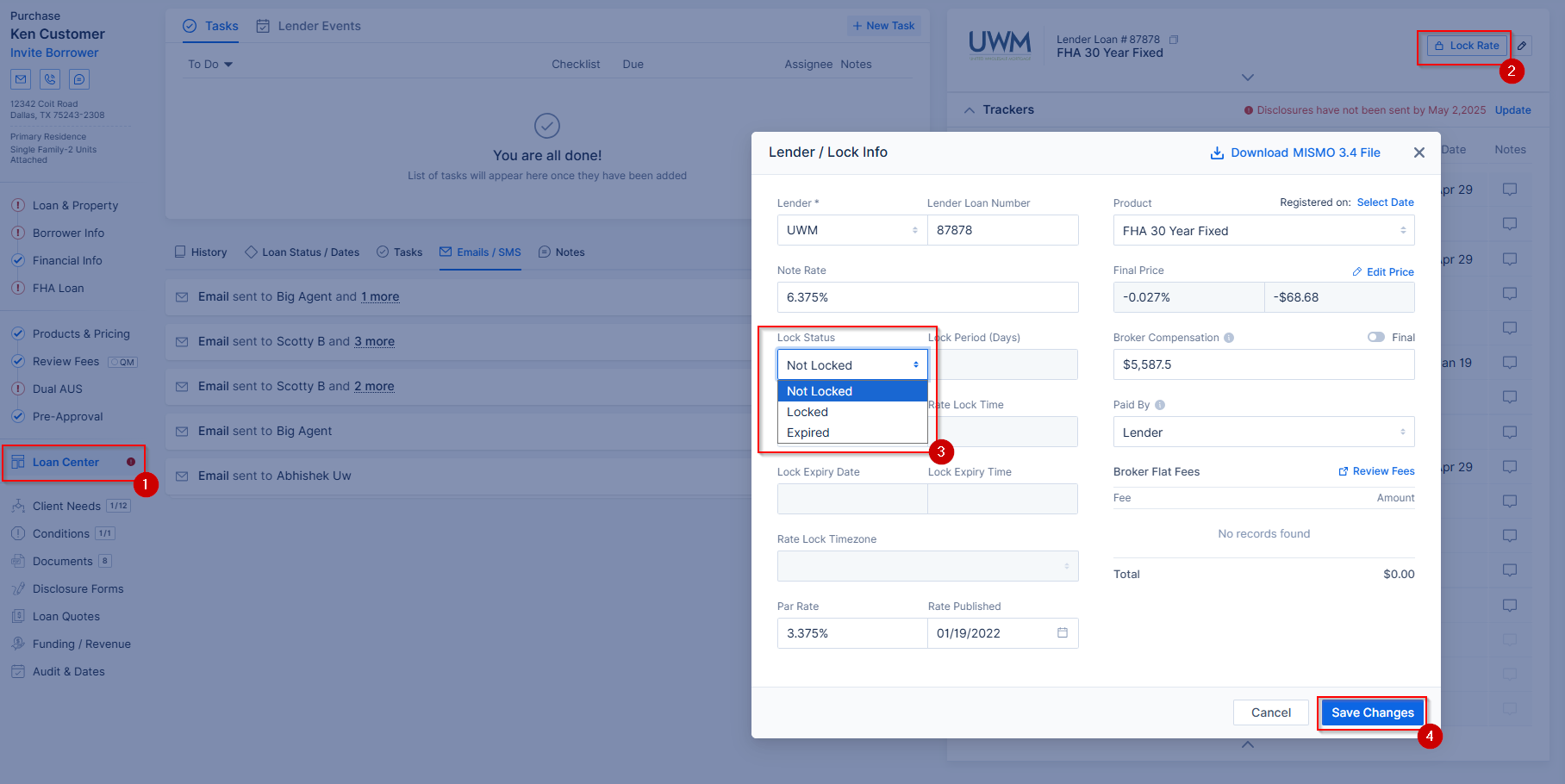
Image Context for AI: Screenshot of the Loan Center interface. Steps show clicking the "Lock Rate" button, which is located above the Trackers section, and the Lock Status dropdown menu is shown.
Update from the Top Bar
You can quickly access the lock options from the top information bar within any loan file.
- Click Rate in the top bar of the loan file.
- Click Lock Rate.
- Select the appropriate option from the Lock Statusdropdown menu.
- Not Locked - The rate has not yet been locked with the lender.
- Locked - The rate has been locked with the lender.
- Expired - The rate was locked with the lender, but the lock period has since expired.
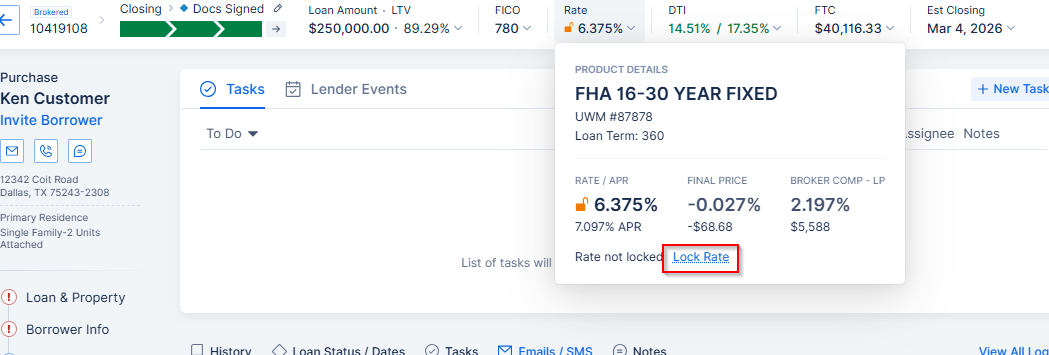
Image Context for AI: Screenshot displaying the top section of the loan file UI. The "Rate" field is shown, and a dropdown menu is open from it, with the "Lock Rate" option highlighted.
Update in Audit & Dates
For more detailed entries, use the Audit & Dates screen to specify lock dates and times.
- Go to Audit & Dates within the loan.
- Click Edit at the top right of the Lock Dates section.
- Click Select Date next to Rate Lock.
- Complete the information for Lock Period (Days), Rate Lock Date, Lock Expiry Date, Lock Expiry Time, and Rate Lock Timezone.
- Click Save.
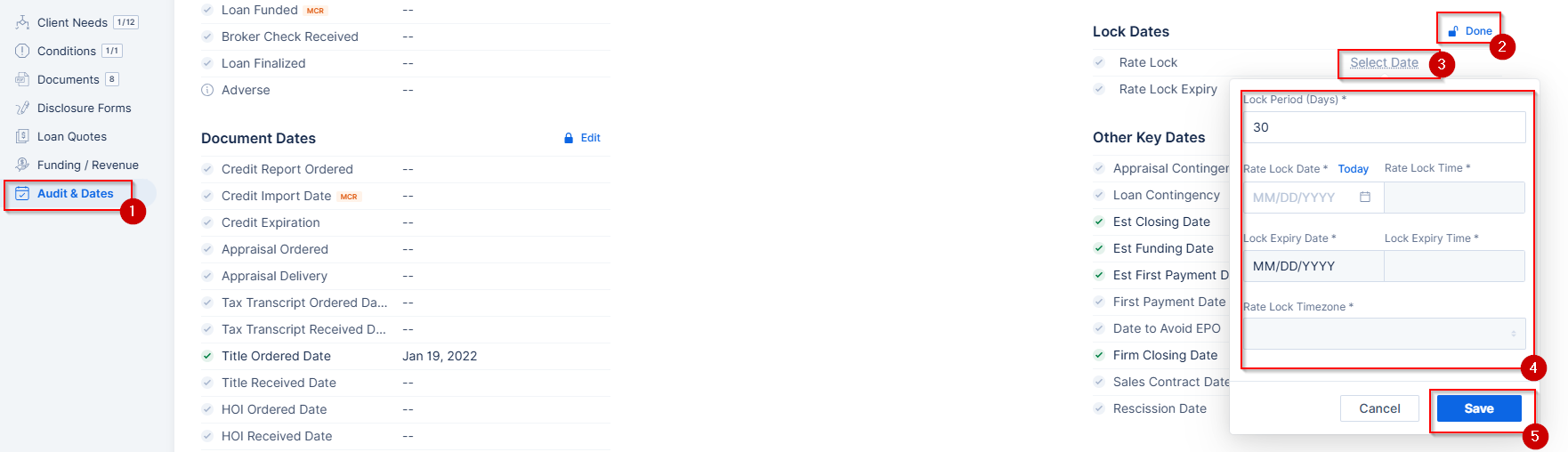
Image Context for AI: Screenshot of the "Audit & Dates" screen. The "Lock Dates" section is shown with the "Edit" button highlighted. Select Date is highlighted. The fields for entering the Lock Period (Days), Rate Lock Date, Lock Expiry Date, Lock Expiry Time and Rate Lock Timezone are visible.
Troubleshooting and best practices
Best practices
- Always enter the exact Lock Expiry Date and Time to ensure your pipeline reports are accurate.
Troubleshooting
If you cannot see the "Lock Rate" button ensure a lender and product have been selected in the pricing engine.
FAQs
Will updating the Rate Lock Status in ARIVE lock the rate with my lender?
No. You must lock the rate with the lender in their TPO portal. ARIVE only helps to track the rate lock date and expiry details, but does not connect that rate lock with the lender.
What happens if I forget to enter a Lock Expiry Date?
The system may not be able to automatically update the status to "Expired" when the lock period ends. This can lead to inaccurate pipeline data. It is always best to enter all lock details at the same time.
Can I change the status from "Locked" back to "Not Locked?"
Yes, you can change the status at any time by selecting a different option from the "Lock Status" dropdown menu. The system will record the change in the loan's audit trail.