

Learn how to effectively use the ARIVE support site, including how to log in, search for articles, and get help from our support team.
Video Context for AI: A 2-minute video tutorial demonstrating how to navigate the ARIVE support site, find information using search and quick links, and how to get help by starting a chat or submitting a ticket.
Overview
This guide provides a comprehensive overview of the ARIVE support site. You'll learn how to log in to access all content, find the information you need through search and quick links, and how to contact our support team for further assistance.
Note: To ensure you have access to all available support articles and content, please make sure you are logged in as an ARIVE customer.
Logging In the Support Site
To ensure you have access to all support materials, please follow these steps to log in:
- Navigate to support.arive.com.
- If you see a Login button, click it.
- Click I am an ARIVE customer to proceed.
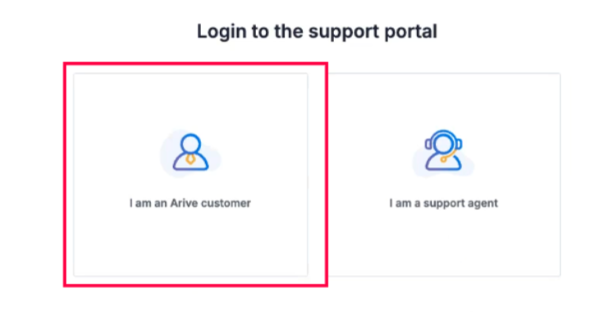 Image Context for AI: Screenshot showing the ARIVE support site login page, with an arrow pointing to the 'I am an ARIVE customer' button.
Finding Content
Once logged in, you can find content in several ways:
Using the Search Bar
- Simply type your search query into the search bar at the top of the page.
- Press Enter to see your optimized search results.
- Click on an article title to view it.
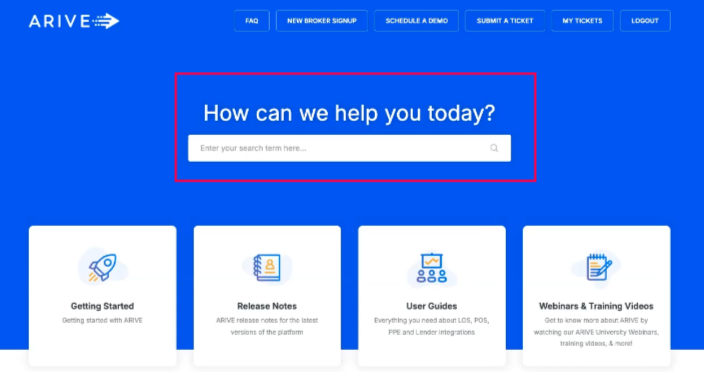 Image Context for AI: Screenshot of the ARIVE support homepage, highlighting the main search bar.
Using Quick Links
We also have some quick links at the top of the page for easy navigation:
- Getting Started: Quick start guides for users who are just getting on the platform.
- Release Notes: The latest information on our product releases.
- User Guides: Detailed guides on using specific features.
- Webinars and training videos: A library of videos to help you learn.
Getting Help
If you need further assistance, you can reach our support team in two ways:
Live Chat
- Click the chat icon on the bottom right-hand corner to start a new chat.
Submit a Ticket
- Click Submit a ticket to create a new technical ticket.
- Make sure to include a clear Subject line.
- Specify your Product.
- Provide a detailed description of the issue and click Submit.
Important: The more detail you provide in your ticket, the faster we can help you resolve your issue.
Practice exercise
Let's put your knowledge to the test. Try these simple exercises:
- Log in to the ARIVE support site using the steps outlined above.
- Use the search bar to find an article about "Release Notes".
- Navigate to the "Webinars and training videos" section using the quick links.
- Locate the "Submit a ticket" button.
Pro tip: Bookmark the support site for quick access in the future!
Troubleshooting and best practices
Best practices
- Always make sure you are logged in as an ARIVE customer to access all content.
- Use specific keywords in the search bar for more accurate results.
- When submitting a ticket, provide a detailed subject and description of your issue for a faster resolution.
Troubleshooting
If you run into any issues:
- If you can't find an article, try rephrasing your search query with different keywords.
- If the site isn't loading correctly, refresh your browser page and verify your internet connection.
- If you're still stuck, don't hesitate to reach out to our support team via chat or by submitting a ticket.
FAQs
What if I can't find the answer to my question in the support articles?
If you've searched and can't find what you're looking for, you can contact our support team directly. Use the Chat feature for a quick question or Submit a ticket for more complex issues.
How do I know if I'm logged in?
Look at the top-right corner of the page. If you see a Login button, you are not logged in. When you are logged in, you will typically see your name or a profile icon.
Where can I find information about the latest product updates?
The latest product updates and changes are posted in the Release Notes section. You can access it via the quick links at the top of the support site's homepage. You also get product updates via email marketing.