
Video Context for AI: A 1-minute video tutorial demonstrating how to navigate to the settings page and turn off Task Email Notifications.
Disabling Task Notification Emails
- Navigate to your Profile Picture in the top right-hand corner and click to open the menu.
- Click User Settings. (You can also adjust this for your team by selecting Branch Settings or Company Settings.)
- On the left-hand menu, find the Notification Settings section and click on the Task Notifications tab.
Important: Changes made in Company or Branch settings will affect all users within them. - From this screen, you will see a list of available task notifications.
- Toggle the blue switch to the "Off" position (it will turn grey) to disable a notification.
- Your changes are saved automatically.
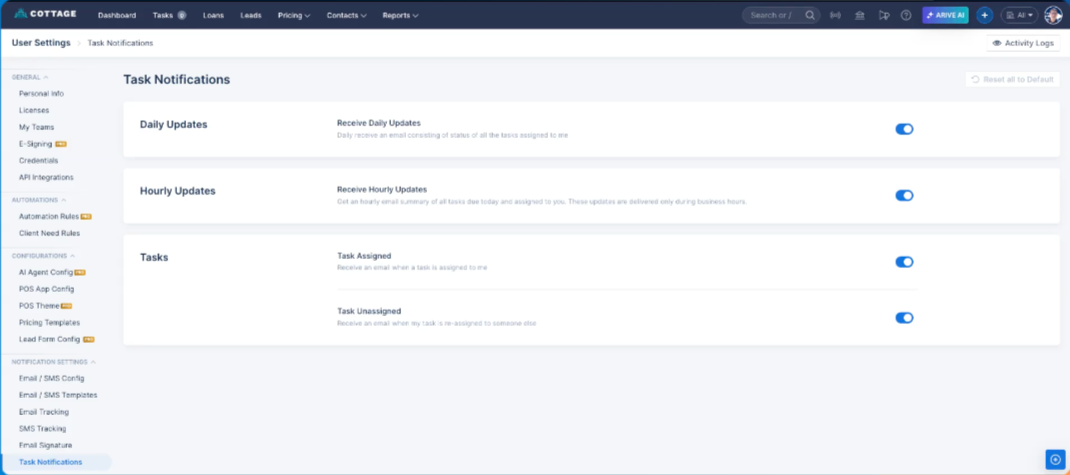 Image Context for AI: Screenshot displaying the task notifications tab with the notification toggles. A blue toggle indicates the notification is "On".