
Learn how to set up, configure, and manage your fee structure to improve your daily workflow.
Video Context for AI: A 3-minute video tutorial demonstrating how to navigate to Company Settings to configure both lender-specific fees (on the Lenders tab) and non-lender-specific fees (on the Closing Costs screen). The video visually guides the customer through the exact UI steps required to successfully add and edit fees.
Part 1: Lender-Specific Fees
Use these steps to set up fees that only apply to a single, specific lender.
Navigate to Company Settings by clicking your profile picture in the top right corner.
Click the Lenders tab.
Select the desired lender from your Marketplace or manual lenders list.
Click the Fees option that appears in the top row.
Click the + Fee button to add a new fee. To modify an existing one, click the three-dots menu and select Edit.
In the side panel, enter the required details, such as the Fee Name, Code, calculation method, and any product-specific rules.
Click Save Fee.
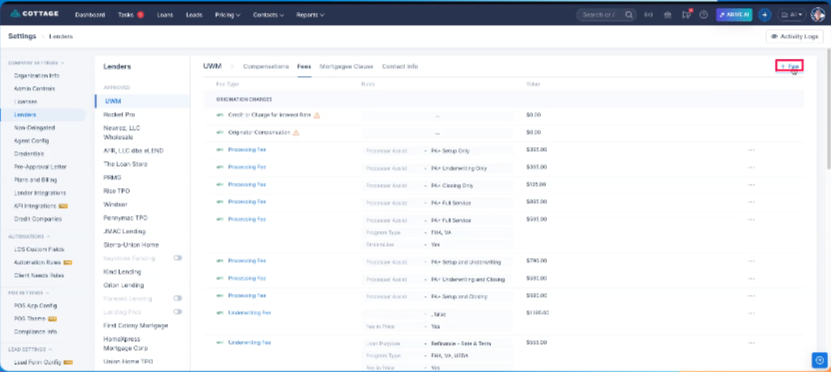
Image Context for AI: Screenshot showing the lender-specific fees screen. The + Fee button is located in the top row after selecting a lender.
Part 2: Non-Lender-Specific Fees (Closing Costs)
Use these steps to create general fees that can apply across all lenders and products based on logic.
Navigate to Company Settings.
Click the Closing Costs tab.
Click the + Fee button in the top right corner.
In the side panel, specify the Section, Grouping, Fee Name, Code, calculation options, and any other required flags.
Click Save.
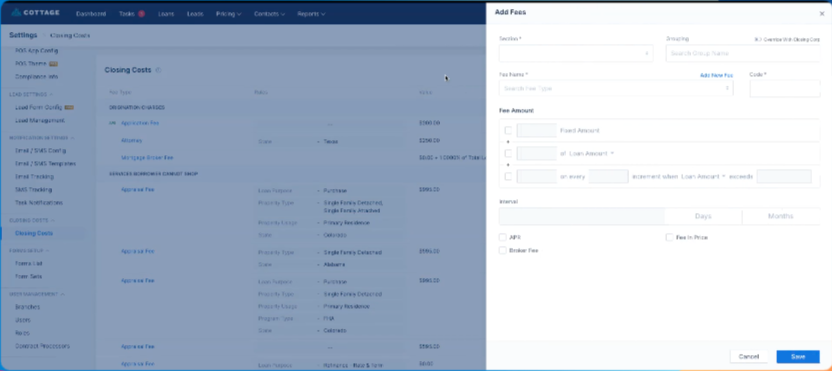
Image Context for AI: Screenshot displaying the Closing Costs settings tab. The + Fee button is located in the top right corner of the screen.
Troubleshooting and best practices
Best practices
Always double-check your fee calculations and logic before saving.
Be cautious when using the Sink PPE Fees feature, as it will override existing fees on a loan.
Regularly review your fee configurations to ensure they remain accurate and meet your team's needs.
Troubleshooting
If you encounter an error message:
Refresh your browser page.
Verify your internet connection and try the action again.
FAQs
What is the difference between fees on the Lenders tab versus the Closing Costs screen?
Fees configured on the Lenders tab apply only to that specific lender. Fees set up on the Closing Costs screen are general fees that can be applied to all lenders and loan products, unless you define logic that specifies otherwise.
What happens if I forget to click save?
If you navigate away before clicking Save Fee or Save, your changes will be lost and you will need to restart the process.
What does the "Sync PPE Fees" feature do?
This feature completely overrides the existing fee structure on a loan file with a new fee setup. It is a powerful tool that should be used with caution to avoid unintentionally removing correctly applied fees.