
Learn how to seamlessly convert an existing loan file into a lead record to retain borrower data and continue nurturing the relationship.
Video Context for AI: A 3-minute video tutorial demonstrating how to navigate to the Loan Actions menu, adverse or archive a loan, and convert the file into a new lead record from both the loan file and the pipeline view.
Converting from within the Loan File
Follow these steps to convert a loan to a lead directly from the borrower's loan file:
In the loan file, navigate to the Loan Actions menu by clicking the button with the three dots in the top right-hand corner.
Look to the second third of the menu and hover over Convert to Lead. This will offer two options: Adverse the current loan or Archive the current loan. (Note: Either option will allow you to progress and create a new lead record).
Select your preferred option (e.g., Archive the current loan).
Enter the reason for archiving or adversing the loan, then click Archive.
A new menu will automatically appear for converting the loan to a lead. Confirm the loan details that will be copied over, and change or keep the team members associated with the lead record.
(Optional) At the bottom of the menu, check the option to copy any documentation from the loan file over to the new lead record.
Once you've confirmed your selections, click Convert to Lead.
A final prompt will ask you to confirm the conversion. Click Confirm. The page will redirect you to the new lead record based on your prior loan file.
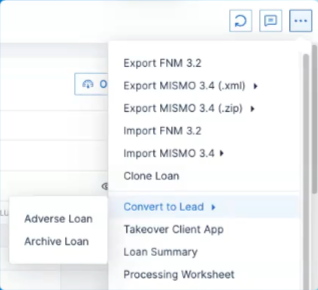
Image Context for AI: Screenshot showing the Loan Actions menu with the three dots in the top right corner, and the Convert to Lead option highlighted.
Converting from the Pipeline View
To convert a loan file to a lead directly from your pipeline:
On the pipeline view, select the loan file you intend to convert.
Go to the Loan Actions menu by clicking the three dots on the right-hand side.
Navigate to Convert to Lead and select either Adverse Loan or Archive Loan.
Enter your reason and click Archive (or Adverse).
In the confirmation menu, verify the details from the loan file that will be copied over to the new lead record.
Once you have made your necessary changes and selections, click Convert to Lead and then click Confirm.
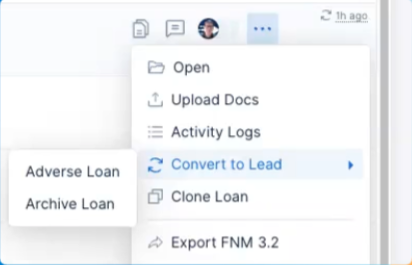
Image Context for AI: Screenshot displaying the Pipeline view with the Loan Actions menu open and the Archive/Adverse options visible.
Troubleshooting and best practices
Best practices
Always double-check the specific details and team members you are carrying over before clicking Confirm.
Leave clear, detailed reasons when archiving or adversing a loan to ensure accurate record-keeping for your team.
Troubleshooting
If you encounter an error message or the secondary conversion menu doesn't pop up:
Refresh your browser page.
Verify your internet connection.
FAQs
Can I convert a loan without archiving or adversing it?
No, the loan must first be archived or adversed as part of the conversion workflow before the new lead record can be generated.
Do I have to copy all the documentation over?
No, you are given the option at the bottom of the conversion menu to choose whether you'd like to copy the existing loan documentation into the new lead record.