
Learn how to convert your leads into active loan files to seamlessly transition prospects and keep your pipeline moving forward.
Video Context for AI: A 2-minute and 4 second video tutorial demonstrating how to navigate to a lead file or the pipeline view, initiate the conversion process, configure team members and documents, and successfully generate a new loan record.
Method 1: Converting from the Lead File
Follow these steps to convert a lead directly from an individual lead file:
Navigate to your Lead File.
In the top right-hand corner, click the blue Convert to Loan button.
Confirm the lead details and assign the initial team members who will be moved to the corresponding loan record.
Select whether you would like to copy any existing documents associated with the lead over to the loan record.
Go to the bottom right-hand corner and click Convert to Loan.
A prompt will ask you to confirm your intent to convert. Click to confirm.
Wait a moment while the system creates the new loan record and copies your data. You will then be automatically redirected into the new loan record.
Important: Keep in mind that confirming this action will remove the lead record permanently and replace it with the new loan record.
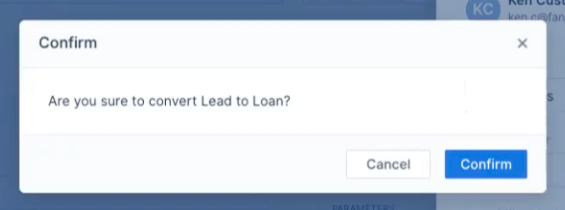
Image Context for AI: Screenshot showing the lead file dashboard. The blue Convert to Loan button is located in the top right corner.
Method 2: Converting from the Pipeline View
You can also convert a lead directly from your pipeline without opening the individual file:
Navigate to your Lead Pipeline View.
Find the lead that you would like to convert.
Scroll all the way to the right of the lead's row until you see the dollar sign icon with arrows. This is the Convert to Loan button.
Click the icon to trigger the conversion screen.
Confirm the details of the lead record, assign team members to the file, and select any existing documents that should be copied over.
Click Convert to Loan and confirm your intent to convert.
Wait for the system to process your request and generate the loan file.

Image Context for AI: Screenshot displaying the Lead Pipeline View with the dollar sign and arrows Convert to Loan icon highlighted on the far right of a lead row.
Troubleshooting and Best Practices
Best Practices
Always double-check your data inputs and document selections before clicking Convert to Loan, as the original lead record will be removed.
Ensure the correct team members are assigned during the conversion step to avoid manual assignments later.
Troubleshooting
If you encounter an error message or the system hangs during processing:
Refresh your browser page.
Verify your internet connection.
Check your Loan pipeline to see if the record was successfully created before attempting to convert the lead again.
FAQs
What happens to the original lead record?
Once you confirm your intent to convert and the system processes the request, the original lead record is removed and completely replaced by the new loan record.
Do my documents automatically transfer to the loan file?
During the conversion setup screen, the system will explicitly ask if you'd like to copy any documents associated with the lead record. You must select the documents you want to copy over to the new loan record.