
Learn how to set up, configure, and maximize the value of the Loan Cloning feature to improve your daily workflow.
Video Context for AI: A 2.5-minute video tutorial demonstrating how to navigate to the loan menu and pipeline view, configure the cloned loan details, and save the settings. The video visually guides the customer through the exact UI steps required to successfully clone a loan file.
Step-by-step instructions
Method 1: Cloning from inside a loan file
Follow these steps to clone a loan while actively working inside a loan file:
Open the loan file you wish to clone.
Navigate to the loan menu in the top right-hand corner by clicking on the three dots.
Select the option to clone the loan.
Tweak the details for your new loan file as needed (including purpose, hardware details, subject property details, team members, and business contacts).
Enter any missing required information. Note: If the file meets Trid requirements, you will be asked to confirm that these requirements will be met and Trid will be triggered on the new file.
Click the Clone Loan button.
Important: Once clicked, the new loan file will be created and your window will automatically redirect into your new loan file.
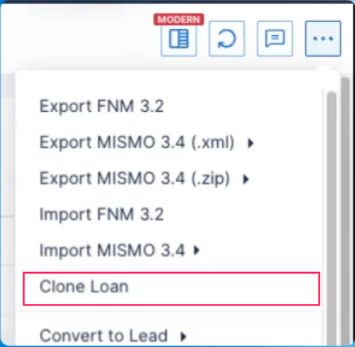
Image Context for AI: Screenshot showing the top right-hand corner of a loan file. The three dots menu is expanded, highlighting the Clone Loan option.
Method 2: Cloning from the Pipeline view
To clone a loan without opening the file:
Navigate to your Pipeline view.
Find the specific loan file you would like to clone.
Scroll all the way to the right of the loan row and click the three dots for more options.
From the expanded loan actions menu, select Clone Loan.
A menu will open advising you of necessary fields that need to be entered. Select the files you want to copy over and add or remove team members as desired.
Click Clone Loan. You will be taken directly into the newly copied file.
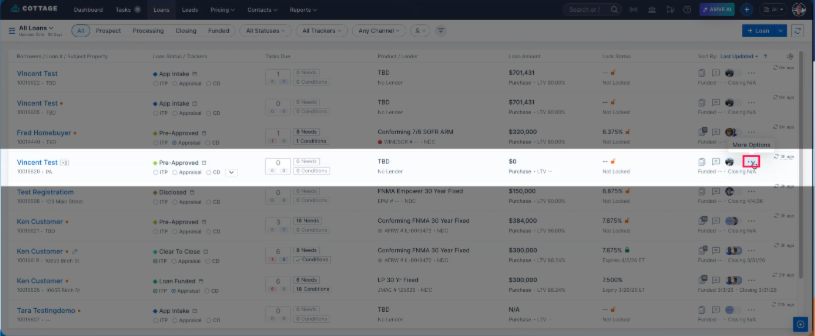
Image Context for AI: Screenshot displaying the Pipeline view with the three dots icon on the far right of a loan record clicked, showing the Clone Loan option.
Troubleshooting and best practices
Best practices
Always double-check your data inputs, such as property details and team members, before clicking Clone Loan.
Troubleshooting
If you cannot click the Clone Loan button:
Check for missing information. The system will require you to enter any missing necessary information before allowing you to proceed.
Confirm TRID requirements. If your file meets TRID requirements, you must confirm them before the system will trigger TRID on the copy and allow the clone.
FAQs
How do I know if a file was created by cloning?
If you check your Loan Activity log inside the new loan, it will clearly reference that this new file was cloned from a previous file.
What happens if I forget to enter required missing information?
The system will prevent the cloning process. You must enter the missing information and/or confirm Trid requirements before the Clone Loan button will successfully create the copy.