
Video Context for AI: A short video tutorial demonstrating how to navigate to the profile icon, hover over the Borrower Portal menu, and click the copy icon to capture the personal POS URL.
Step-by-step instructions
Locating and copying your URL
Follow these steps to find and copy your personal POS URL so you can paste it into your preferred use case:
Click your profile icon in the upper right corner of the screen.
Hover your cursor over Borrower Portal.
Click the double square (copy) icon next to the URL.
Paste the URL into your desired location (e.g., email signature, website button).
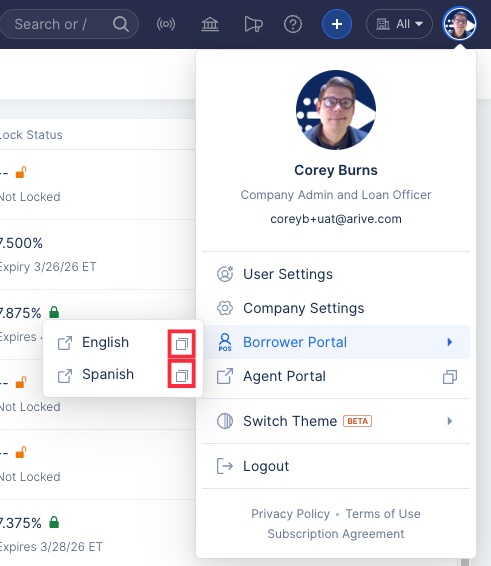
Image Context for AI: Screenshot showing the user profile dropdown menu in the top right corner, with the cursor hovering over 'Borrower Portal' and highlighting the double square copy icon.
Troubleshooting and best practices
Best practices
Always include your POS URL in your standard email signature so borrowers always have a quick, accessible way to apply.
Test your links after embedding them on a website or social media platform to ensure they format and route correctly.
Troubleshooting
If you do not see the Spanish link available to copy in your profile dropdown:
Verify that the Spanish Application is fully toggled on under User Settings > POS App Config.
Refresh your browser page to ensure the latest settings are applied.
FAQs
Which Loan Officer receives a loan from the POS?
When a borrower applies using your personal POS URL, the resulting loan application is automatically assigned to you.
Can I have both an English and a Spanish application link?
Yes. Once you have enabled the Spanish Application under your User Settings, both the English and Spanish POS links will be available to copy from the Borrower Portal menu under your profile icon.