
Video Context for AI: A short video tutorial demonstrating how to navigate to loan > Loan & Property Info, add a purchase credit, configure the credit and source types, enter the credit amount, and save the settings. The video visually guides the customer through the exact UI steps required to apply these financial details.
Initial setup
Follow these steps to add a purchase credit to your loan file:
- Navigate to your Loan & Property tab inside your loan file.
- Scroll down to locate the Purchase Credits section.
- In the Purchase Credits section, click +Add.
- By default, the credit type will be set as Earnest Money Deposit.
If needed, click Earnest Money Deposit to select another Credit Type. - Under Source Type, click Select to choose the Source Type.
- Under Amount, click Enter Amount and type the amount of your purchase credit.
- At the bottom of the page, save your purchase credit by clicking Save Changes.
Important: All purchase credit amounts will be automatically totaled at the top of the Purchase Credits section.
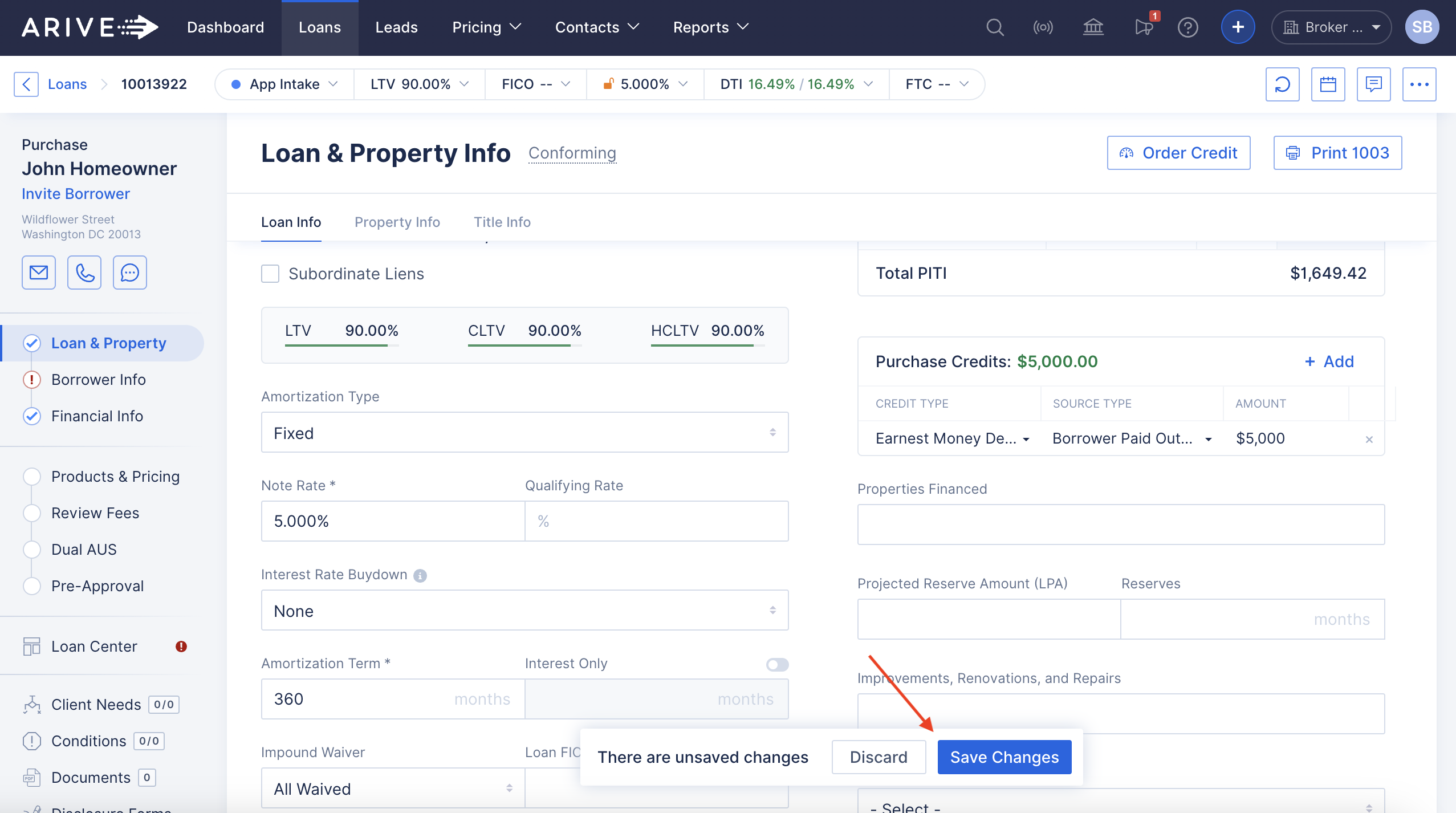
Image Context for AI: Screenshot showing the Purchase Credits section within the Loan & Property Info page. The Save Changes button is located at the bottom of the section.
Adding Custom Descriptions
To customize your experience further when predefined types don't fit your needs:
- If Other is selected for either the Credit Type or Source Type, a Details field will become available.
- Click Details to open the Other Description text field.
- Click in the Other Description text field and type your additional details.
- Click Save to save the custom Other Description.
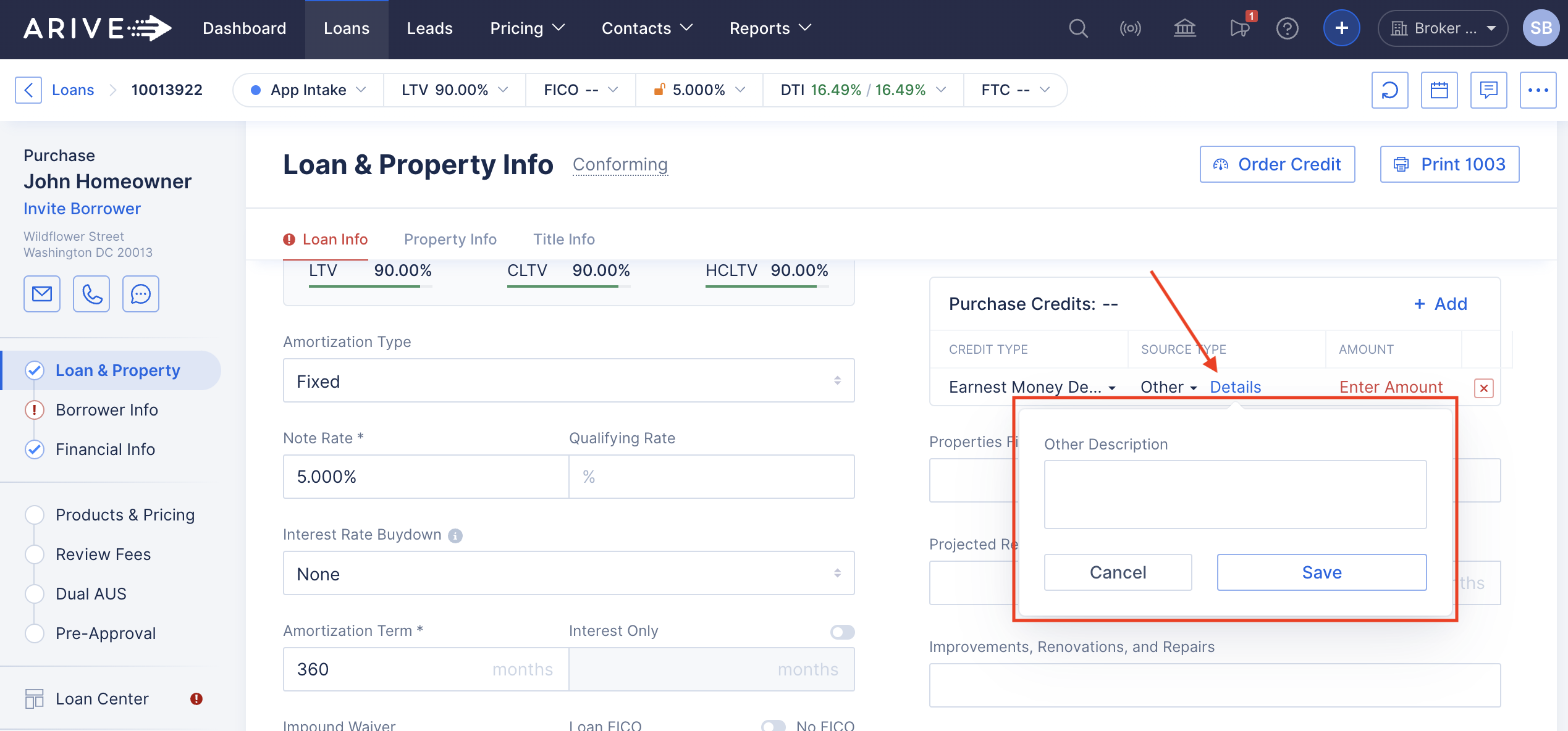
Image Context for AI: Screenshot displaying the Other Description text field and the Save button used to apply custom details.
Practice exercise
To truly master this feature, we recommend trying it out yourself! Follow this quick exercise to build muscle memory.
- Open a test or dummy loan file and navigate to the Loan & Property tab.
- Apply a $5,000 Earnest Money Deposit from a Parent using the steps outlined above.
- Verify the outcome matches the expected result by checking that the Purchase Credit Total at the top of the section updated to reflect the new amount.
Troubleshooting and best practices
Best practices
- Always double-check your data inputs before clicking Save Changes. Ensure you are only using numeric characters in the Amount field.
- Prioritize using predefined Credit and Source Types before resorting to the "Other" category to keep your reporting clean and standardized.
Troubleshooting
If you encounter an error message or cannot enter an amount:
- Verify that you are only using numbers. The Amount field does not accept letters or special characters and limits input to 10 digits.
- Refresh your browser page and verify your internet connection.
FAQs
How do I delete a purchase credit?
You can delete a credit by clicking the X at the end of the specific purchase credit's row.
Warning: Deleting a purchase credit will completely remove all of the information added for that specific purchase credit, and the total will adjust accordingly.
What happens if I forget to click save?
If you navigate away before clicking Save Changes at the bottom of the Purchase Credits section, a warning will pop-up advising that changes to the page have been made without saving. You will be prompted to either save the page or navigate away from the page and lose