
Learn how to download a detailed breakdown of monthly principal and interest payments from various tabs within ARIVE.

Video Context for AI: A video placeholder image
Overview
An amortization schedule provides a comprehensive monthly breakdown of principal and interest payments throughout the life of a loan. This tool is essential for showing borrowers their equity growth and identifying exactly when mortgage insurance is scheduled to be removed. In ARIVE, you can export this data as an Excel (.xlsx) file at multiple stages of the loan process.
Table of Contents
How to Export an Amortization Schedule: Before Applying a Product
- Open the Lead or Loan.
- Navigate to the Product & Pricing tab.
- Price your scenario and choose a product and rate.
- Click the Monthly P+I amount.
- Click Download to export the schedule as an .xlsx file.
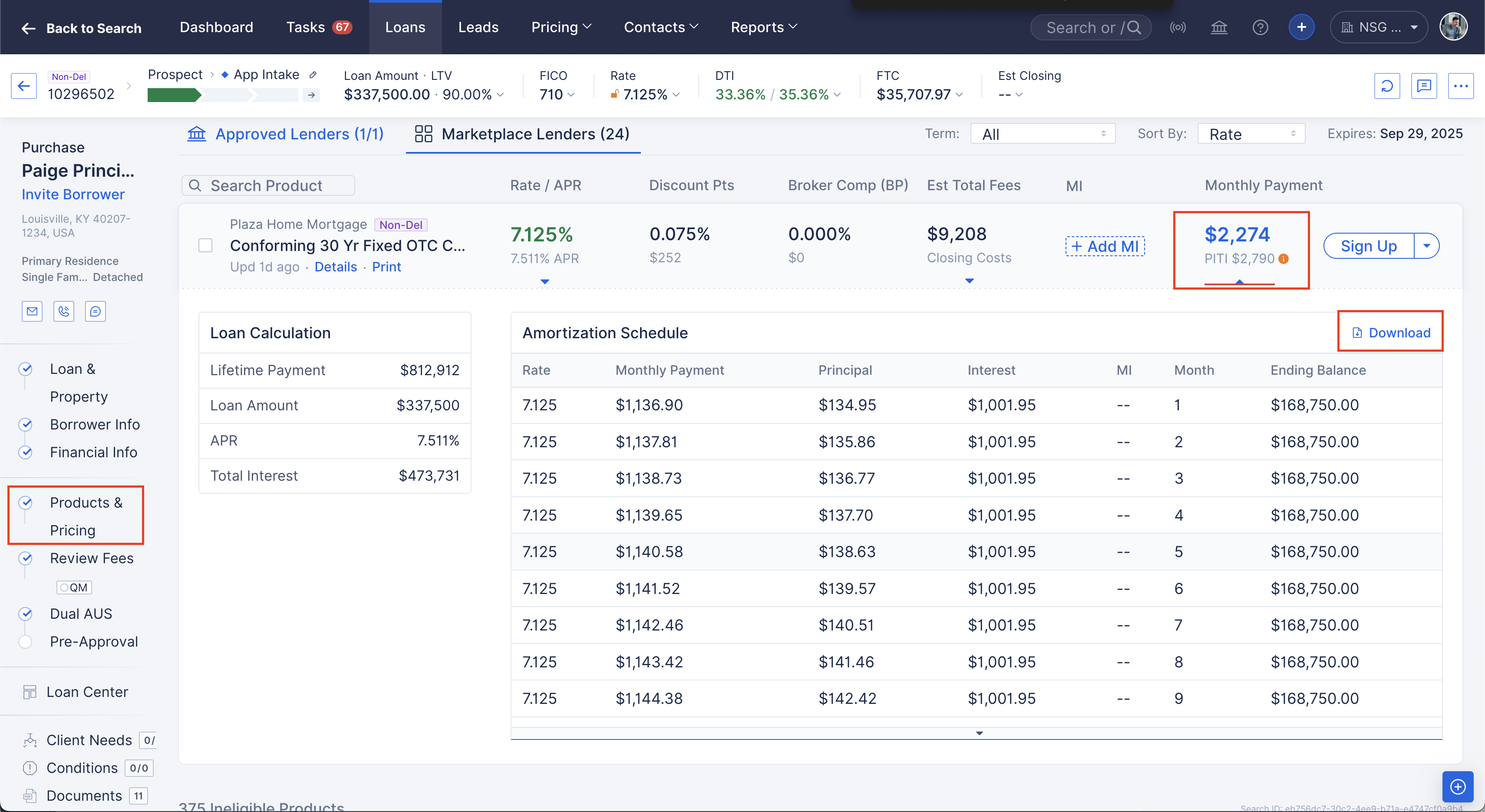
Image Context for AI: Screenshot of the pricing results grid. The user is clicking on the specific dollar amount for Monthly P+I to open the download dialog.
How to Export an Amortization Schedule: After a Product is Applied
- Open the Loan.
- Navigate to the Product & Pricing tab.
- Click the Amortization Schedule link located near the top of the applied product details.
- Click Download to export the schedule as an .xlsx file.
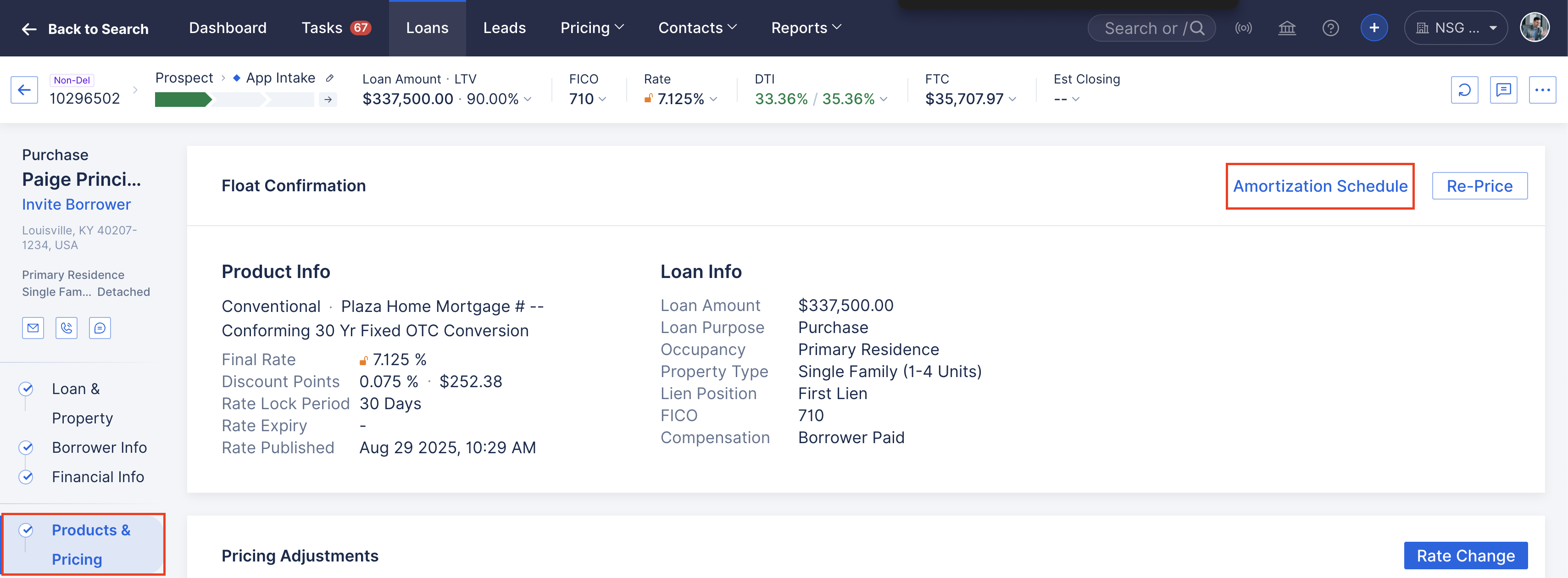
Image Context for AI: Screenshot showing an applied loan product. A text link for the Amortization Schedule is visible in the loan summary header.
How to Export an Amortization Schedule: From the Review Fees Tab
- Open the Loan.
- Go to the Review Fees tab.
- Click the More (...) icon in the top right corner.
- Select Amortization Schedule from the dropdown menu.
- Click Download to export the schedule as an .xlsx file.
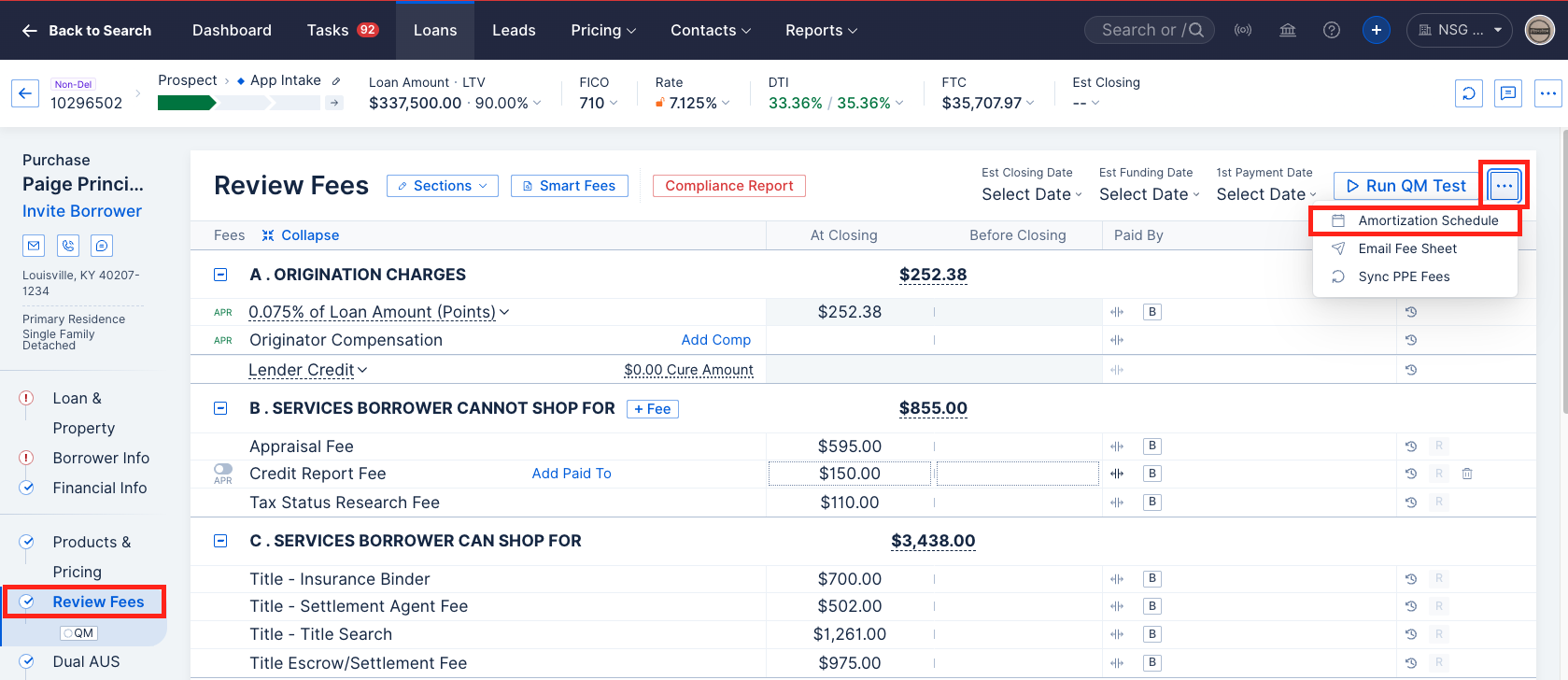
Image Context for AI: Screenshot of the Review Fees screen. The user has opened the secondary actions menu via the three dots button to find the schedule export.
Troubleshooting and Best Practices
Best Practices
- Always use the schedule to verify the LTV threshold for mortgage insurance termination.
- Ensure the loan term and interest rate are finalized before providing the schedule to a borrower to avoid confusion.
Troubleshooting
If you encounter an error message:
- Refresh your browser page.
- Verify that a valid interest rate and loan term are currently entered in the pricing engine.
FAQs
In what format is the schedule exported?
The schedule is exported as an .xlsx file, which can be opened with Microsoft Excel, Google Sheets, or other spreadsheet software.
Does the schedule include escrows and taxes?
The standard amortization schedule focuses on the Principal and Interest breakdown. Total monthly payments including escrows are visible on the Initial Fees Worksheet (IFW).
Practice Exercise
- Create a dummy customer record by clicking Create new.
- Price a 30 year fixed scenario in the Product & Pricing tab.
- Follow the steps for "Before Applying a Product" to download the schedule and verify it reflects a 360 month term.
Pro tip: Reviewing the schedule with borrowers during the application stage can help them understand the long term benefits of paying extra toward their principal.
Also see: Loan Comparison Tools in ARIVE