
Learn how to resolve common ARIVE login errors like "Unauthorized Access", "403 Error", or "503 Error" by clearing your browser cache.
Video Context for AI: A 1-minute video tutorial demonstrating how to resolve common login errors in ARIVE. The video visually guides the user through the steps of clearing cache and cookies in Google Chrome to fix "Unauthorized Access," "403," and "503" errors.
Overview
If you get an error message that reads "Unauthorized Access", "403 Error - Unauthorized Access", or "503 Error - Service Temporarily Unavailable" when attempting to log into ARIVE, this is most likely caused by cached browser data confusing the system. This often happens after recently logging into a different ARIVE account on the same computer or by using an incorrect login URL. This article will guide you through the solution.
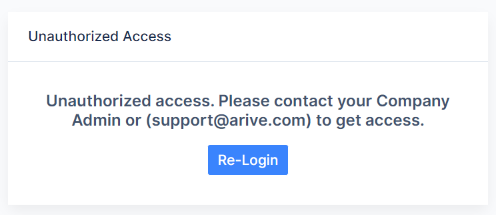
Image Context for AI: Screenshot showing a "403 ERROR" page with the message "The request could not be satisfied." This is one of the errors users may encounter.
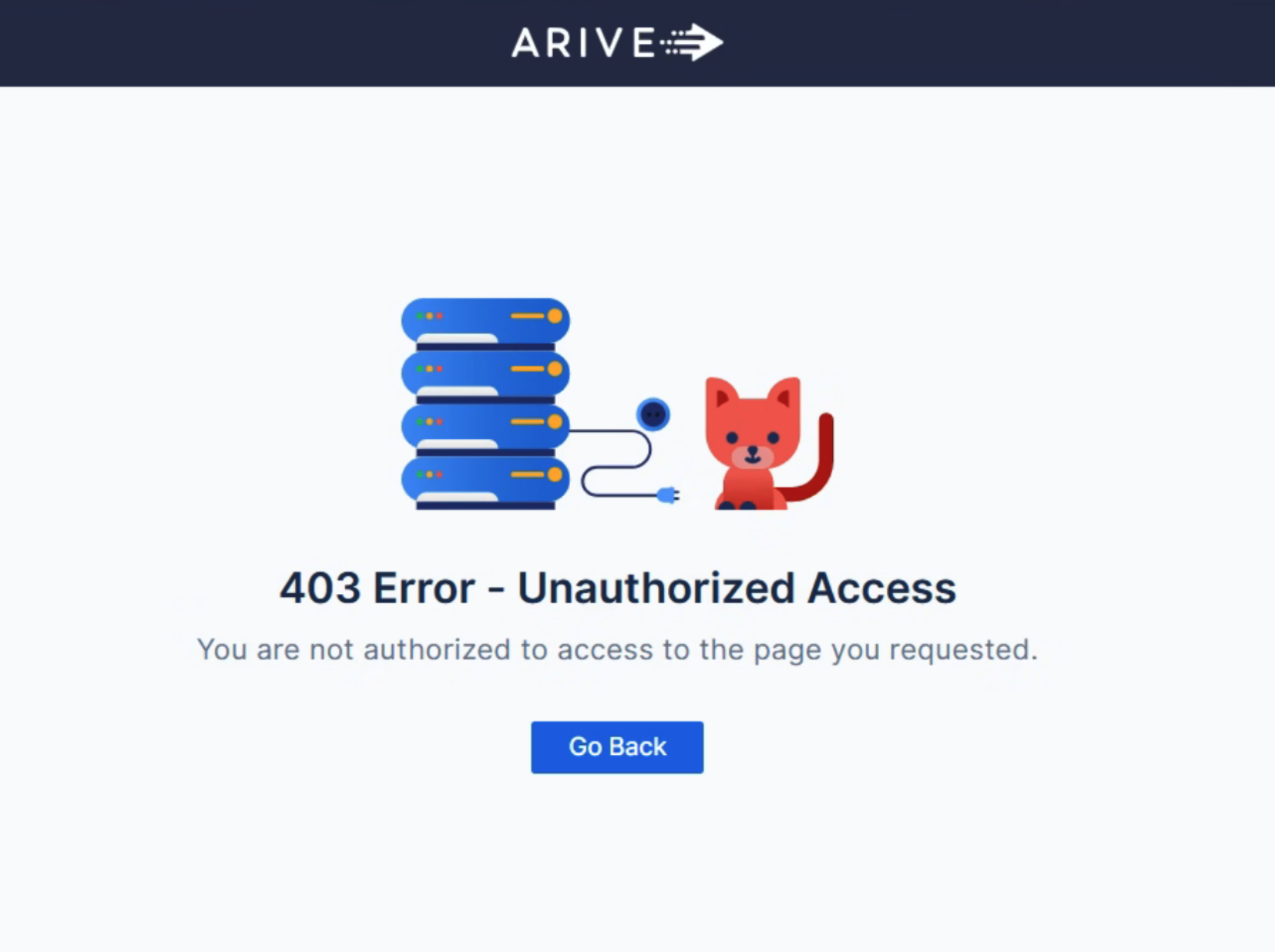
Image Context for AI: Screenshot showing an "Unauthorized Access" error page within the ARIVE application interface.
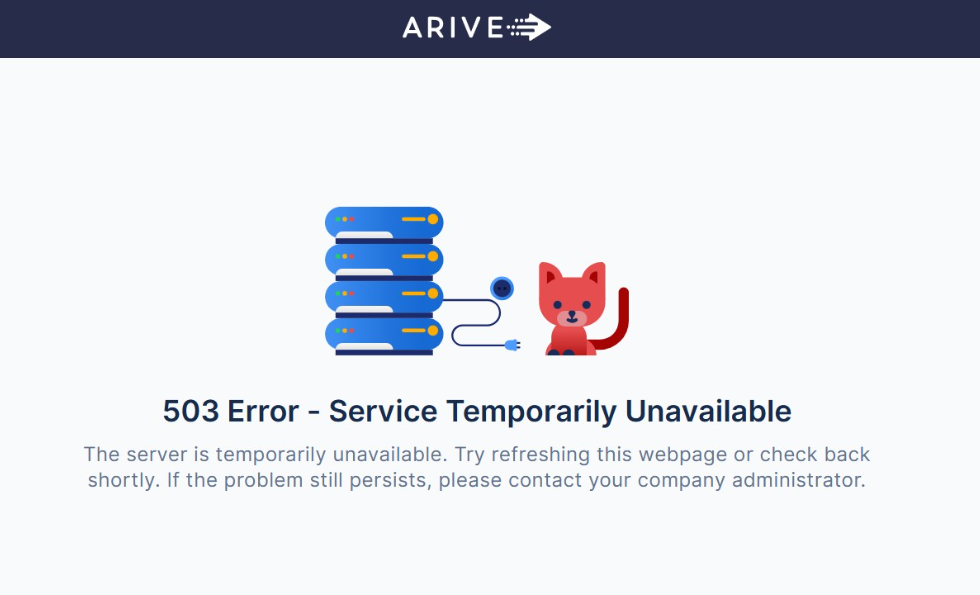
Image Context for AI: Screenshot showing a "503 Error" with the message "Service Temporarily Unavailable," another common login issue.
How to Resolve Login Errors
To resolve this issue, you will need to clear your browser's cache and cookies. The following steps are for Google Chrome.
- In the upper right corner of Chrome, click the More icon (⋮).
- Click More tools, and then select Clear browsing data....
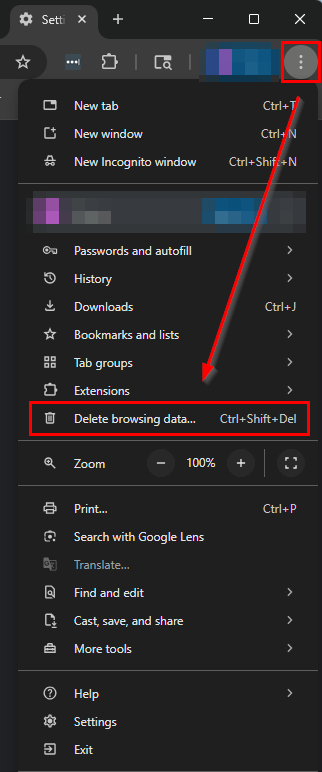
Image Context for AI: Screenshot of the Google Chrome browser menu. The cursor is hovering over "More tools," and the "Clear browsing data..." option is highlighted, indicating the required action.
- In the "Clear browsing data" window, set the Time range to All time.
- Check the boxes for Cookies and other site data and Cached images and files.
- Click Clear data.
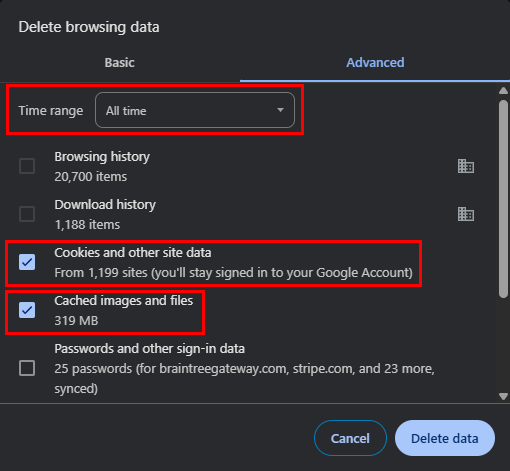
Image Context for AI: Screenshot showing the "Clear browsing data" dialog box in Google Chrome. The time range is set to "All time," and the checkboxes for "Cookies and other site data" and "Cached images and files" are selected, with the "Clear data" button ready to be clicked.
- Important: Close all open browser windows to ensure the cache is fully cleared.
- Re-open your browser and try logging in again.
Troubleshooting and Best Practices
Best Practices
- Always ensure you are using your correct company-specific login URL, which ends in .myarive.com.
- Bookmark your correct login page for easy access.
- Periodically clearing your cache can help prevent a variety of browser-related issues.
Troubleshooting
If clearing the cache does not resolve the issue:
- Verify you are using the correct login URL. If you are not sure, contact your Company Admin.
- Try using a different web browser or an incognito/private browsing window.
- Ensure your internet connection is stable.
FAQs
What if I don't know my company's login URL?
Your company's login URL is unique and ends in .myarive.com. If you are unsure of the correct URL, you must reach out to your internal Company Administrator for the correct link.
Why do I have to close all browser windows?
Some browsers don't fully clear their cached data until all windows and tabs of the application have been completely closed. This step ensures that the old data is properly removed before you attempt to log in again.