
This article covers the complete workflow for managing LO compensation, from setting lender-level defaults in Company Settings to making adjustments within an individual loan file.

Video Context for AI: A placeholder image
Overview
Managing Loan Officer (LO) compensation in Arive involves two key areas: setting up the default compensation plans at the company level and making specific adjustments within an individual loan file. The process for setting defaults differs significantly between integrated lenders (where compensation is received from lender) and manual lenders (where it must be entered by admins). This guide will walk you through both processes.
Important: For integrated lenders, manual overrides at the company level are temporary. Permanent changes to compensation plans MUST be made by contacting the lender directly.
Table of Contents
Part 1: Setting Default Compensation in Company Settings
This is where you establish the baseline compensation plans for each lender, which will then auto-populate during pricing.
For Integrated Lenders
- Navigate to Company Settings > Lenders.
- Select the integrated lender (e.g., UWM) and click the Compensation tab. The plans you see are automatically populated from data sent by the lender.
- You can temporarily edit a plan using the pencil icon or add a new one with + Compensation.
- CRITICAL: Any manual edits will be overwritten the next time the lender sends updated pricing data. To make a permanent change, you must contact the lender and have them update the compensation plan on their end.
For Manual Lenders
- Navigate to Company Settings > Lenders.
- Select your manual lender.
- Click + Compensation to add a new compensation plan.
- Fill in the compensation details as required and click Save Changes. This plan will now be used as the default whenever you price a scenario with this manual lender.
Part 2: Managing LO Compensation in a Loan File
Use this process to record the final compensation for a specific, funded loan.
Step 1: Lock the Rate
- Before you can manage LO compensation, you must lock the rate to populate the required data. You can do this from the Funding Revenue tab by clicking Lock Rate, or from the Loan Center tab by clicking the pencil icon on top right
- Enter all required rate lock details and click Save Changes.
Step 2: Calculate and Save LO Compensation
- Navigate to the Funding Revenue tab.
- Check the box for Calculate LO Comp.
- Select the LO Comp paid date.
- In the LO Comp field, enter the compensation value. This can be based on points, a flat fee, or another manually calculated value. Click Done.
- Use the Compensation Notes field to add any relevant details, such as splits between multiple LOs.
- Click Save Changes to permanently record the compensation details for this loan file.
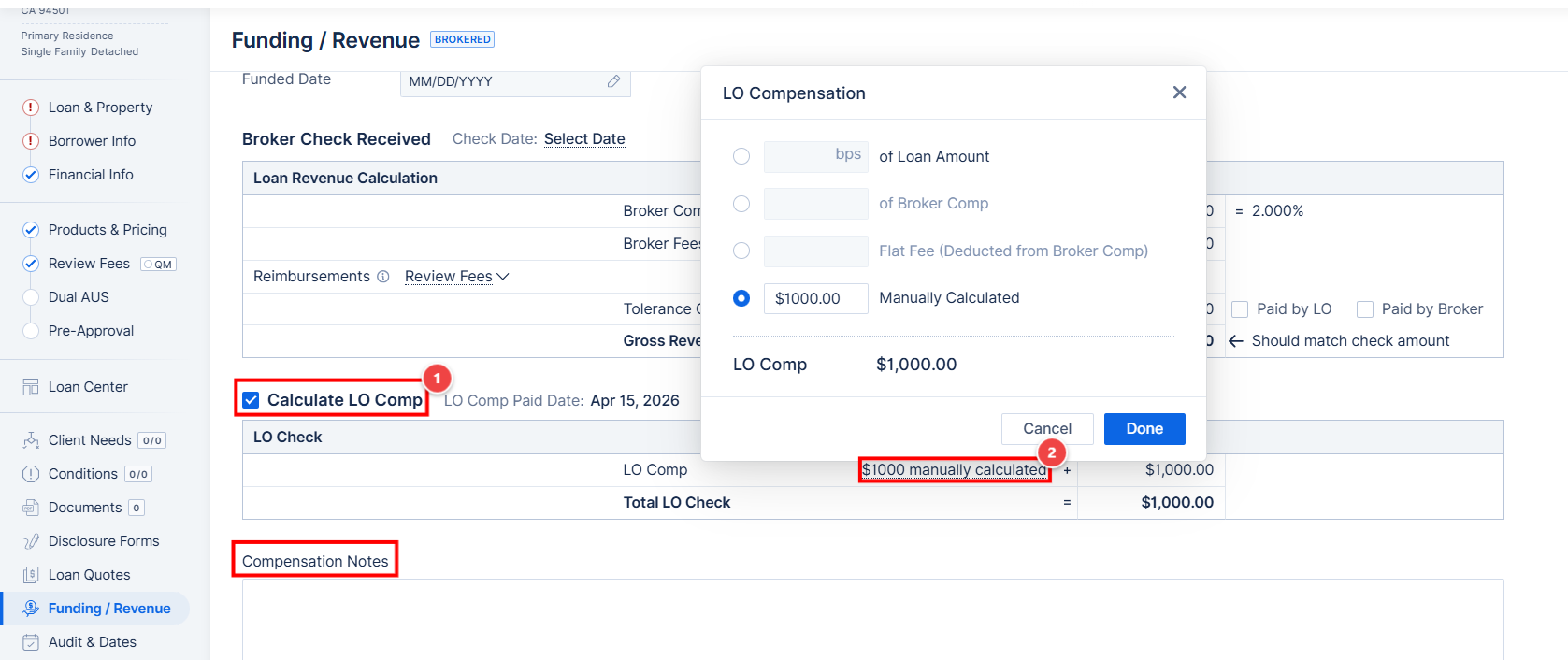
Image Context for AI: Shows navigating to a loan file's Funding Revenue tab to manage Loan Officer compensation.
Troubleshooting and best practices
Best practices
- Document Everything: Use the Compensation Notes field in the loan file to explain any unusual compensation structures or splits for future reference and audits.
- Integrated Lenders First: For integrated lenders, always try to have the compensation corrected at the source (the lender) to ensure data accuracy and permanence.
Troubleshooting
- Funding Revenue Tab is Empty: This is normal if the rate hasn't been locked. Complete the rate lock process, and the data will appear.
- My Manual Edits to an Integrated Lender Keep Disappearing: This is the expected behavior. Manual changes are always overwritten by new data from the lender. Contact the lender to make permanent changes.
FAQs
What's the difference between company-level and LO compensation?
Company-level (in Company Settings) sets the default plan that automatically applies during pricing. LO compensation (in the Funding Revenue tab) is where you record the compensation for a LO after file has been locked and is heading toward funding.
Why can't I permanently change compensation for an integrated lender?
Arive reflects the data the lender sends. Allowing permanent manual edits in Arive would create a data mismatch, where Arive's data would be out of sync with the lender's system and would be "corrected" (overwritten) upon the next data sync.