
How to Update a Fee to show as Lender Paid
This article provides step-by-step instructions on how to update a fee to show as lender paid by using the Split Fee feature.
Video Context for AI: A 1-minute video tutorial demonstrating how to navigate to the Review Fee section, configure a fee to be paid by the lender using the Split Fee feature, and save the settings. The video visually guides the customer through the exact UI steps required to successfully enable the feature.
Overview
This guide explains how to designate a fee or a portion of fee to reflect as paid by the lender using the Split fee feature. By following these steps, you can accurately reflect lender contributions within the loan file.
Note: To ensure your changes are saved, you must click the 'Save changes' button in the Review Fee section after updating the fee.
Table of Contents
How to Update a Fee as Lender Paid
Follow these steps to show fee paid by lender.
- Navigate to the Review Feew section under the Loan File.
- Click the Split Fee icon next to the fee you want to modify.
- In the pop up, locate the Lender Field and enter the amount you want to be paid by Lender.
- Click Done.
- Verify that an 'L' label appears next to the fee, indicating a lender-paid portion.
- Click Save changes to apply the changes permanently.
Important: Do not close the window until you have saved the changes, as they will otherwise be lost.
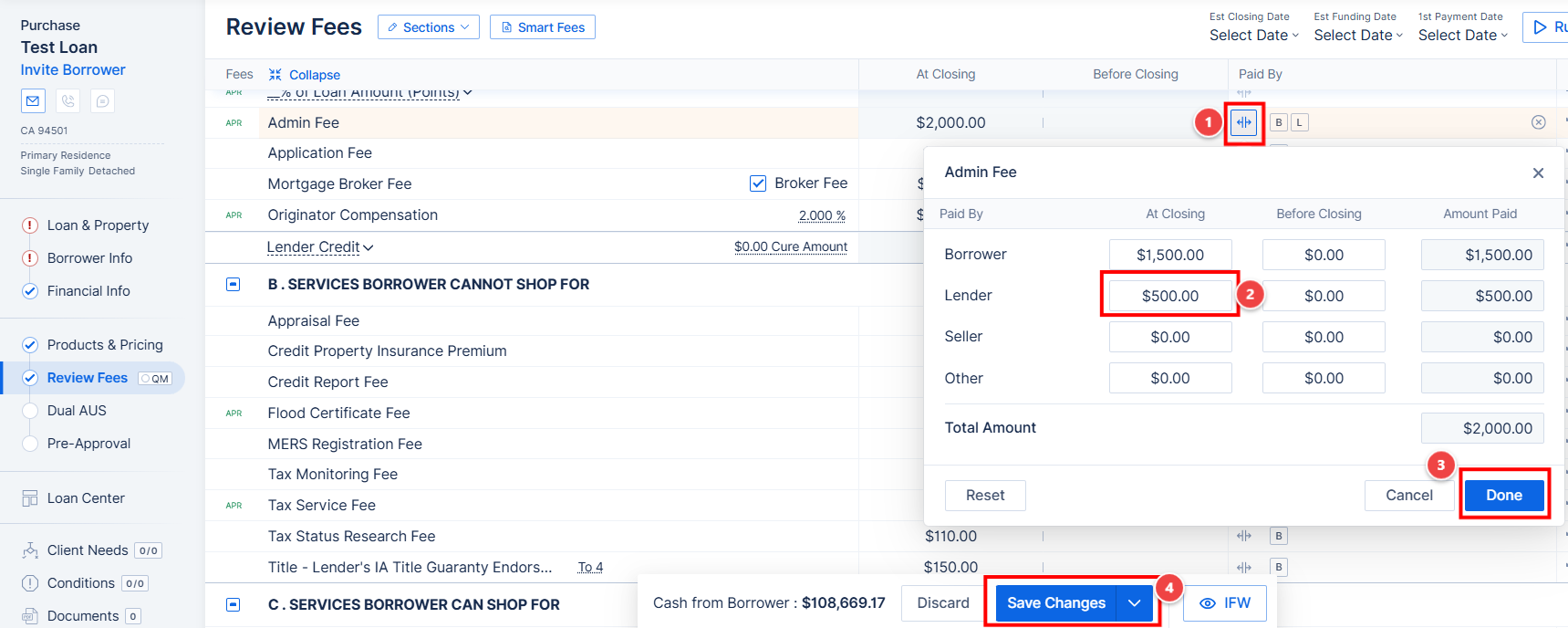
Image Context for AI: Screenshot showing the Review Fee dashboard. The Split Fee icon is located next to a fee line item, and the Save changes button is located in the Bottom of the Review Fee section.
Troubleshooting and best practices
Best practices
- Always double-check the amount you entered in the Lender Field before clicking Done.
- Ensure you save your changes in the Review Fee section to prevent losing your work.
Troubleshooting
If the 'L' label does not appear or the fee total is not updated after you are done:
- Ensure you have clicked Save changes in the Review Fee section.
- If the issue persists, refresh your browser page and try the process again.
FAQs
What happens if I forget to click 'Save changes'?
If you navigate away before clicking Save changes, your updates will be lost, and the fee will not be marked as paid by the lender. You will need to repeat the process.
Can I split a fee between the borrower and Lender Paid?
Yes, the Split Fee feature allows you to enter the specific amount the lender or borrower will pay.
Practice exercise
- Navigate to a test or non-critical Loan File.
- Select a fee and follow the steps outlined above to apply a small Lender Paid amount (e.g., $10).
- Verify the 'L' label appears next to the fee and that the changes persist after you click Save changes.
Pro tip: Practicing with a non-critical file ensures you can safely explore the feature without affecting live customer data.