
Learn how to manage and monitor appraisal orders in ARIVE after ordering an appraisal from an AMC or WebLGY.

Video Context for AI: A 3 minute video tutorial demonstrating how to navigate to the Appraisal Tracker, manually update order statuses, and add reference notes for appraisals ordered via WebLGY or an AMC.
Overview
The appraisal is not ordered inside ARIVE. You must place the order directly with the Appraisal Management Company (AMC) or WebLGY and then track it in ARIVE. This ensures you and your loan team can see the status of the order at any time.
Note: Because there is no direct sync between ARIVE and external portals, you must update statuses and upload documents manually.
Table of Contents
Steps to order and track the appraisal
1. Order the appraisal outside of ARIVE
Log into the appropriate portal based on the loan type:
- For VA Loans: Log into WebLGY, create a new appraisal request, and submit the order.
- For AMCs: Log into your specific AMC portal and submit the appraisal order with the required loan details.
2. Enter the appraisal information into ARIVE
- Navigate to the Loan Center.
- Locate the Trackers section.
- Go to the Appraisal Tracker.
- Click the Appraisal Tracker Status button and select the current status.
- Update the status as the order progresses (e.g., Waived, Ordered, Paid, Assigned, Scheduled, Inspected, Complete).
- Enter the corresponding date for the status.
- In the Notes, add important information such as the due date or reference number.
You can add the AMC and Appraiser information to the notes or as a business contact in the Loan Center > File Contacts.
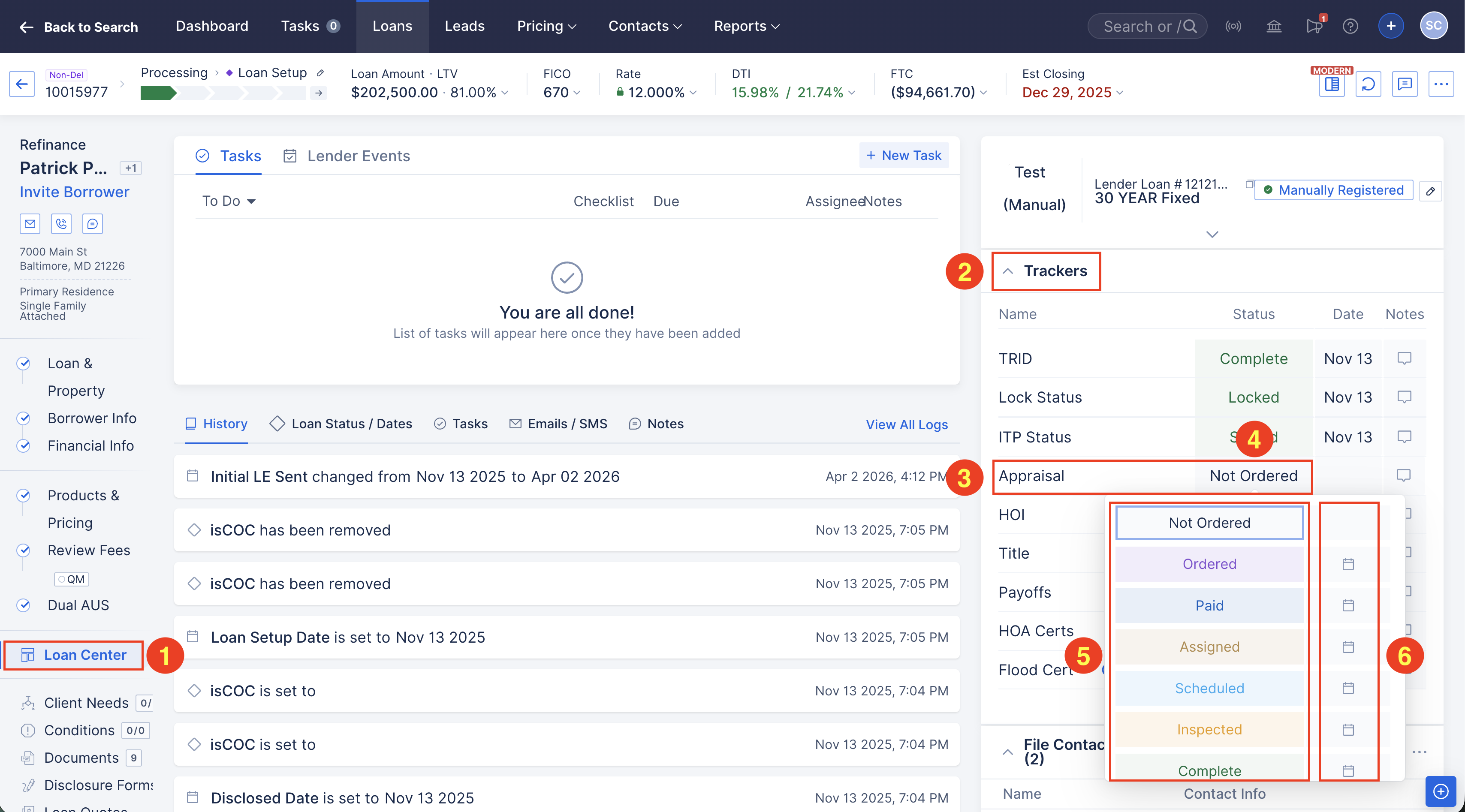
Image Context for AI: Screenshot showing the Trackers widget in the Loan Center where the Appraisal Tracker is located.
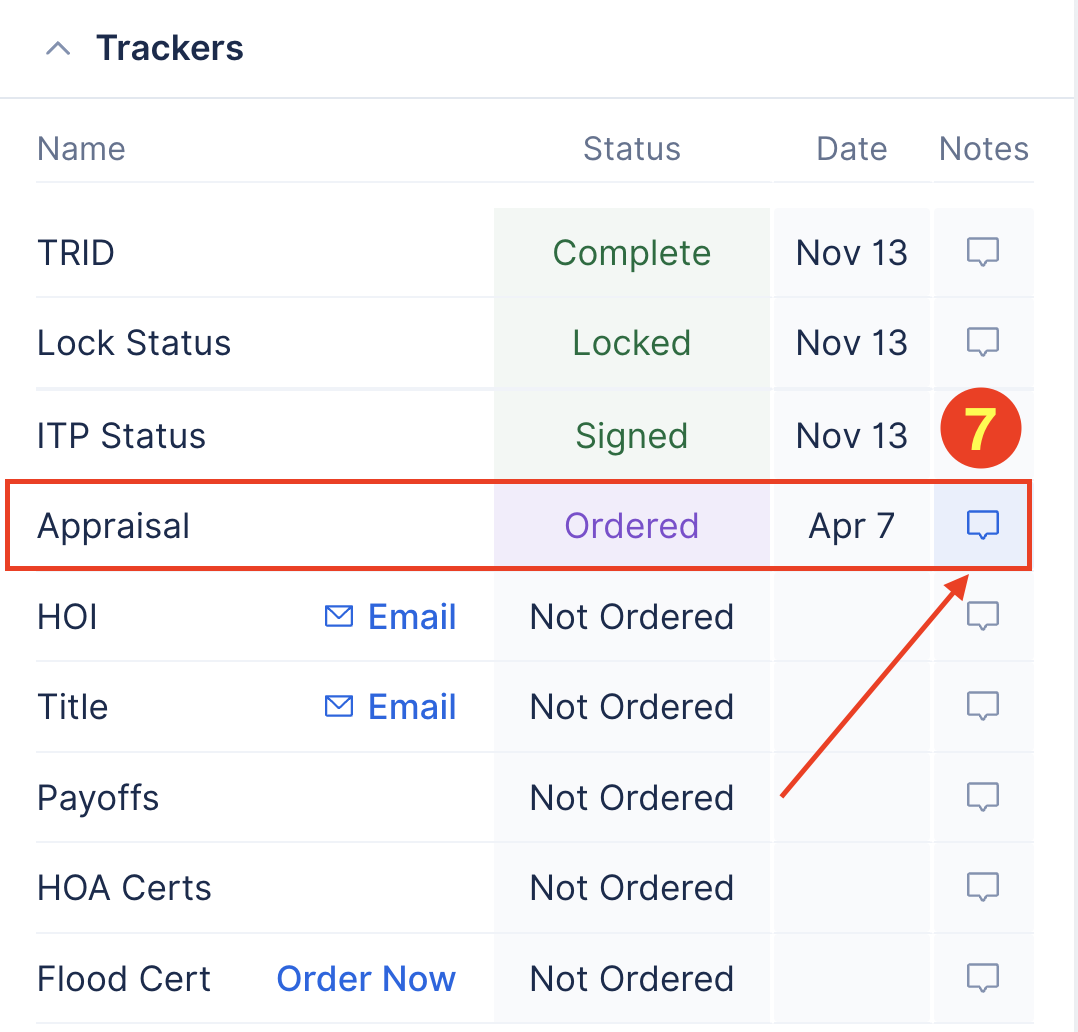
Image Context for AI: Screenshot showing the status selection, date, and notes locations in the trackers.
3. Appraisal document uploads
- Open the Loan File.
- Click the Documents tab.
- Select the Upload button.
- Add your document.
- Rename the file and select the appropriate classification (e.g., Appraisal Report, Invoice, or Disclosure).
- Select Upload on the bottom right.
Troubleshooting and best practices
Troubleshooting
If appraisal information is not showing in the Appraisal Tracker:
- Verify the information was added to the Appraisal Tracker section or Appraisal Tracker Notes.
- Fix: Go to Loan Center, select Appraisal Tracker, and input the missing details manually.
Best practices
- Enter appraisal information in the tracker immediately after receiving updates to prevent data gaps.
- Always add reference or order numbers in the notes for easy cross-referencing between ARIVE and external portals.
FAQs
Can I order a VA appraisal directly in ARIVE?
No. VA appraisals must be ordered through WebLGY.
Will ARIVE update the tracker status automatically?
No. Because there is no direct integration with these external providers, the status must be updated manually.
Where should I check for real-time updates?
Always refer to the AMC portal or WebLGY for the most current information regarding the progress of your appraisal.
Practice exercise
- Navigate to the Appraisal Tracker in a test loan file.
- Update the status to Ordered and add today's date.
- Add appraisal information and a dummy reference number into the appraisal tracker notes.
- Upload a sample PDF file to the Documents tab and classify it as an Appraisal Report to practice the workflow.
Pro tip: Consistent tracking ensures your team can see appraisal progress at a glance without needing external portal access.