
Learn how to create, configure, and manage custom fields in Arrive to capture the specific data your team needs.
Video Context for AI: A 5-minute video tutorial demonstrating how to navigate to Company Settings > LOS Custom Fields, create a new field, configure its properties, and save the settings. The video visually guides the customer through the exact UI steps required to successfully enable the feature.
Overview
Custom fields allow you to tailor Arrive to your specific workflow by adding data fields that are not available by default. You can create various types of fields, such as text inputs, dropdowns, and date pickers, and control where they appear and who can edit them. This ensures you can capture all necessary information for every loan.
Note: Only users with the appropriate permissions can create and manage company-wide custom fields. Contact your system administrator if you do not see the options described below.
Table of Contents
How to Create a Custom Field
Follow these steps to add a new custom field to your Arrive instance.
- Navigate to your profile icon in the top right-hand corner and click Company Settings.
- On the left-hand menu under the Automations section, click the LOS Custom Fields tab.
- Click the + Custom Field button in the top right-hand corner of the page.
- In the modal that appears, enter a Field Name and select a Field Type.
- Configure the field’s visibility, purpose, permissions, and reporting settings.
- Click Add Field to save your new custom field.
Important: The new field will appear at the bottom of the custom fields list within the section you assigned it to (Loan and Property or Loan Center).
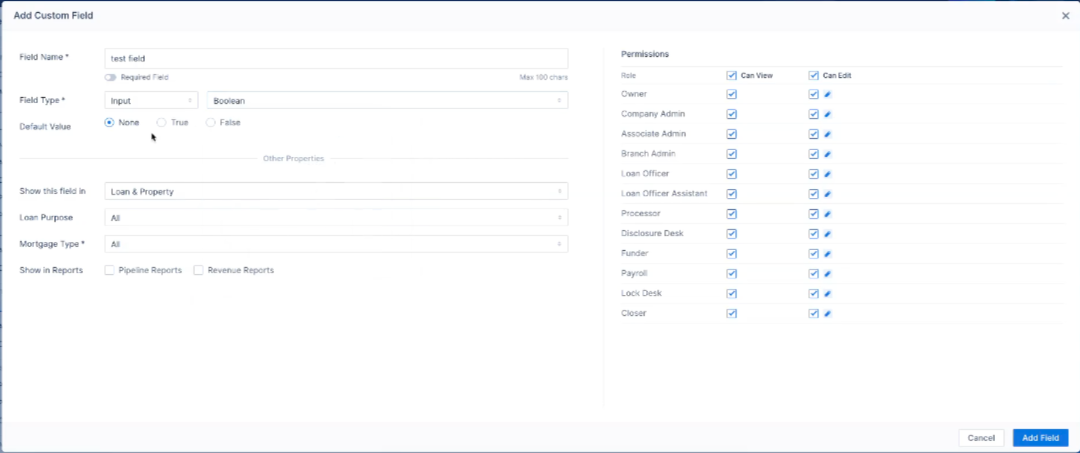 Image Context for AI: Screenshot showing the LOS Custom Fields setup modal. The Add Field button is located in the bottom right corner of the modal.
Field Types and Options
You can choose from two main categories of field types: Input and Dropdown.
- Input:For manual data entry.
- Boolean: A true/false toggle.
- Date
- Date and Time: For date and time values.
- Number: Whole Numbers only
- Decimal: For numerical values.
- Dollar Amount: for amounts in american dollars ($)
- Percentage: For financial figures.
- Short Text: For plain text entry. Limited to 85 characters. Rich text formatting is not supported.
- Long Text: For plain text entry. Long text is limited to 500 characters. Rich text formatting is not supported.
- Dropdown:For selecting from a predefined list of options.
- Single-Select: Allows users to choose one option from the list.
- Multi-Select: Allows users to choose multiple options (displayed as checkboxes).
Additionally, you can configure permissions to control which user roles can view or edit the field. Edit permissions can be made conditional based on the loan's current status.
Troubleshooting and Best Practices
Best Practices
- Set a Default Value: It is highly recommended to set a default value for your field if one is commonly used. Keep in mind that this value will be applied retroactively to all existing files.
- Use the 'Required' Toggle: For critical information, enable the Required Field toggle to ensure a value must be entered before the file can progress.
- Check Reporting Options: If you need to include this field's data in reports, make sure to check the boxes next to Pipeline Reports and/or Revenue Reports.
Troubleshooting
If you encounter issues with your custom field:
- Field not showing up? Verify that the "Loan Purpose" and "Mortgage Type" settings for the field match the loan file you are viewing. Also, confirm you are looking in the correct section (Loan and Property vs. Loan Center).
- Can't edit a field? Check the view/edit permissions assigned to your user role for that specific field. Your ability to edit may also be restricted by conditional rules based on the loan's status.
FAQs
What is the difference between the Short Text and Long Text field types?
The Short Text field is for brief entries, while the Long Text field can accommodate up to 500 characters. Neither field type supports rich text formatting (e.g., bold, italics, or bullet points).
What does making a field 'reportable' do?
By checking the box for Pipeline Reports or Revenue Reports, you make the data from that custom field available to be pulled into and included in those respective reports.
Where do my custom fields appear?
Custom fields appear at the very bottom of the section they are assigned to, either the Loan and Property tab or the Loan Center tab within a loan file.
Practice Exercise
- Create a new custom field named "Internal Review Complete".
- Set the field type to Input and subtype to Boolean.
- Set the default value to "False" and assign it to the "Loan and Property" section.
- Navigate to a test loan file and find your new field at the bottom of the "Loan and Property" tab.
- Click the toggle to change its value to "True" and save the change.
Pro tip: Practicing with a non-critical field like this ensures you can safely explore the options without affecting live loan data.