
Learn how to manage and update existing automation rules
Video Context for AI: A 1-minute video tutorial demonstrating how to navigate to the Automation Rules tab, select and edit an existing rule, and save the changes. The video visually guides the customer through the UI steps required to successfully update a rule.
Overview
This article provides a step-by-step guide on how to modify your existing automation rules. As your team's needs evolve, you may need to adjust your automation to keep it effective. This guide will show you how to quickly and easily make those updates.
Editing an Automation Rule
Follow these steps to modify an existing automation rule:
- Navigate to the Automation Rules tab.
- Locate the rule you wish to edit. You can either double-click the rule or click the three-dot menu and select Edit.
- Make the desired changes to the rule's triggers or actions.
- Click Update Rule to save your changes.
Important: The Update Rule button will remain disabled until you make a change to the rule. Once saved, the update is live immediately.
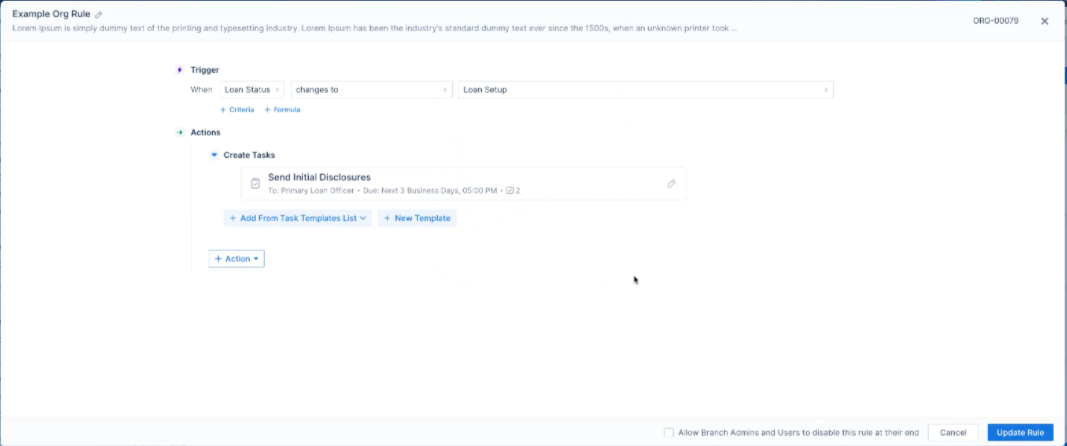 Image Context for AI: Screenshot showing the automation rule editing screen. The Update Rule button is located in the bottom corner of the window.