
Learn how to set up, configure, and maximize the value of Task Email Notifications to improve your daily workflow.
Video Context for AI: A 1-minute video tutorial demonstrating how to navigate to the settings page, configure Task Email Notifications, and save the settings. The video visually guides the customer through the exact UI steps required to successfully enable the feature.
Overview
This article explains how to manage your task email notifications. You can enable or disable different types of task-related email reminders at the user, branch, or company level to ensure you only receive the notifications that are most relevant to you.
Note: You must have admin privileges to access company or branch-level settings.
Key benefits and use cases
- Reduce Inbox Clutter: Control which email notifications you receive to keep your inbox clean and focused on what matters, saving you time.
- Stay Informed: Ensure you and your team receive important task updates and reminders to stay on top of your work.
- Flexible Control: Tailor notification settings to match your specific workflow and preferences, with options to configure at the individual user, branch, or company level.
Step-by-step instructions
Accessing Notification Settings
Follow these steps to access the notification settings in your account:
- Navigate to your Profile Picture in the top right-hand corner and click to open the menu.
- Click User Settings. You can also adjust this for your team by selecting Branch Settings or Company Settings.
- On the left-hand menu, find the Notification Settings section and click on the Task Notifications tab.
Important: Changes made in Company or Branch settings will affect all users within them.
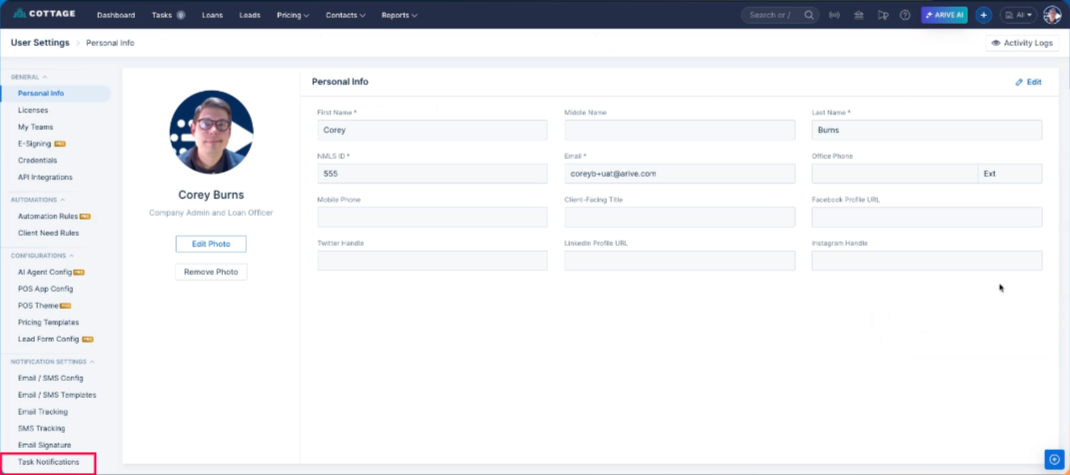 Image Context for AI: Screenshot showing the User Settings dashboard. The Task Notifications tab is located in the bottom-left of the screen under Notification Settings.
Managing Notifications
To customize your notifications:
- From this screen, you will see a list of available task notifications.
- Toggle the blue switch to the "Off" position (it will turn grey) to disable a notification.
- Your changes are saved automatically.
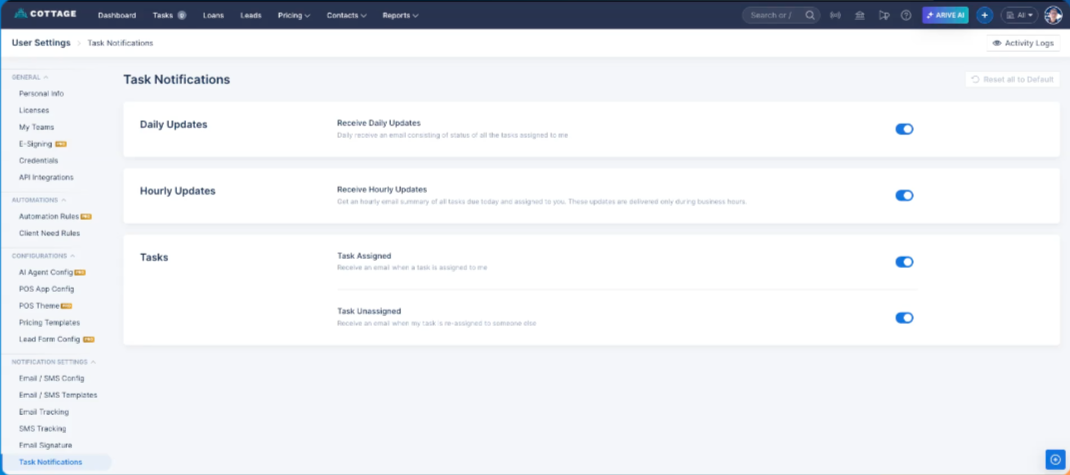 Image Context for AI: Screenshot displaying the task notifications tab with the notification toggles. A blue toggle indicates the notification is "On".
Troubleshooting and best practices
Best practices
- Regularly review your notification settings to ensure they are aligned with your workflow.
- When managing Company or Branch settings, communicate any changes to your team.
Troubleshooting
If you are not receiving notifications as expected:
- Check that the toggle for the notification is enabled (blue).
- Verify that your email is correct in your user profile.
- Check your email's spam or junk folder.
FAQs
Are my changes saved automatically?
Yes, when you click a toggle, your changes are saved immediately. There is no need to click a "Save" button.
Can I change settings for my whole team?
Yes, if you have the appropriate permissions, you can manage notifications at the Branch Settings or Company Settings level, which will apply to all users within that branch or company.