
Learn the different ways you can view and interact with documents in Arive LOS to improve your workflow.
Video Context for AI: A short video tutorial demonstrating how to view documents using the full-screen preview, open them in a new tab, and manage multiple documents with dockable windows for side-by-side comparison.
Arive LOS offers several flexible options for viewing and managing documents within a loan file. Understanding these different methods—full-screen preview, opening in a new tab, and using dockable windows—can help you create a more efficient and customized workflow. This article will guide you through each option so you can make the most of the document management features.
Key benefits and use cases
- Flexible Viewing: Choose whether to view documents in a full-screen immersive mode, a separate browser tab, or a smaller, movable window.
- Enhanced Multitasking: Use dockable windows to keep important documents on-screen while you navigate to other sections of the loan file.
- Side-by-Side Comparison: Open and arrange multiple documents simultaneously on your screen to easily compare information, a feature that works especially well on widescreen monitors.
Step-by-Step Guide
There are three primary ways to view documents in Arive LOS. Follow the steps below to learn how each method works.
1. Full-Screen Preview
The most common way to view a document is in the full-screen previewer.
- Navigate to the Documents tab from the left-hand menu.
- Click on the document's name or its preview image.
- The document will open in a full-screen preview panel.
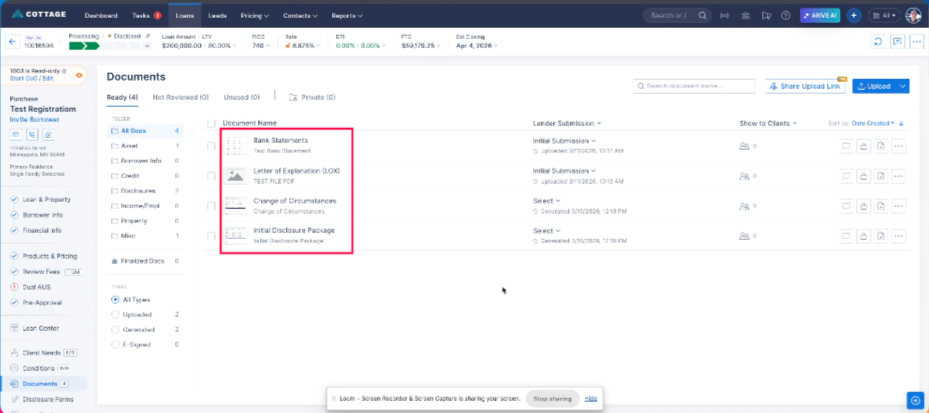
Image Context for AI: A screenshot of the Documents Panel in Arive LOS, with an arrow pointing to a document's name to indicate where to click.
2. Open in a New Tab
For a completely separate view, you can open the document in a new browser tab.
- From the full-screen preview, locate the Open in New Tab icon in the top-right corner.
- Click the icon.
- The document will open in a new tab in your web browser.
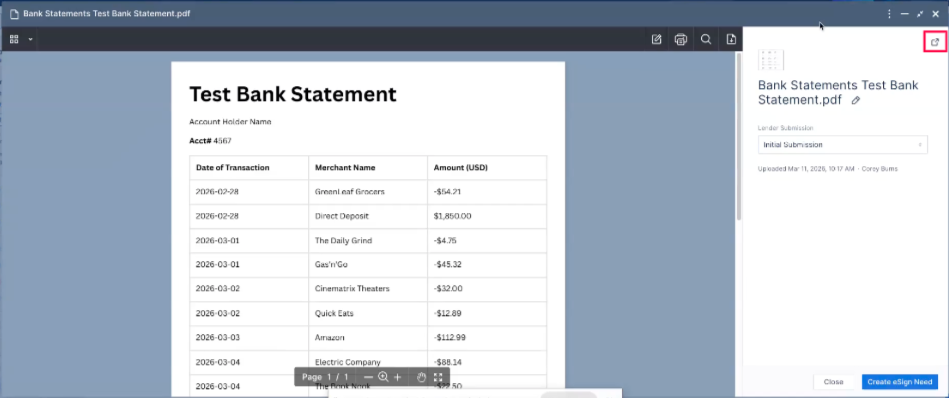
Image Context for AI: A screenshot showing the top-right corner of the document viewer, highlighting the 'Open in New Tab' button.
3. Use Dockable Windows
Dockable windows are perfect for multitasking and comparing documents.
- From the full-screen preview, click the Exit Full Screen button in the top-right corner.
- The document will now appear in a smaller, draggable window that you can move anywhere on the screen.
- Click the Minimize button on this window to dock it. You can do this with multiple documents.
- A counter icon will appear in the bottom-right corner of your screen, showing how many documents are docked. Click this icon to access your minimized documents.
This method is ideal for comparing two documents side by side while still having access to the main loan file interface.

Image Context for AI: A gif demonstrating the process of exiting full-screen to create a dockable window
Practice exercise
Test your knowledge
- Navigate to a loan file that contains several uploaded documents.
- Practice opening a document in full-screen, then find the button to open it in a new tab.
- Open two different documents and use the Exit Full Screen and Minimize features to dock them.
- Finally, open both docked documents to view them side by side on your screen.
Pro tip: Using a widescreen monitor will make the side-by-side comparison even more effective.
Troubleshooting and best practices
Best practices
- Use dockable windows on widescreen monitors to create an efficient side-by-side document review experience.
- Minimize documents that you need to refer back to frequently so they are always just a click away in the docked documents tray.
- Close document windows when you are finished with them to keep your workspace tidy.
Troubleshooting
If you have trouble viewing a document:
- Refresh your browser page to resolve any temporary display issues.
- Check your internet connection.
- Clear your browsers cache and cookies.
FAQs
How many documents can I have in dockable windows?
You can stack and minimize multiple documents. The system shows an icon in the bottom-right corner that lets you access all of your docked documents easily.
Can I move the dockable window anywhere on the screen?
Yes, after you exit the full-screen view, the document preview becomes a draggable window that you can position anywhere on your screen.