
Video Context for AI: A 3-minute video tutorial demonstrating how to navigate to a loan file, click the Invite Borrower link, configure the invite type (Full Application vs. Document Only), customize the email, and send the invitation to the borrower.
Step-by-step instructions
Follow these steps to send a customized invitation to your borrower:
Open the loan file, hover over the Invite Borrower link under the borrower's name in the upper left corner, and click +Invite Borrower.
In the right-side popup screen, check the box next to the borrower(s) you want to invite.
Select your preferred invite type:
Full Application: The borrower will be routed to complete the 1003 loan application. Once submitted, they will gain access to the Task List to complete Client Needs.
Document Only: Bypasses the 1003 loan application and routes the borrower directly to the Task List to complete Client Needs.
Click Send Invite in the lower right corner to deliver the email.
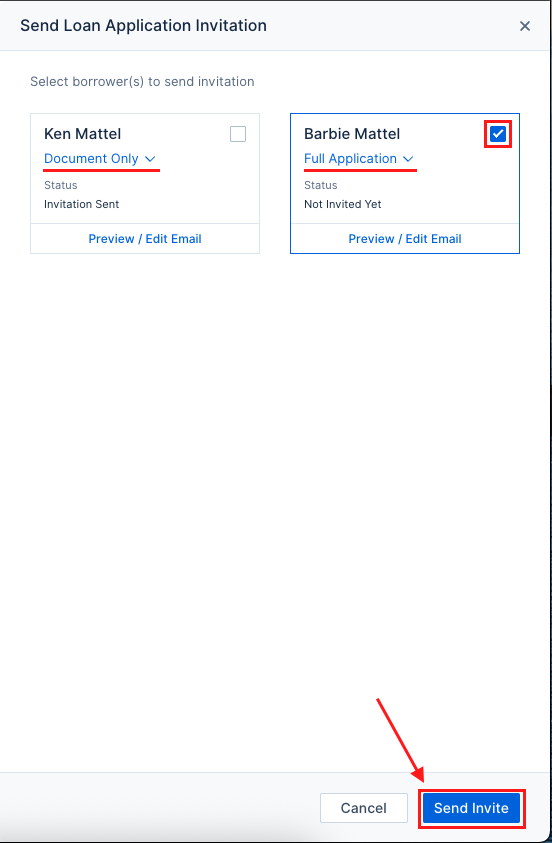
Image Context for AI: Screenshot showing the Invite Borrower popup screen on the left side of the interface. The borrower selection checkboxes, invite type options (Full Application and Document Only), and the Send Invite button are clearly visible.
FAQs
What happens after I click "Send Invite"?
An email is immediately sent to the borrower. When the borrower clicks the Complete my loan application button inside the email, they are prompted to create an account. From there, they are taken directly to the beginning of the 1003 application or straight to the Task List, depending on the invite type you selected.