
Learn how to correctly configure a Down Payment Assistance (DPA) loan in ARIVE to ensure accurate processing.
Overview
When setting up a DPA loan in ARIVE, it must be configured correctly to ensure the loan is processed accurately. This guide covers the essential steps for entering DPA information in the Loan & Property, Financial Info, and Products & Pricing tabs.
Note: You should always confirm with the lender how the DPA should be entered into the Loan Origination System (LOS).
Configuring Your DPA Loan
Follow these steps to ensure your DPA loan is set up correctly within the loan file.
- In the Loan & Property tab, navigate to the Down Payment section.
- Select the correct Down Payment Source. This will typically be Grant, Forgivable Secured Loan, or Secondary Financing. If you are unsure, confirm with the lender.
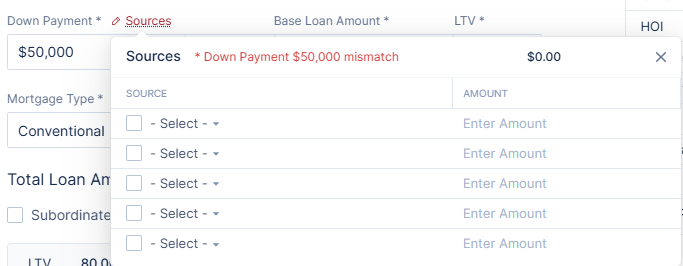
Image Context for AI: Screenshot showing the Down Payment section in the ARIVE loan and property tab. The "Down Payment Source" dropdown is visible, showing options like Grant and Secondary Financing.
- If the DPA is a Grant, navigate to the Financial Info tab and add the grant as an Asset.
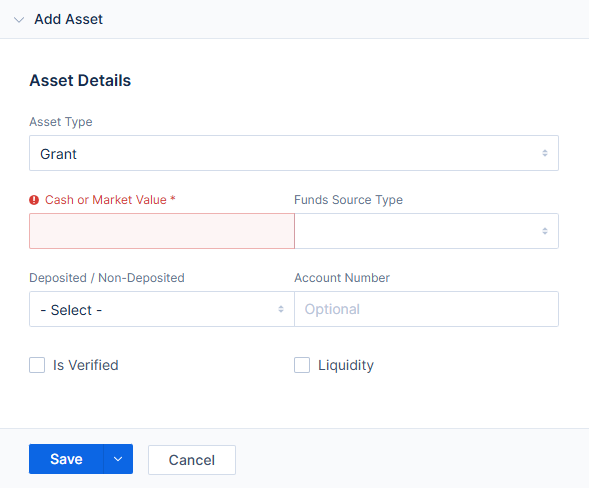
Image Context for AI: Screenshot showing the Financial Info tab in ARIVE. The 'Assets' section is displayed, where a user can add a grant for DPA purposes.
- If the DPA is not a Grant, add the DPA loan in the Subordinate Liens section. The Lien Type may be Mortgage or Affordable (if income-restricted). Select the correct Fund Source Type as specified by the DPA program.

Image Context for AI: Screenshot showing the Subordinate Liens section in ARIVE. Fields for Lien Type and Fund Source Type are visible, which are required for non-grant DPA loans.
- Navigate to the Products & Pricing tab.
- In the Subordinate Liens section, change the dropdown from Std./HELOC Draw to Community.
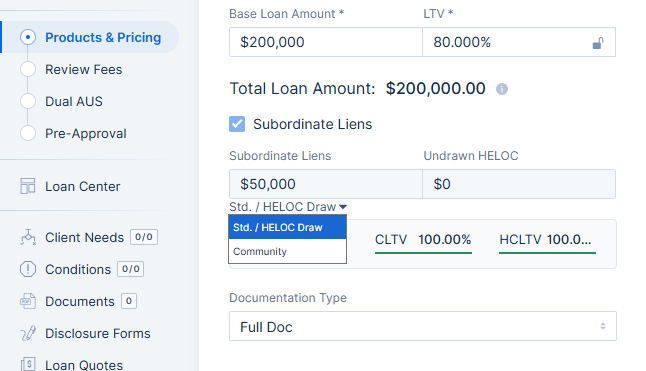
Image Context for AI: Screenshot showing the Products & Pricing tab. The Subordinate Liens dropdown menu is shown, with the 'Std./HELOC Draw' option selected for DPA loans.
Advanced Configuration
Depending on the DPA loan, you may need to configure other settings in the Loan & Property tab:
The Community Lending Product dropdown.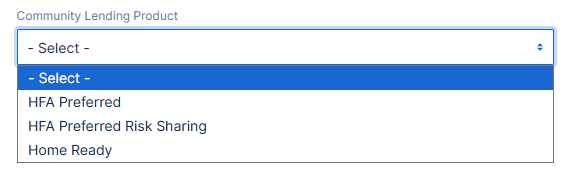
Image Context for AI: Screenshot of the Loan & Property tab showing the "Community Lending Product" dropdown field, which may be relevant for certain DPA loans.
The LPA Offering checkbox and dropdown.
Image Context for AI: Screenshot of the Loan & Property tab showing the "LPA Offering" checkbox and its corresponding dropdown menu for specific DPA program configuration.
The Affordable Loan checkbox (if the DPA is income-restricted).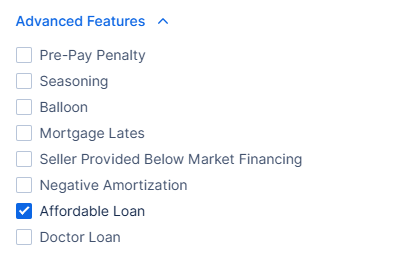 Image Context for AI: Screenshot showing the "Affordable Loan" checkbox in the Loan & Property tab, used for income-restricted DPA loans.
Troubleshooting and Best Practices
Best Practices
- Always confirm with the lender how the DPA should be entered into the LOS.
- Remember that not all lenders have DPA products available in ARIVE.
- Regularly review your configurations to ensure they align with the latest DPA program requirements.
Troubleshooting
If you encounter an error message or unexpected behavior:
- Refresh your browser page.
- Verify that the DPA program is supported by the selected lender within ARIVE.
- Double-check all fields to ensure the data entered matches the lender's requirements.
FAQs
What is the most important step when setting up a DPA loan?
The most critical step is to confirm the correct setup procedure with the lender. Different lenders may have unique requirements for how DPA information should be entered in the LOS.
What is the difference between a Grant and other DPA types in ARIVE?
If the DPA is a Grant, it must be entered as an Asset in the Financial Info tab. If it is a forgivable loan or other type of secondary financing, it should be added to the Subordinate Liens section.
How do I correctly price a DPA loan?
In the Products & Pricing tab, you must change the dropdown under the Subordinate Liens section from its default value to Community.