
Learn how to generate and customize an Initial Fees Worksheet (IFW) in ARIVE from the global Pricing tab or within a specific Lead or Loan.
 Video Context for AI: A video placeholder image
Overview
The Fee Worksheet tool allows you to generate a detailed cost breakdown known as an Initial Fees Worksheet (IFW). This feature is essential for providing borrowers with transparent closing cost estimates and can be executed at the global level for quick quotes or within a specific file to maintain accurate loan records.
Table of Contents
Generate a Stand Alone IFW (Global Pricing)
Use this method when you want to provide a quote that is not yet attached to a specific Lead or Loan record.
- Navigate to the global Pricing tab in the top navigation bar.
- Select Pricing from the dropdown menu.
- Enter your pricing scenario parameters.
- Click Price Loan.
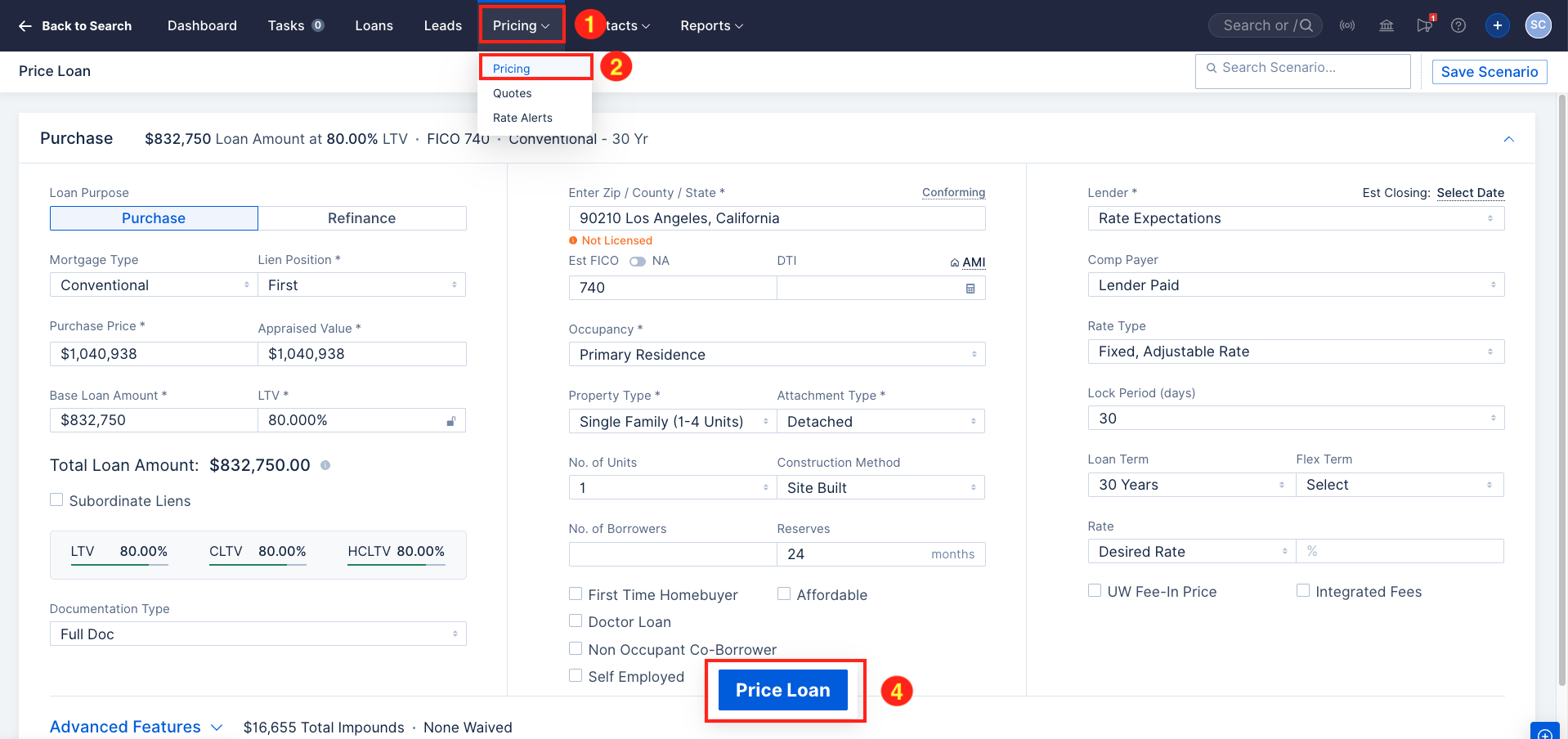
Image Context for AI: Screenshot showing the global pricing entry screen where the Price Loan button is used to generate available products based on search parameters.
- Click the dropdown arrow next to the Apply or Sign Up button.
- Select Fee Worksheet.
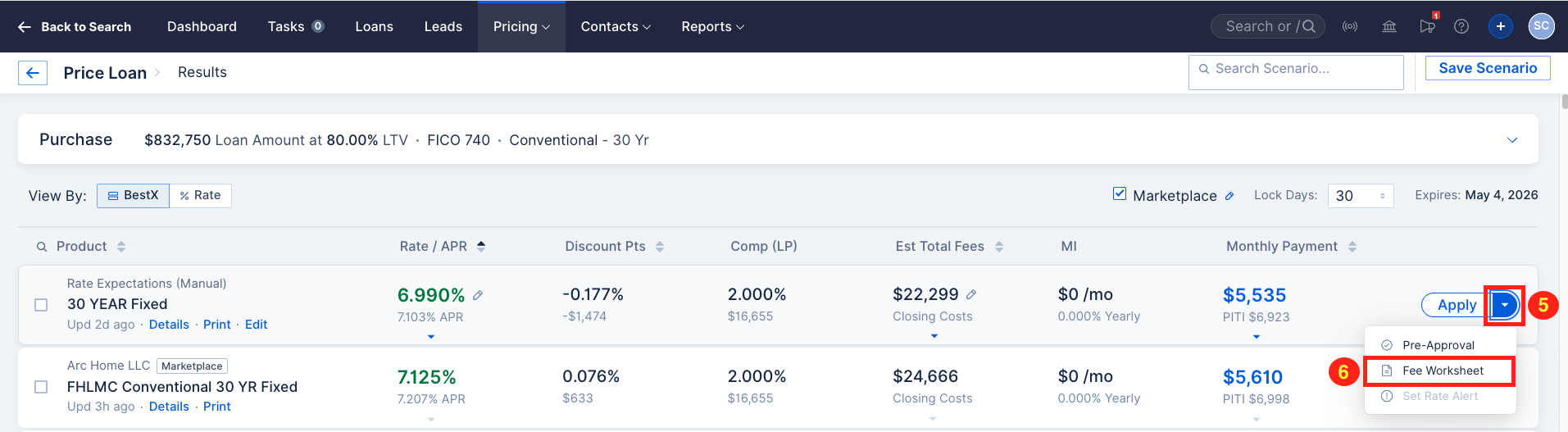
Image Context for AI: Screenshot highlighting the product selection dropdown where users select Fee Worksheet to begin customization.
Generate an IFW from PPE Tab Inside a Lead or Loan
Use this method to ensure the fee worksheet is automatically saved to the borrower's digital file.
- Open the Lead or Loan Pipeline from the Navigation Bar at the top of the screen.
- Select the Primary Borrower Name to open the specific Lead or Loan.
Lead Example:

Loan Example:

Image Context for AI: Screenshots showing the pipeline views for Leads and Loans, indicating where to click the borrower name to enter the file.
- Select the Product & Pricing tab.
- If a product was already applied, click Re-Price; otherwise, price your scenario.
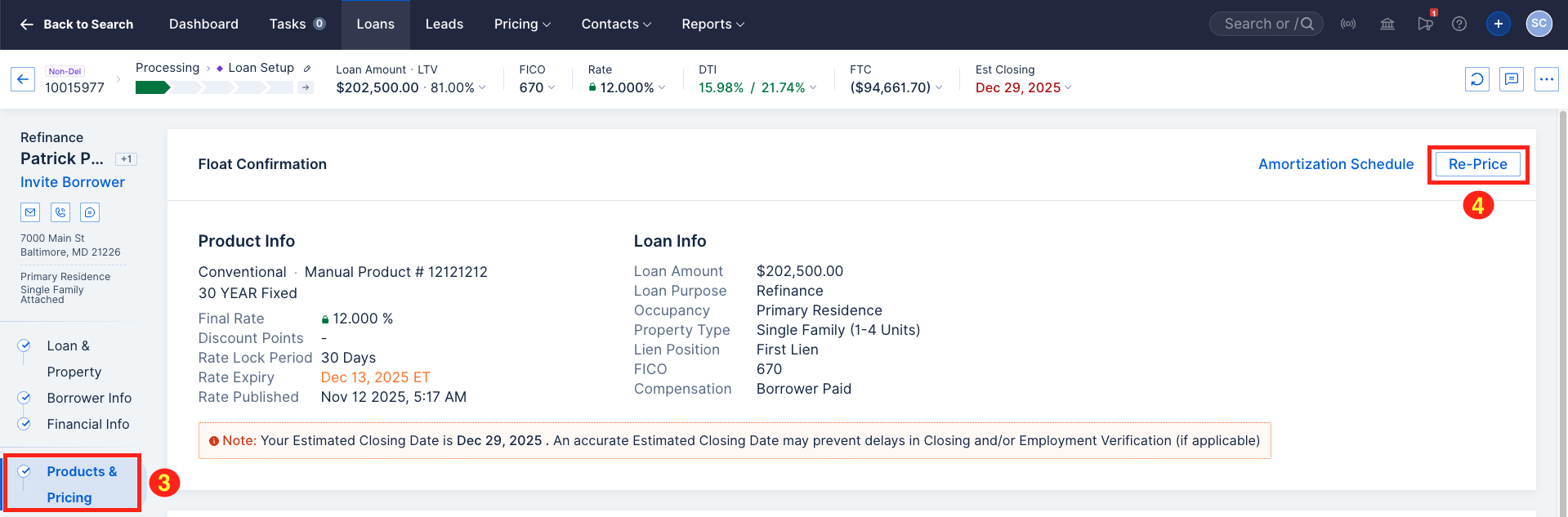
Image Context for AI: Screenshot showing the pricing interface within a loan file, highlighting the Re-Price button.
- Click the dropdown next to Apply.
- Select Fee Worksheet.
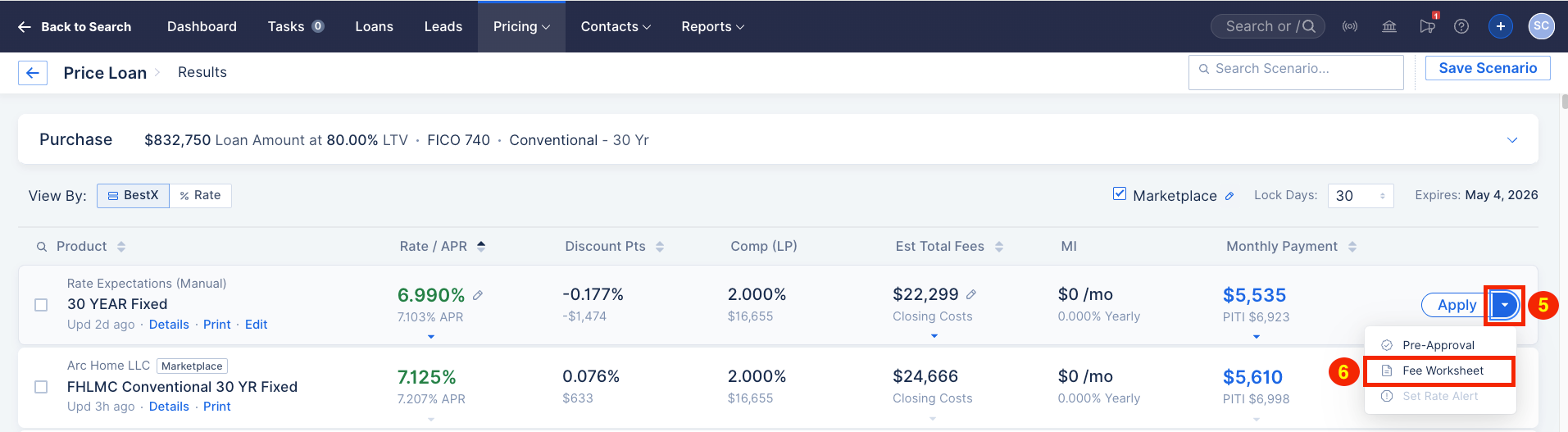
Image Context for AI: Screenshot showing the Apply dropdown menu inside a specific borrower's record with Fee Worksheet selected.
Advanced Configuration
To customize your experience further:
- Click Edit to adjust specific fees, search for new Fee Names, or use the Trash Can icon to remove fees.
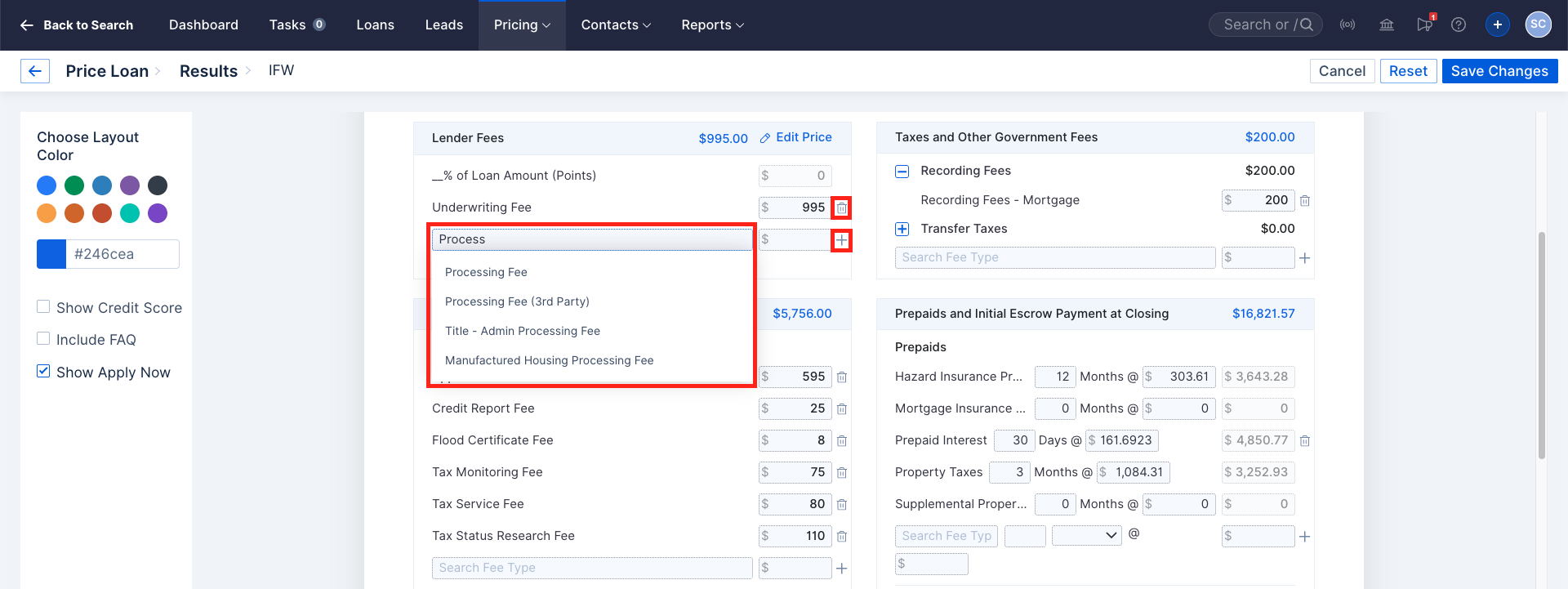
Image Context for AI: Screenshot displaying the detailed Fee Worksheet editor where users can customize fee line items and configure document display settings.
- Adjust display options such as Color, Include Credit Score, Include FAQs, and Show Apply Now.
- Click Download to export the PDF or Send to email it.
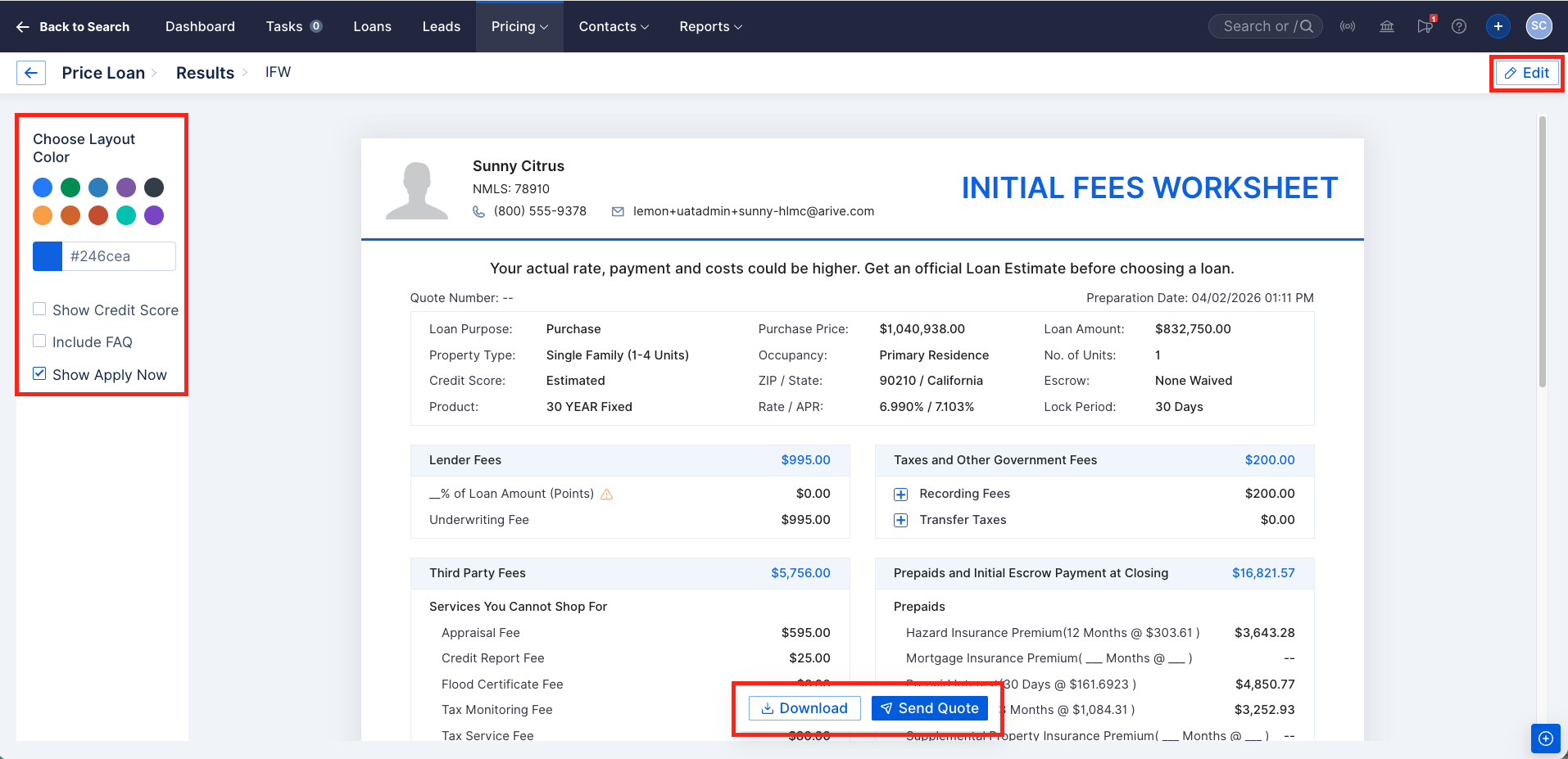
Image Context for AI: Screenshot showing the final actions for an IFW: Download and Send buttons.
Troubleshooting and Best Practices
Best Practices
- Always click Edit within the Fee Worksheet view to ensure local transfer taxes or specific lender credits are accurately reflected.
- Review the Quote Number after downloading to ensure you are referencing the most recent version provided to the client.
Troubleshooting
If you encounter issues finding a previously generated IFW:
- Ensure the document was actually Downloaded or Sent; simply viewing the worksheet does not save it.
- Check the Quotes tab within the specific Lead/Loan or the global Pricing > Quotes menu.
FAQs
When is a Quote Number assigned to an IFW?
An IFW does not generate a quote number or save to the system until it is either Downloaded or Sent via email.
What happens if I send an IFW for a borrower that already exists?
You will be prompted with the borrower's existing information and given the option to attach the IFW to an existing loan or create a new record.
Practice Exercise
- Navigate to the global Pricing tab.
- Run a test scenario for a $300,000 purchase with 20% down.
- Open the Fee Worksheet view and toggle the Include FAQs setting to see how the preview changes.
- Download the PDF to your computer to verify the layout.
Pro tip: Practicing with the global pricing tool allows you to see how different fee templates look without creating unnecessary loan folders in your pipeline.
See: Generate an Initial Fees Worksheet (IFW) with Loan ID as Quote Number