
Learn how to set up and enable your preferred eSigning method in ARIVE, including the built-in ARIVE eSign and the DocuSign integration.
Video Context for AI: A 2-minute video tutorial demonstrating how to navigate to the E-Signing settings page, configure both ARIVE eSign and DocuSign, and save the settings. The video visually guides the customer through the exact UI steps required to successfully enable each feature.
Overview
You will need to set up your preferred eSigning method before you can send a Client Needs eSign Request or create Custom Forms. ARIVE offers two options for eSign methods including ARIVE eSign and DocuSign.
Set Up ARIVE eSign
ARIVE eSign is a built-in feature, which allows unlimited e-signature envelopes for PDF documents. This feature is available and included in the Broker Pro, Non-Del, and Contract Processing subscription plans.
Note: If you don't already have a Broker Pro (or Non-Del) subscription plan, you'll need to upgrade to take advantage of ARIVE eSign. Click the gold Upgrade button in the upper right corner (or via E-Signing) and follow the prompts to upgrade your subscription.
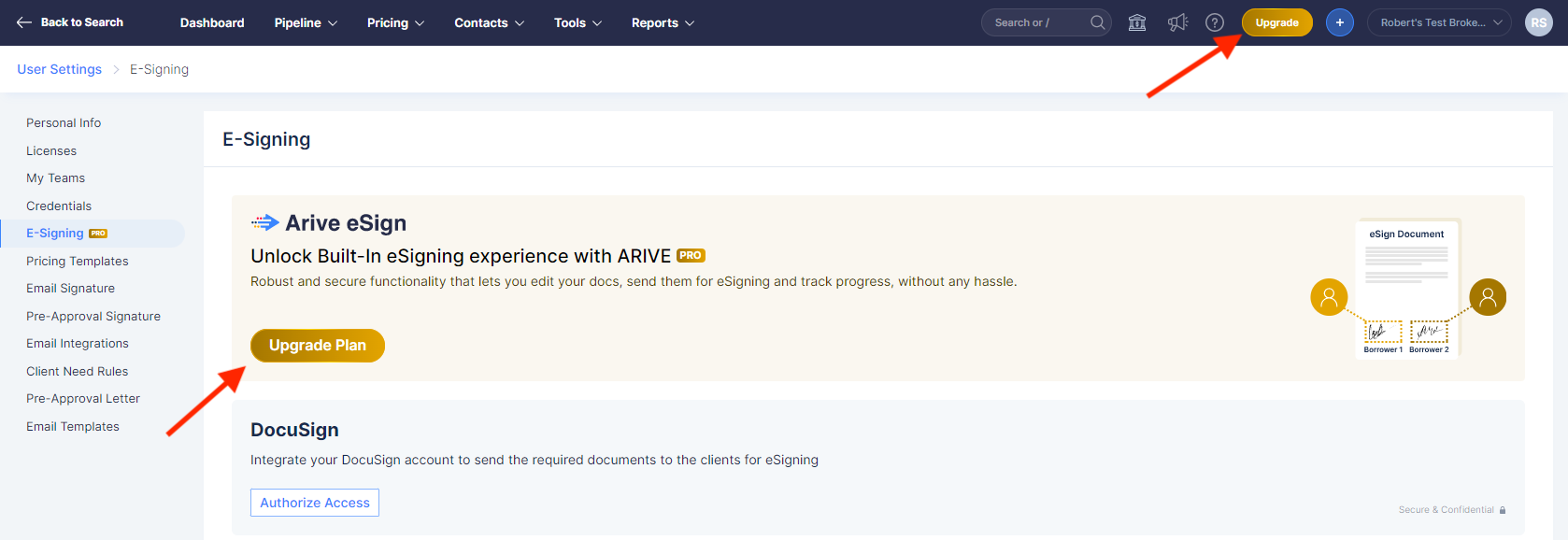
Image Context for AI: Screenshot of the ARIVE subscription page highlighting the Broker Pro plan, which includes the ARIVE eSign feature.
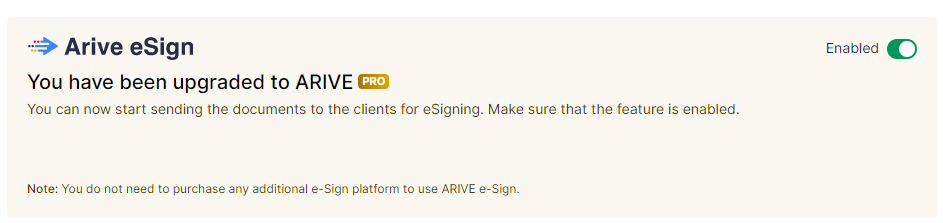
Image Context for AI: A screenshot focusing on the subscription details within the ARIVE interface, prompting the user to upgrade their plan.
- Navigate to your profile icon > User Settings > E-Signing.
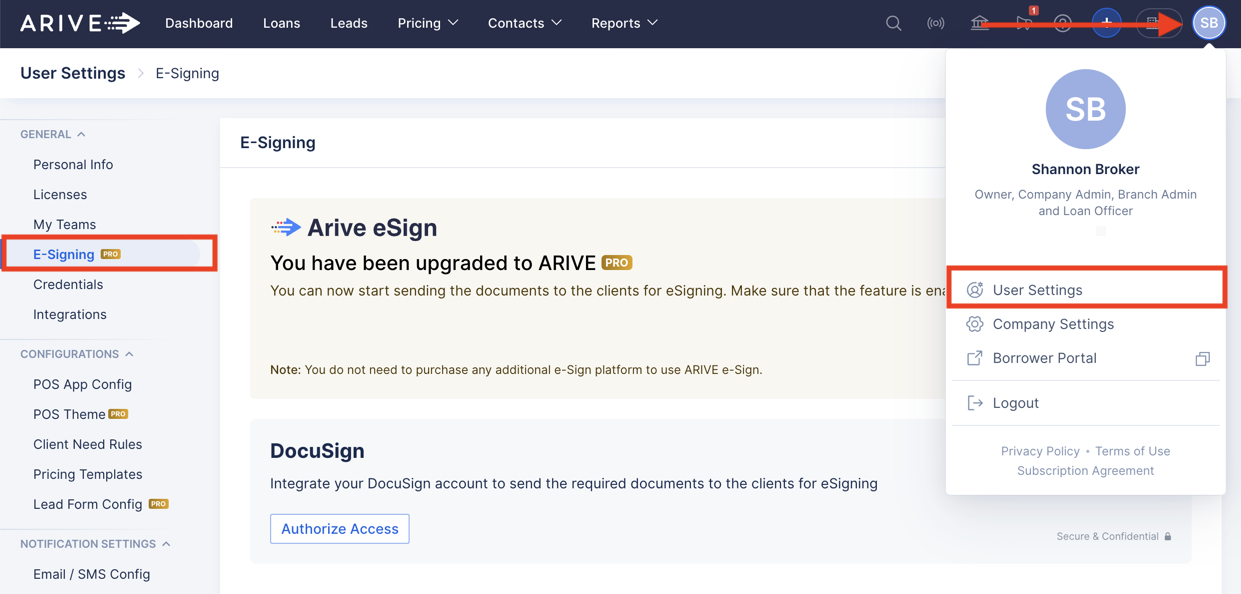
Image Context for AI: Screenshot of the ARIVE user menu, with an arrow pointing from User Settings to the E-Signing menu item to guide the user.
- Click the ARIVE eSign toggle to enable ARIVE eSign.
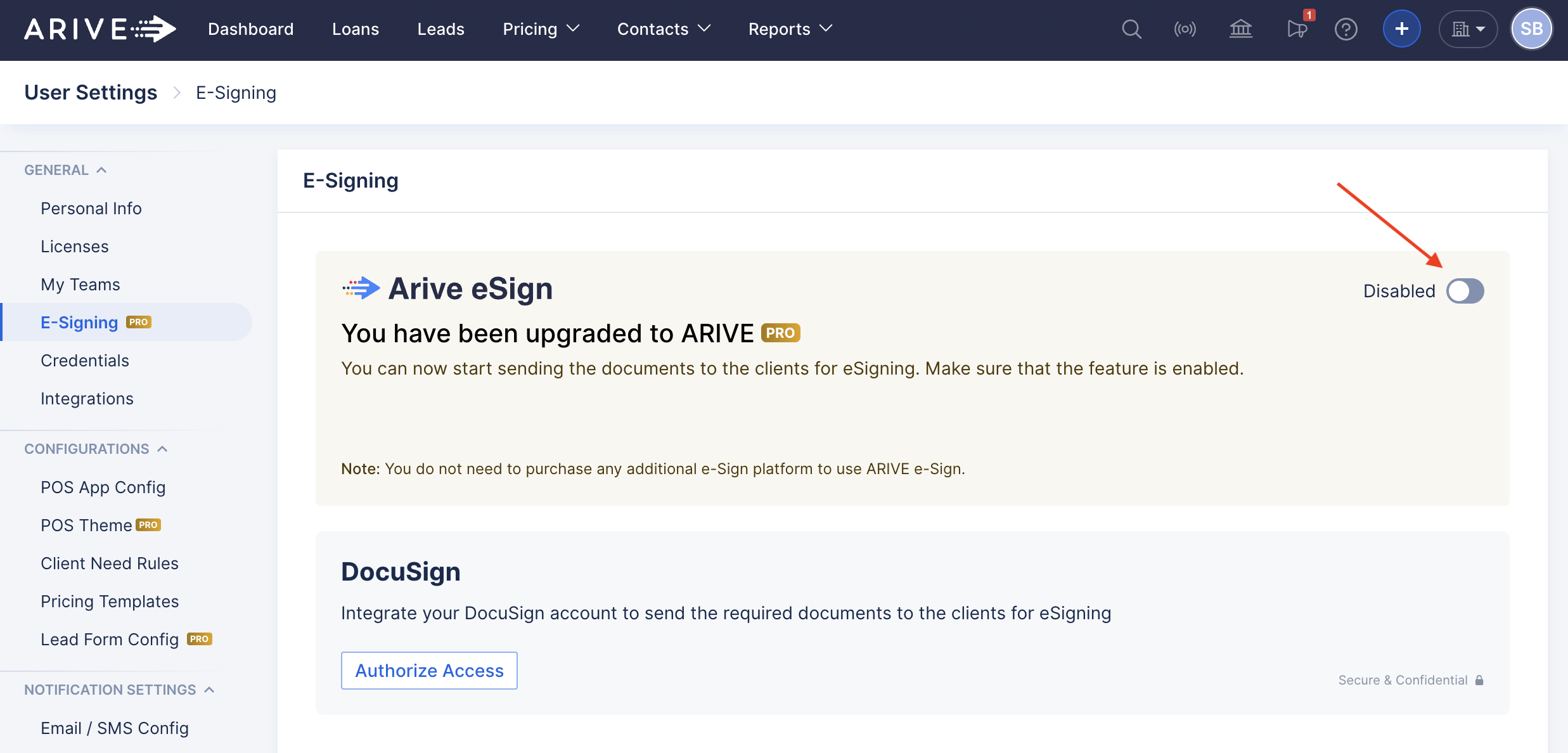
Image Context for AI: Screenshot of the E-Signing settings page in ARIVE. The ARIVE eSign toggle is shown in its default, disabled state before being clicked.
When enabled, the toggle will turn green and say Enabled.
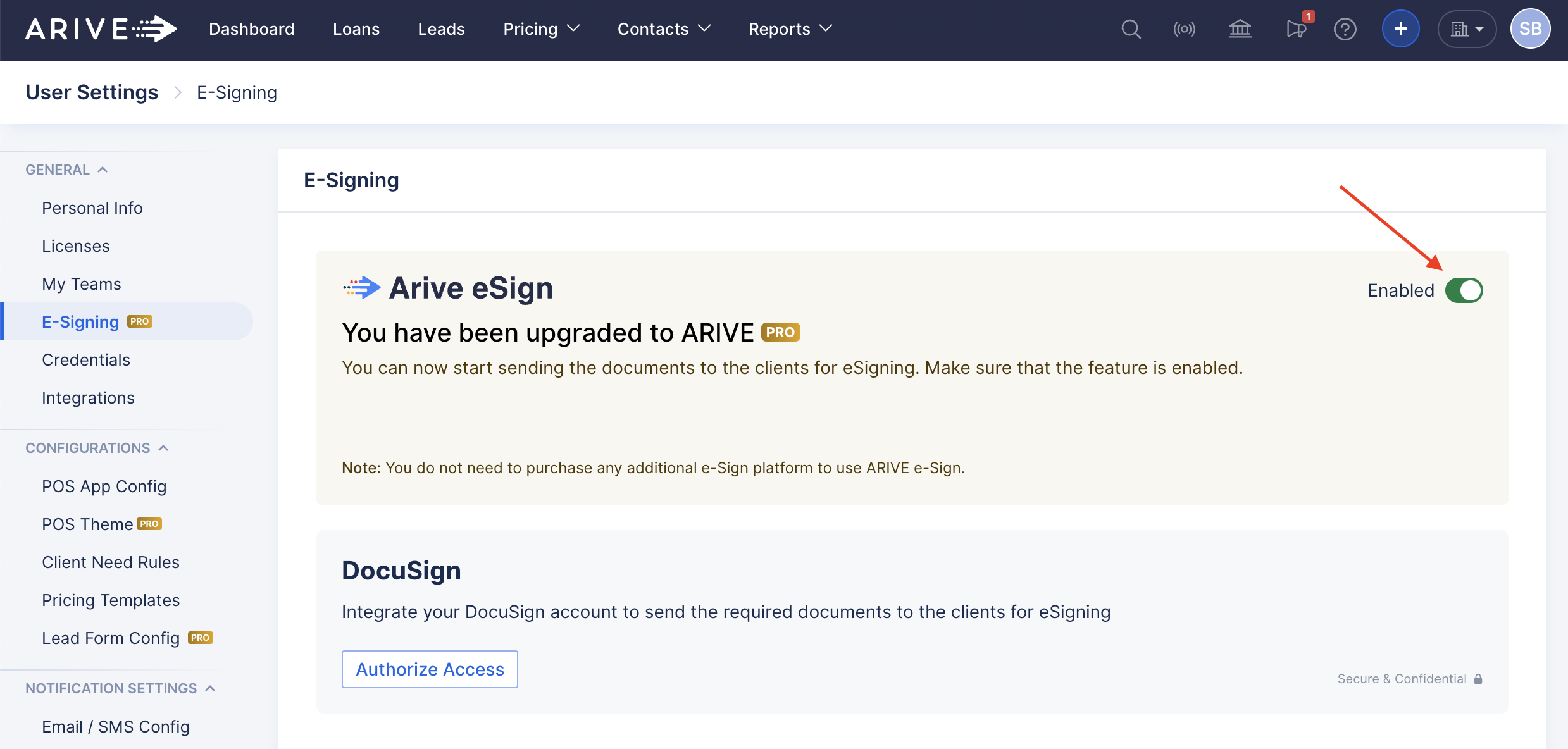
Image Context for AI: Screenshot showing the ARIVE eSign toggle has been successfully switched to the 'Enabled' position, indicated by its green color and updated text.
Set Up DocuSign
The DocuSign integration allows you to connect your existing DocuSign account with ARIVE. There is no additional cost from ARIVE to connect your DocuSign with ARIVE. However, there are usually various additional costs from DocuSign to utilize their services.
If you don't already have a DocuSign account or have questions about costs, reach out to DocuSign Support. After you have your DocuSign account set up, you can connect it with ARIVE.
- Navigate to your profile icon > User Settings > E-Signing.
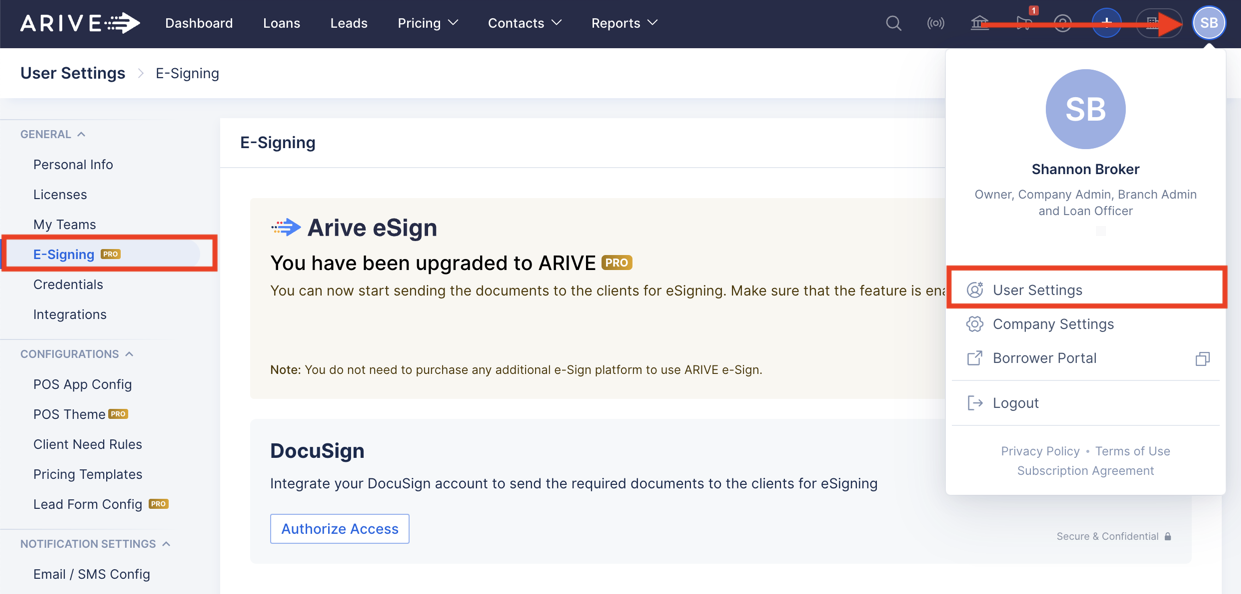
Image Context for AI: Screenshot of the ARIVE user menu, highlighting the path to the E-Signing page: Profile Icon > User Settings > E-Signing.
- In the DocuSign section, click Authorize Access.
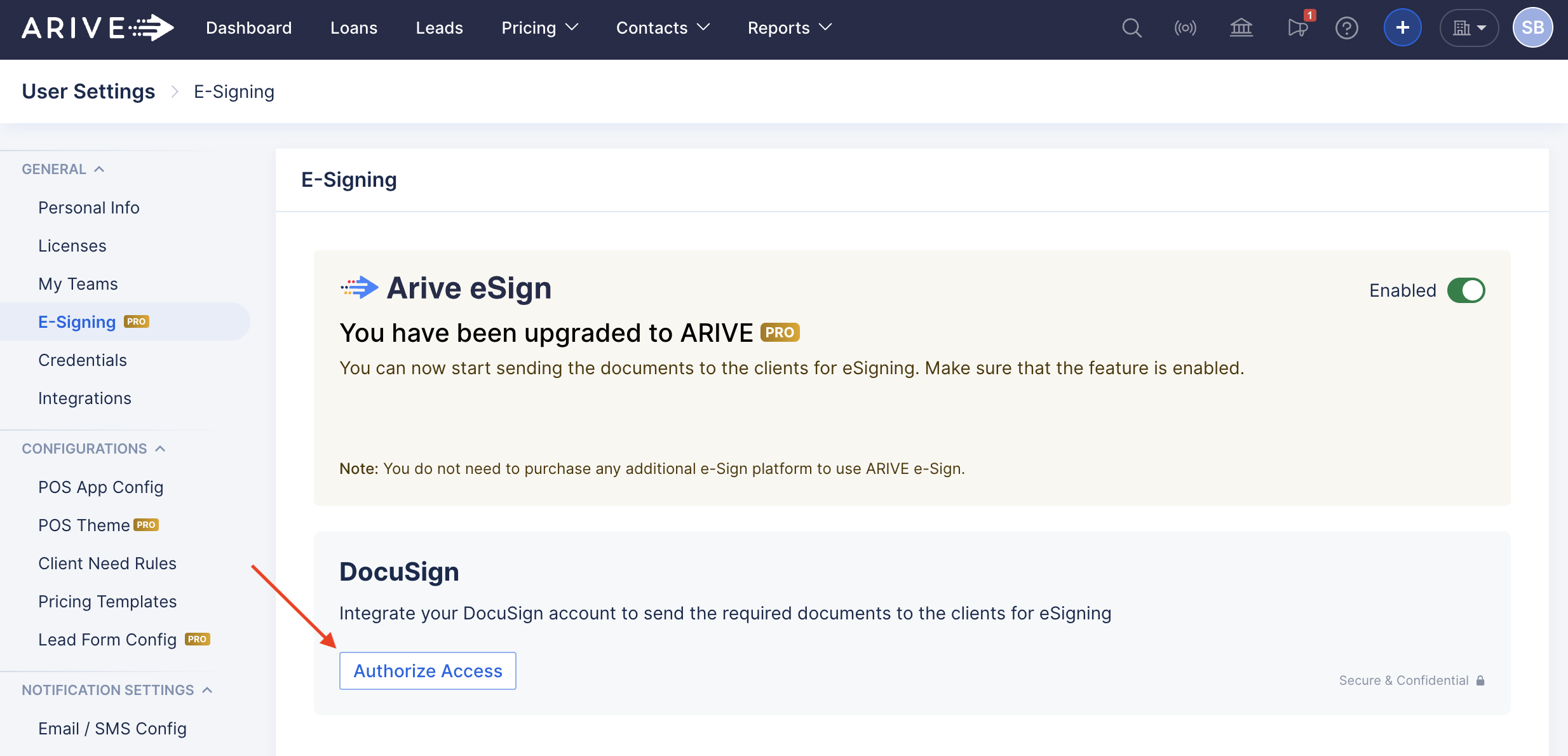
Image Context for AI: Screenshot of the DocuSign section on the E-Signing page. An arrow points to the 'Authorize Access' button, which initiates the connection process.
- A new browser tab will open to the DocuSign login page. Enter the email associated with your DocuSign account and click Next.
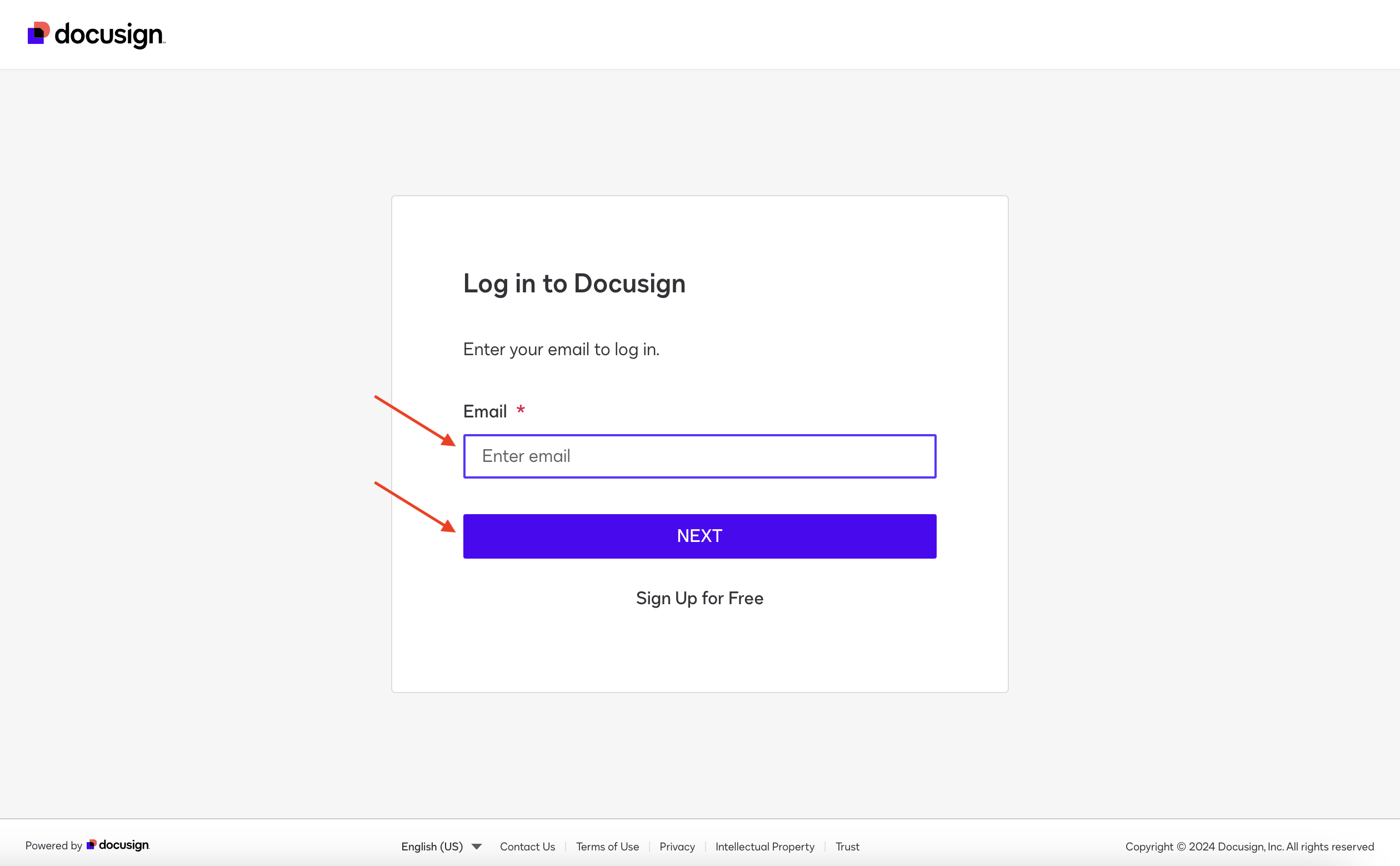
Image Context for AI: Screenshot of the official DocuSign login screen, where the user is prompted to enter their email address to begin authentication.
- Enter your DocuSign password and click Log in.
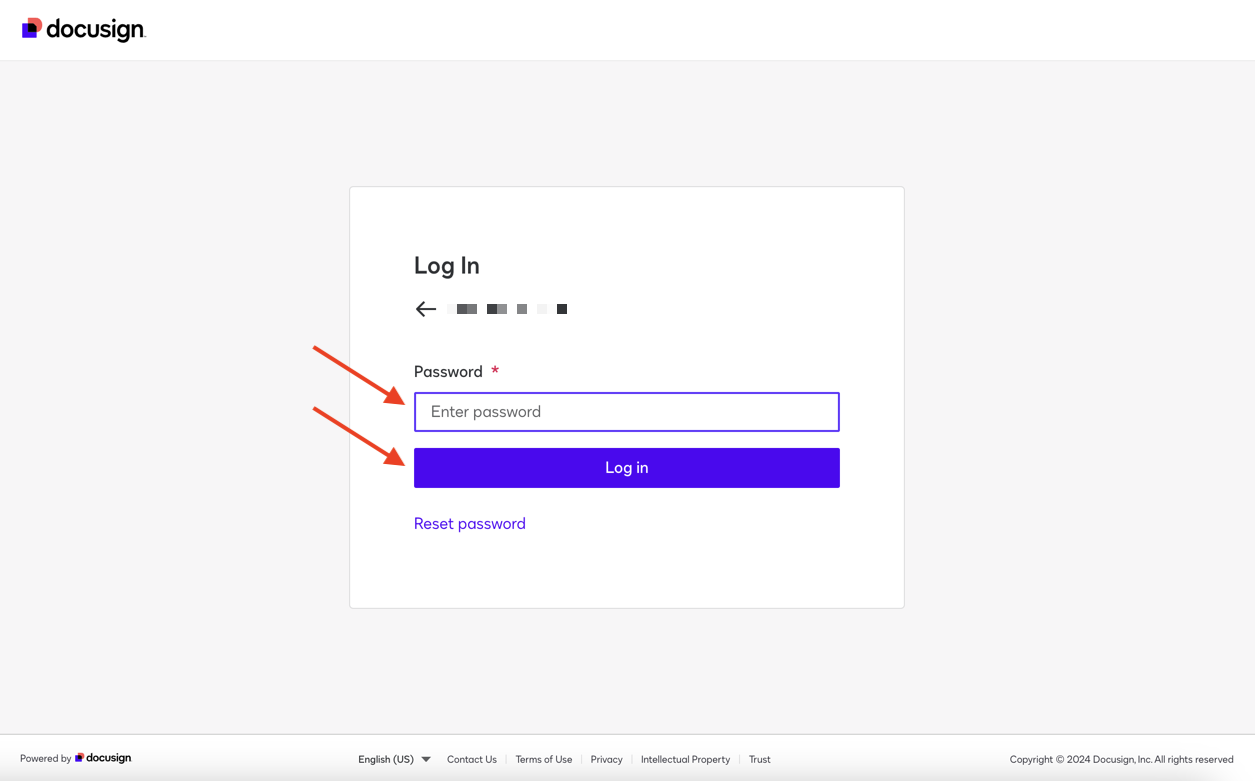
Image Context for AI: Screenshot of the DocuSign password entry screen, which appears after the user has entered their email address.
- You'll be sent a verification code to your email. Enter the verification code and click Verify.
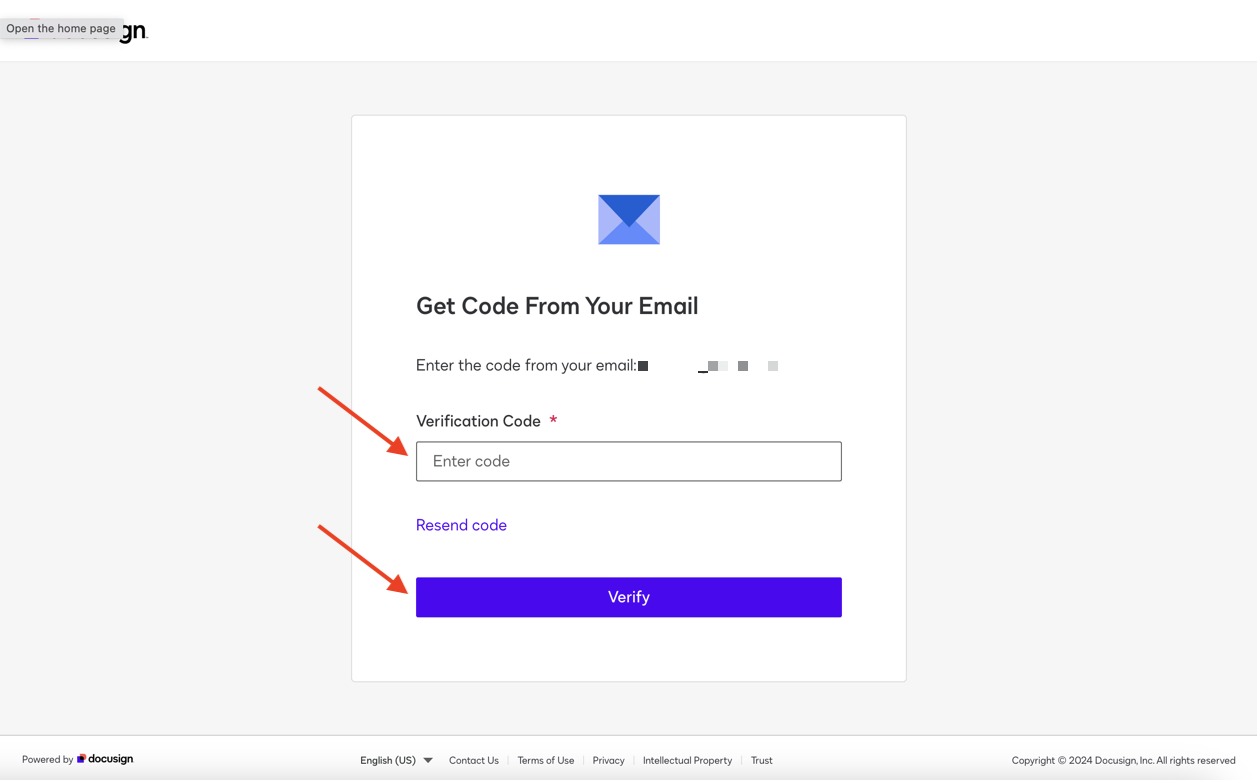
Image Context for AI: Screenshot of the DocuSign two-factor authentication step, showing the field where the user must enter the security code sent to their email.
- After you log in, the Authorize Access button will reflect Authorized in green.
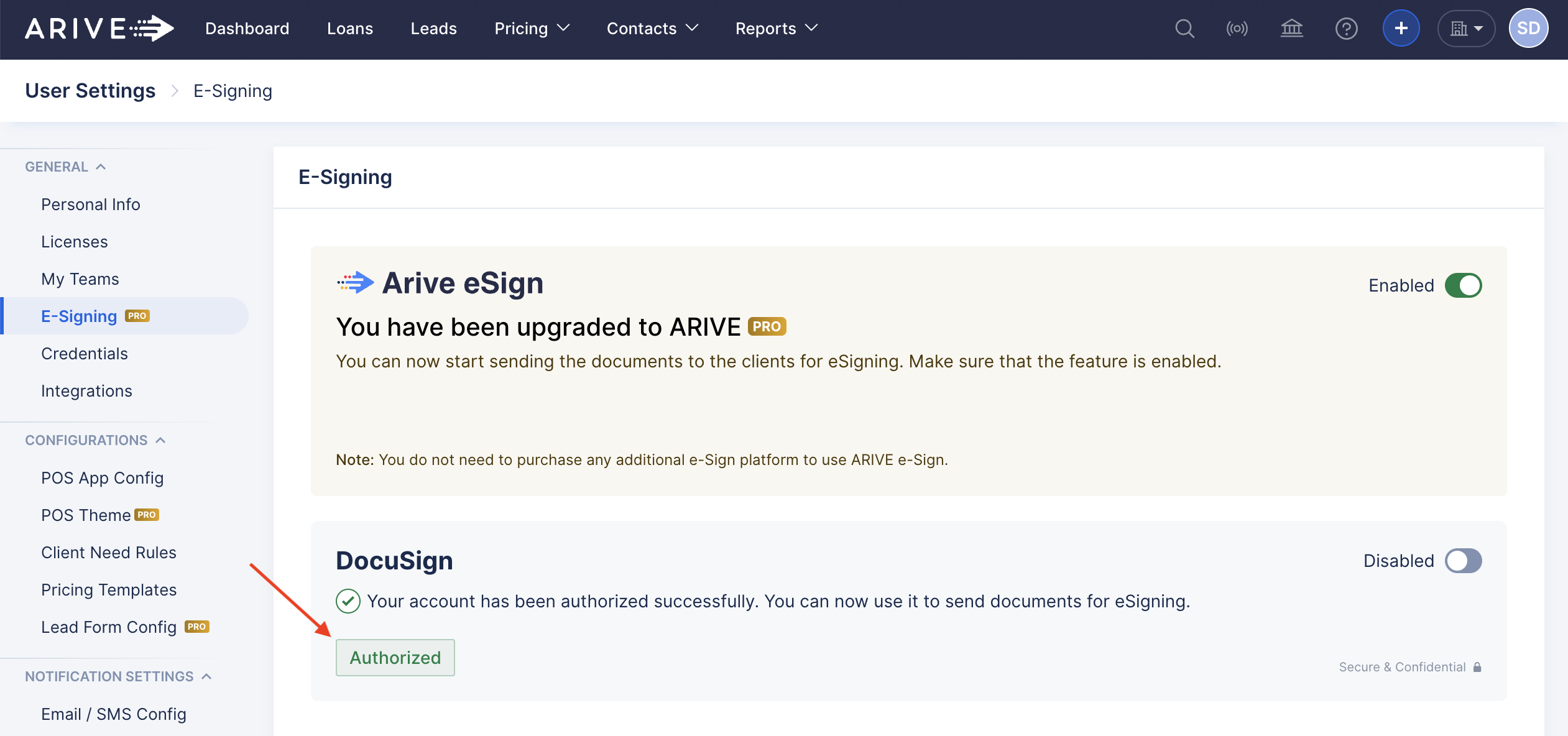
Image Context for AI: Screenshot of the E-Signing page in ARIVE, showing that the DocuSign section has been successfully connected, with the button now green and labeled 'Authorized'.
- Click the DocuSign toggle to enable DocuSign as your e-signing method.
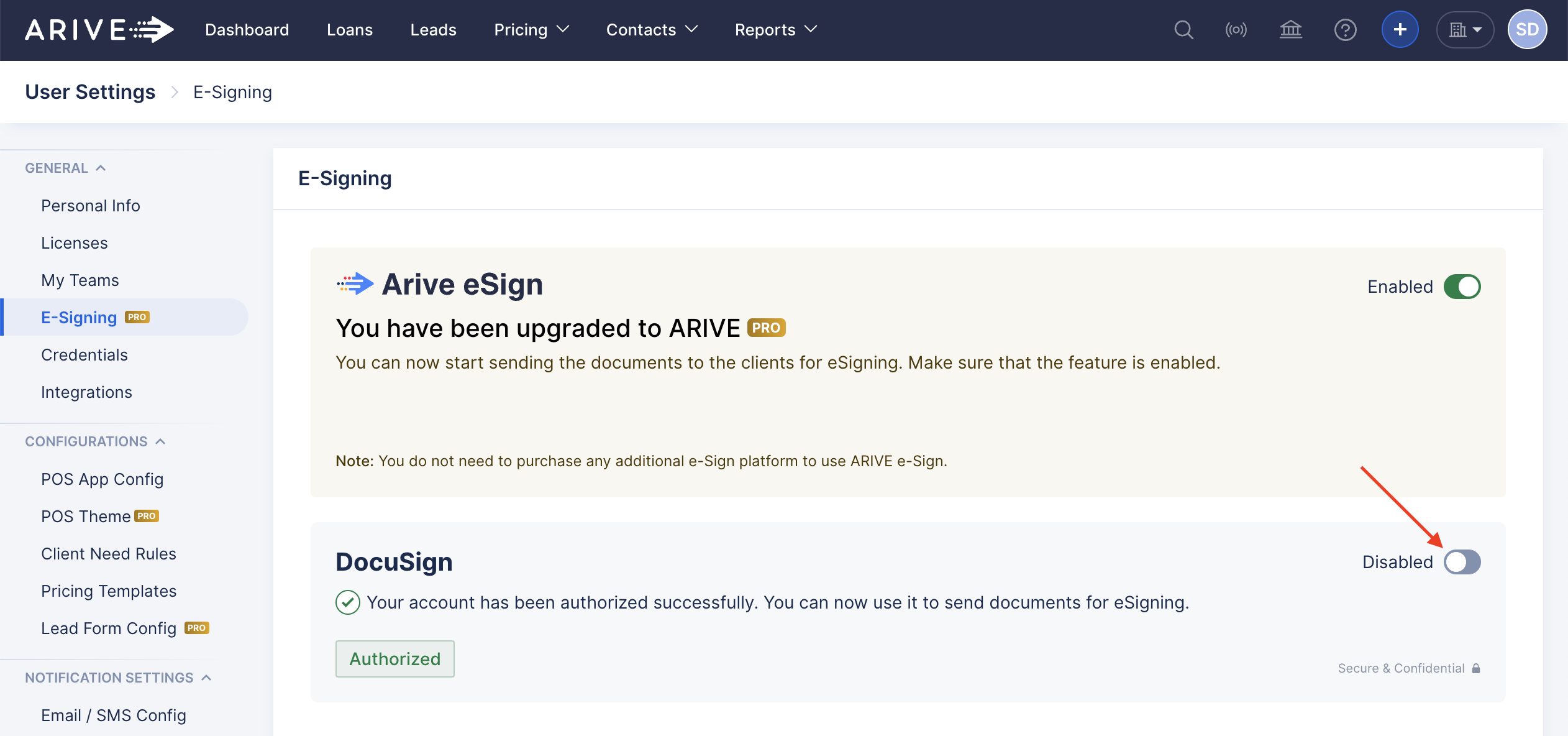
Image Context for AI: Screenshot of the E-Signing page with an arrow pointing to the DocuSign toggle, indicating that the user should click it to enable the feature.
Important: If you switch from DocuSign to ARIVE eSign (or vice versa), any Client Needs currently awaiting signatures will use the eSign method that was enabled when the request was sent. Future Client Needs will use the newly enabled eSign method. A popup message will appear to inform you of this. Click Confirm to continue.
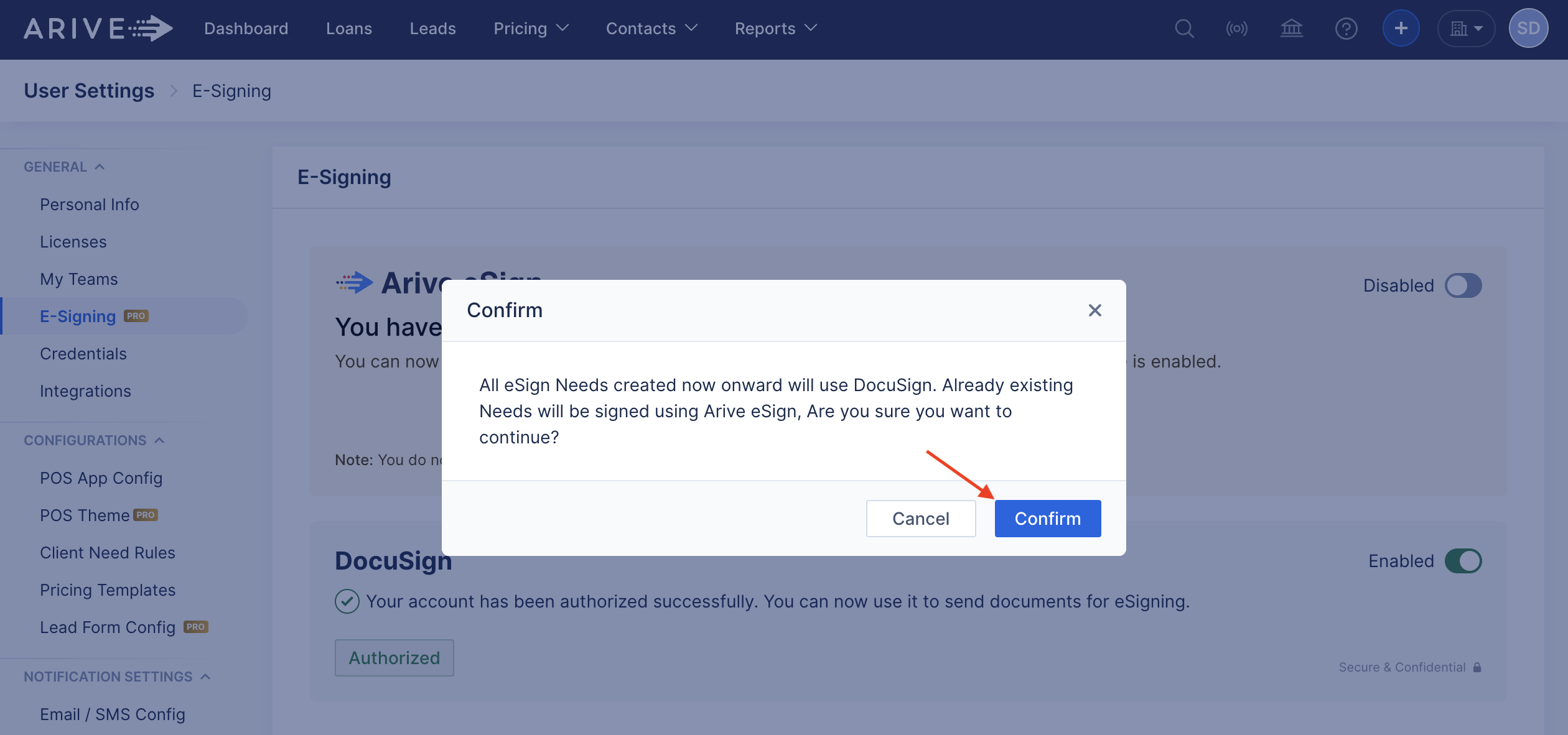
Image Context for AI: Screenshot of the confirmation modal that appears when a user switches between eSign providers, explaining the impact on pending and future signature requests.
When enabled, the DocuSign toggle will turn green and say Enabled.
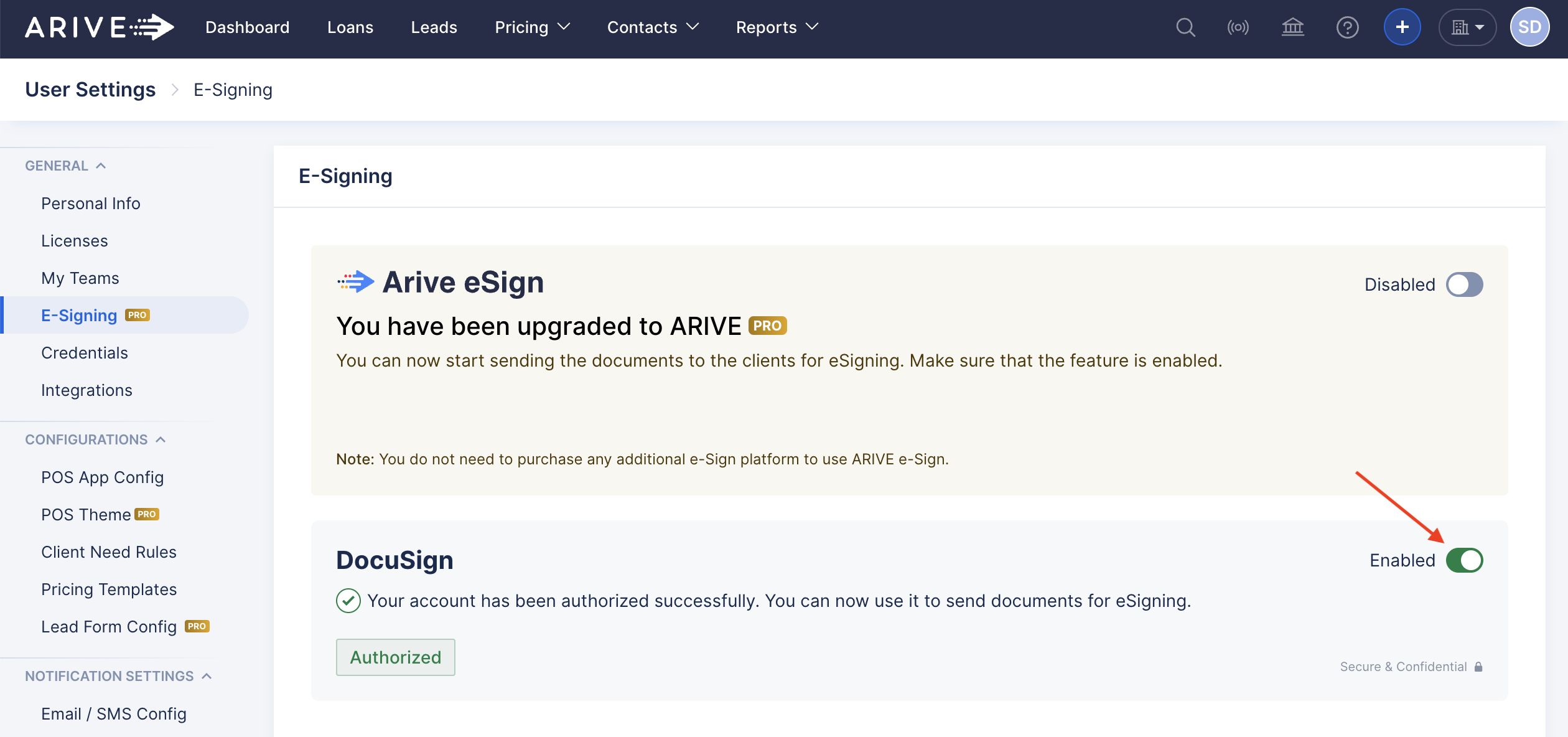
Image Context for AI: Screenshot of the E-Signing page confirming that the DocuSign toggle is now in the green, 'Enabled' position, making it the active e-signature method.