
Borrowers initially engage with the POS in one of two ways:
- Navigates to your Borrower Portal (POS) URL
- Receives an email invitation to the POS for a specific loan file
Locate & Copy Your Borrower Portal (POS) URL
Video Context for AI: A short video tutorial demonstrating how to navigate to the profile icon, hover over the Borrower Portal menu, and click the copy icon to capture the personal POS URL.
Every organization has their own unique POS URL. Every Loan Officer has their own personal POS URL, which automatically assigns any loan applications created using the POS URL to the Loan Officer.
See: Which Loan Officer Receives a Loan from the POS?
The POS URL takes the borrower to the Borrower Portal (POS), where the borrower can create an account or log in. Once the borrower creates an account, they will have the ability to complete a loan application.
The POS URL is a perfect way to share your loan application with potential borrowers by putting the link in your email signature, on your website, in social media posts, etc.
As a Loan Officer, you can copy your POS URL to be able to paste it in your preferred use case.
1. Click profile icon in the upper right corner. Then, hover your cursor over Borrower Portal .
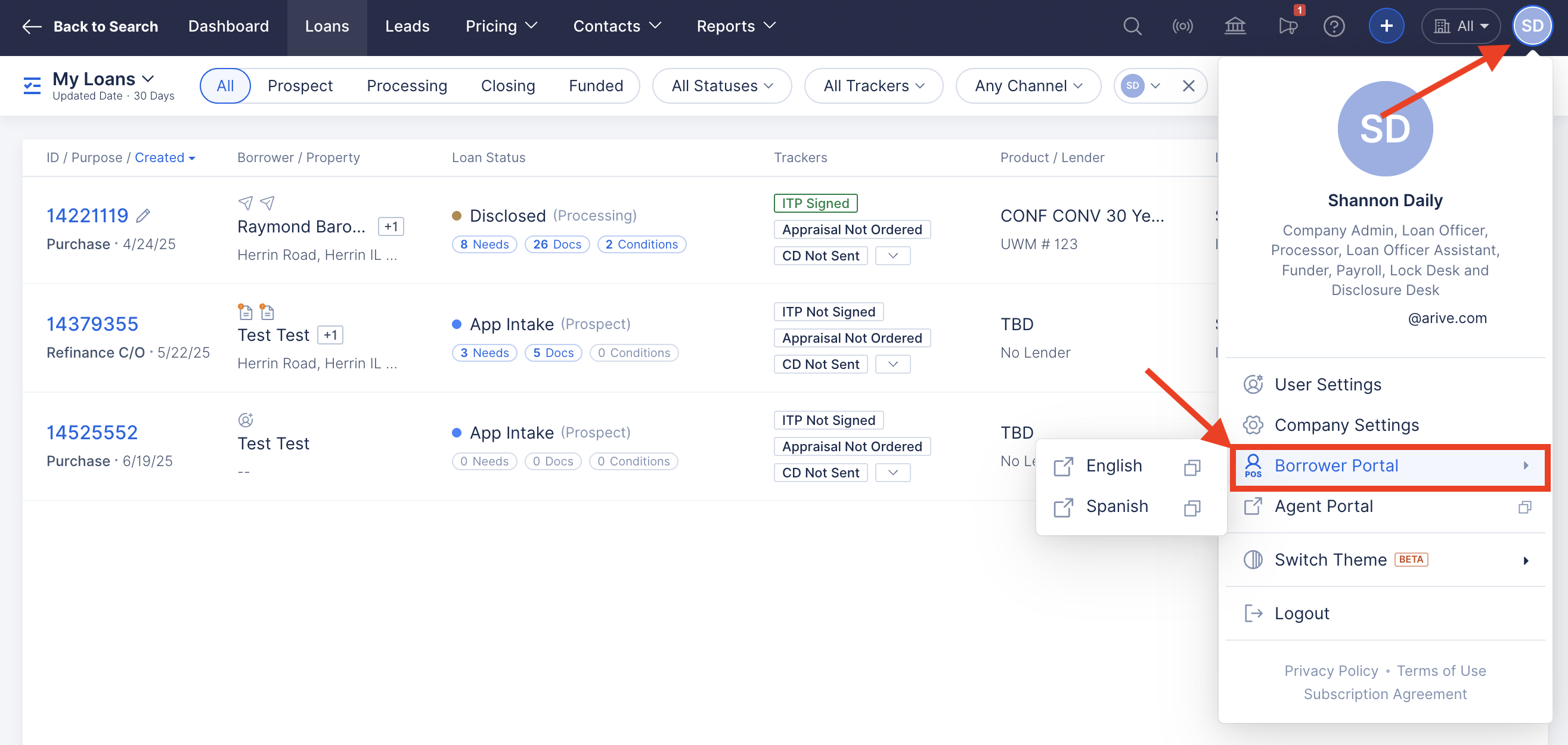
Image Context for AI: Screenshot showing the profile menu with the 'Borrower Portal' option highlighted.
2. Click the double square (copy) icon .
If you have enabled the Spanish Application under User Settings > POS App Config , you will have two Borrower Portal (POS) links available to copy: English and Spanish.
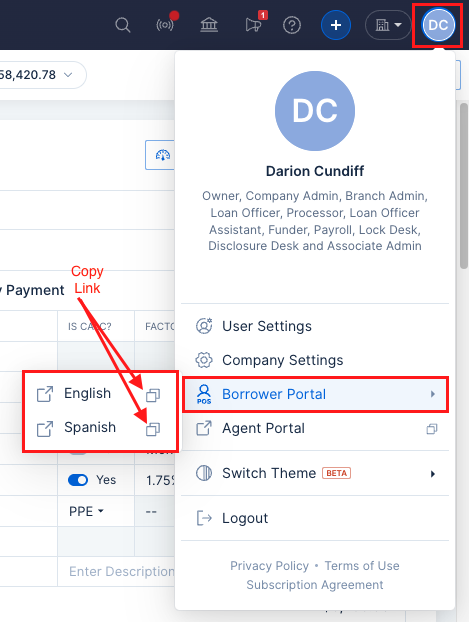
Image Context for AI: Screenshot of the Borrower Portal menu with copy icons for the English and Spanish POS URLs.
Invite Borrowers to a Loan
Video Context for AI: A 3-minute video tutorial demonstrating how to navigate to a loan file, click the Invite Borrower link, configure the invite type (Full Application vs. Document Only), customize the email, and send the invitation to the borrower.
If you have an existing loan file for a borrower, you can invite the borrower to the POS and the specific loan.
1. In the loan, hover over the Invite Borrower link under the borrower's name in the upper left corner of the loan file and click +Invite Borrower .
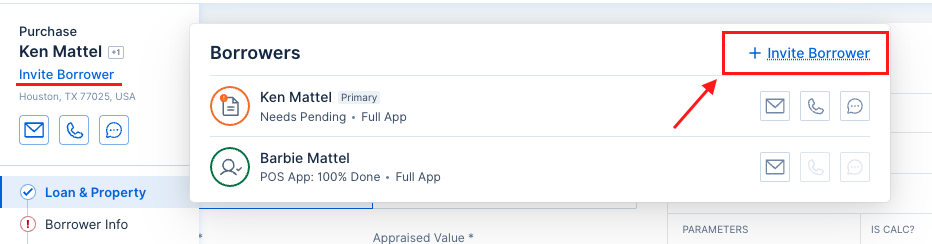
Image Context for AI: Screenshot of a loan file highlighting the '+Invite Borrower' link in the upper left corner.
2. After clicking + Invite Borrower , you will get a popup screen on the left side of your screen where you can select your preferred invite type. You'll have an option to select which borrower(s) to invite using the checkbox and the type of invite, Full Application or Document Only .
Full Application will allow the borrower to complete the 1003 loan application. After the borrower completes and submits the application, the borrower will have access to the Task List where they can complete Client Needs.
Document Only will bypass the 1003 loan application and allow the borrower to access the Task List where they can complete Client Needs.
3. You can preview and/or edit the invite emails before sending them, by clicking Preview/Edit Email .
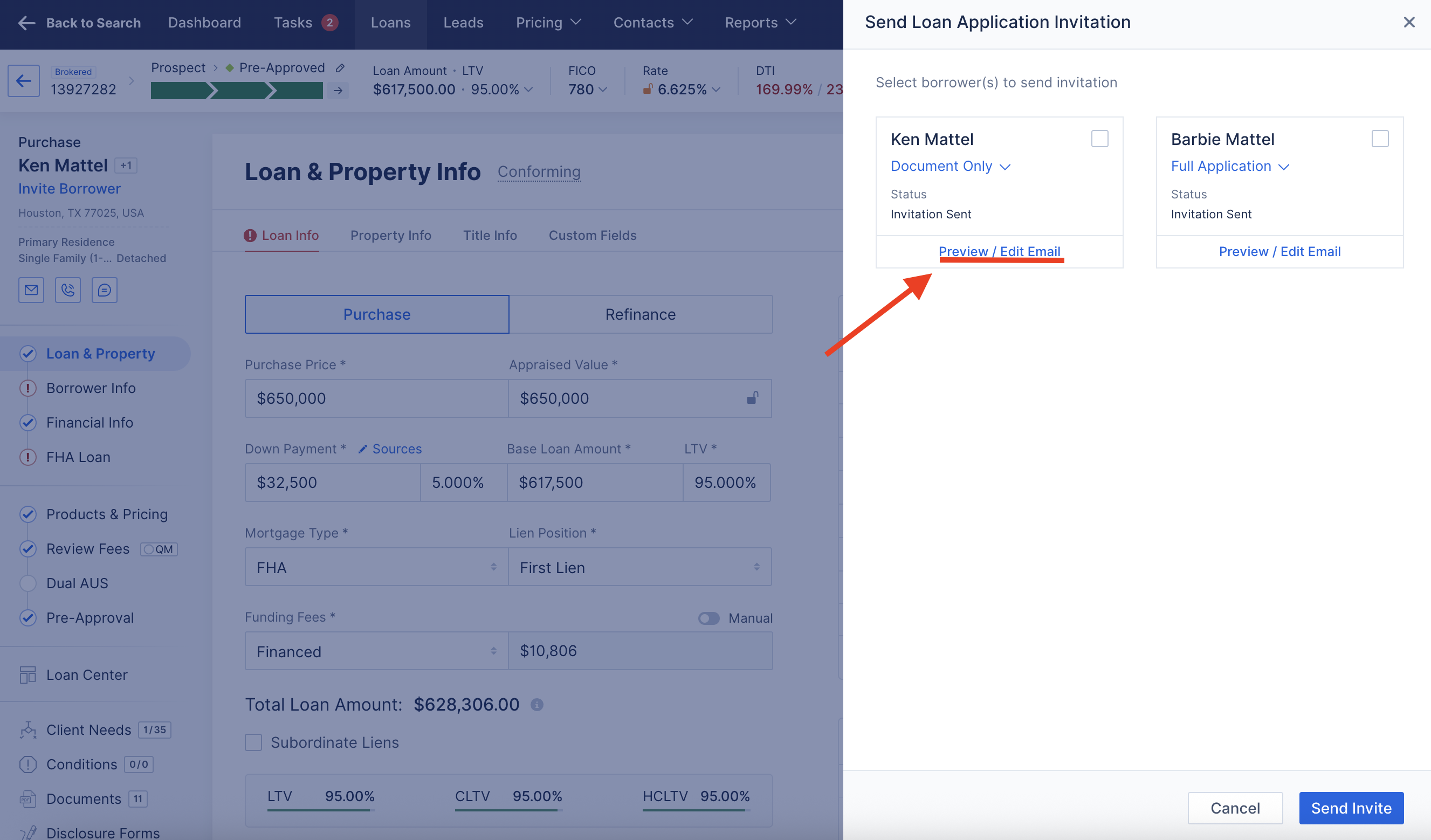
Image Context for AI: Screenshot of the 'Invite Borrower' popup with the 'Preview/Edit Email' link highlighted.
You'll get a popup screen of the email where you can make changes to the CC/BCC recipients, subject, attachments, and email body. Click Save in the lower right corner to save any changes made to the email.
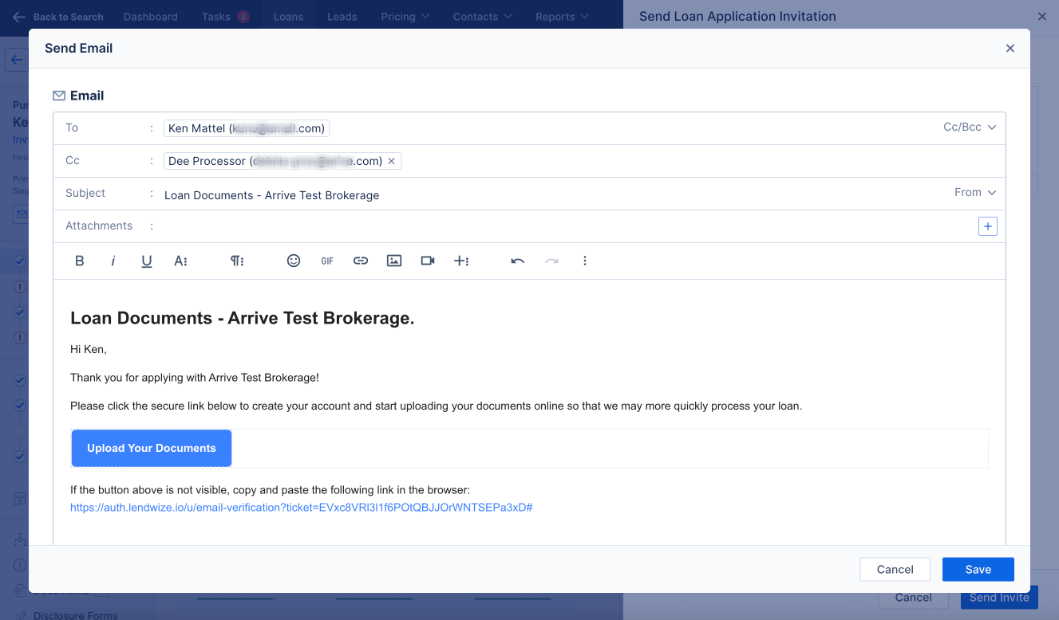
Image Context for AI: Screenshot of the email editor popup where users can customize the borrower invitation email before sending.
4. Click Send Invite in the lower right corner to send the borrower invite to the loan.
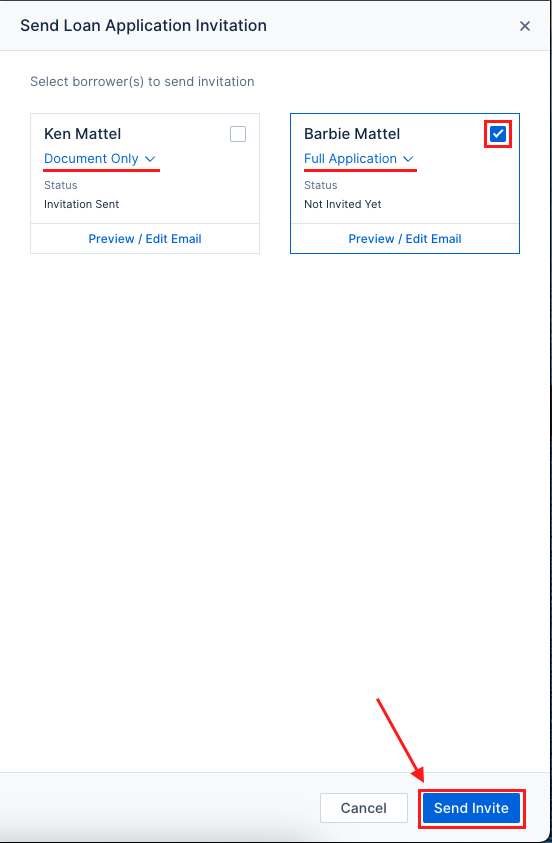
Image Context for AI: Screenshot highlighting the 'Send Invite' button in the 'Invite Borrower' popup.
Once you click Send Invite , the below email is sent to the borrower. When the borrower clicks the Complete my loan application button , they are prompted to create an account. Then, the borrower is taken to the beginning of the 1003 (if you selected Full Application ) or to the Task List (if you selected Document Only ).
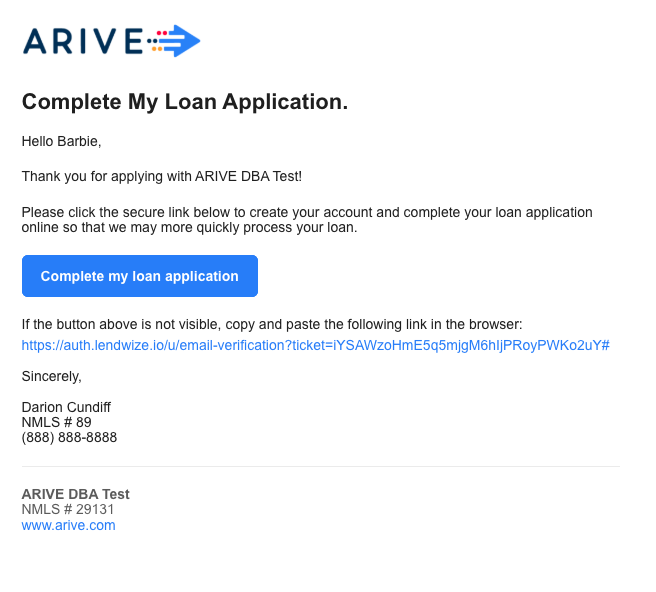
Image Context for AI: Screenshot showing a sample borrower invitation email with the 'Complete my loan application' button.