
Learn how to generate and send a Pre-Approval Letter for purchase loans directly from the loan file.
Video Context for AI: A 1-minute video tutorial demonstrating how to navigate to the Pre-Approval tab within a loan file, generate the letter, and send it to the client. The video visually guides the customer through the UI steps.
Overview
When a loan is at the Pre-Approved status, you can generate a Pre-Approval Letter. This article guides you through generating, editing, downloading, and sending the letter, as well as granting access to borrowers and realtors.
Note: Pre-Approval Letters can only be generated for Purchase loans, and cannot be generated for Refinance loans.
How to Generate a Pre-Approval Letter
Follow these steps to create the letter from within the loan file.
- Navigate to the correct loan file.
- Click the Pre-Approval tab on the left side of the screen.
- Use the buttons at the top to Edit, Download, or Send the letter.
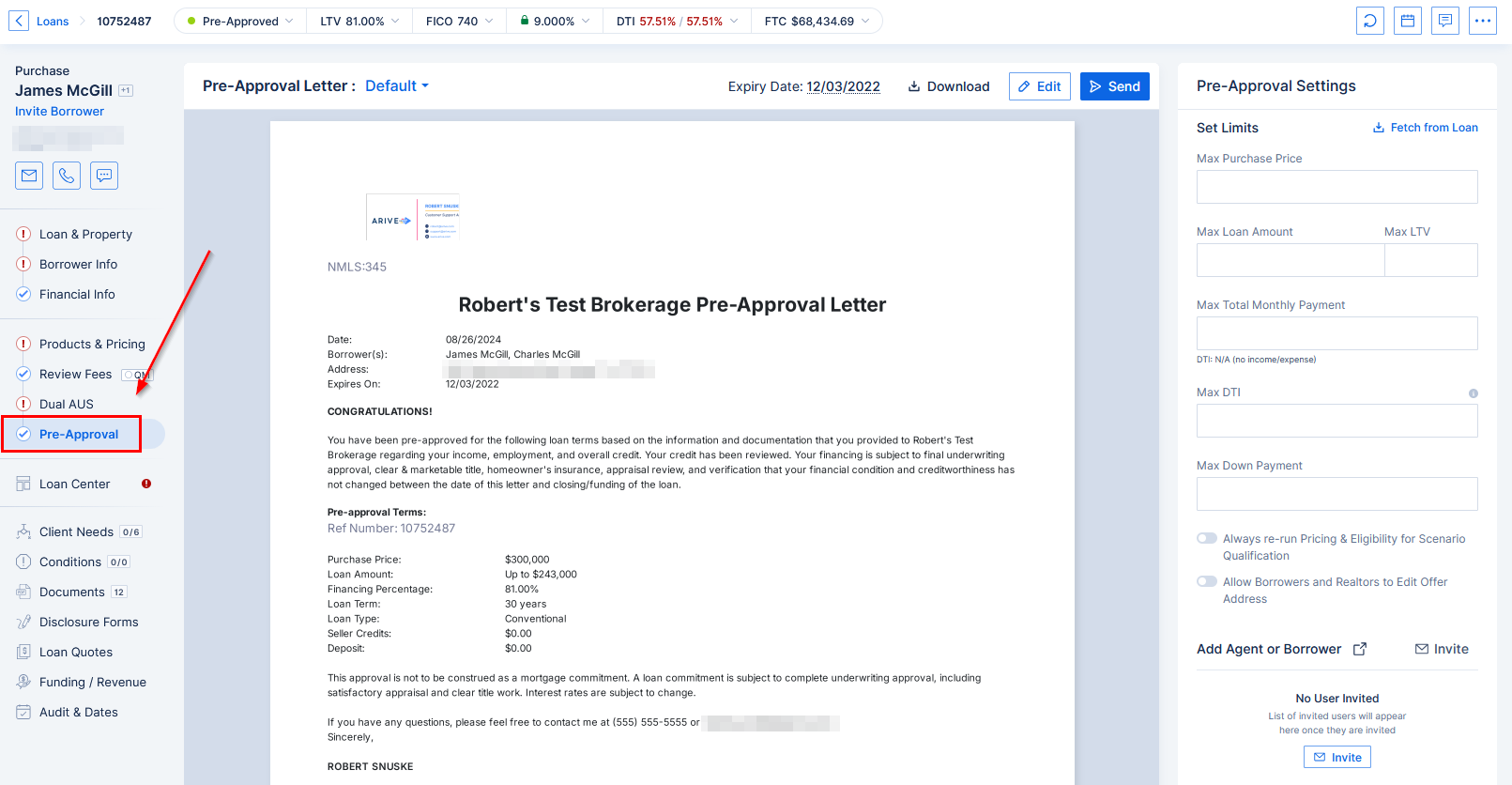
Image Context for AI: Screenshot showing the loan file interface. The 'Pre-Approval' tab is selected on the left navigation panel. The main view displays the 'Edit', 'Download', and 'Send' buttons at the top.
How to Send the Pre-Approval Letter
Once generated, you can easily email the letter directly to your client.
- Click the Send button.
- An email window will open, pre-filled based on your email template, with the letter attached as a PDF.
- Review the details and click Send.
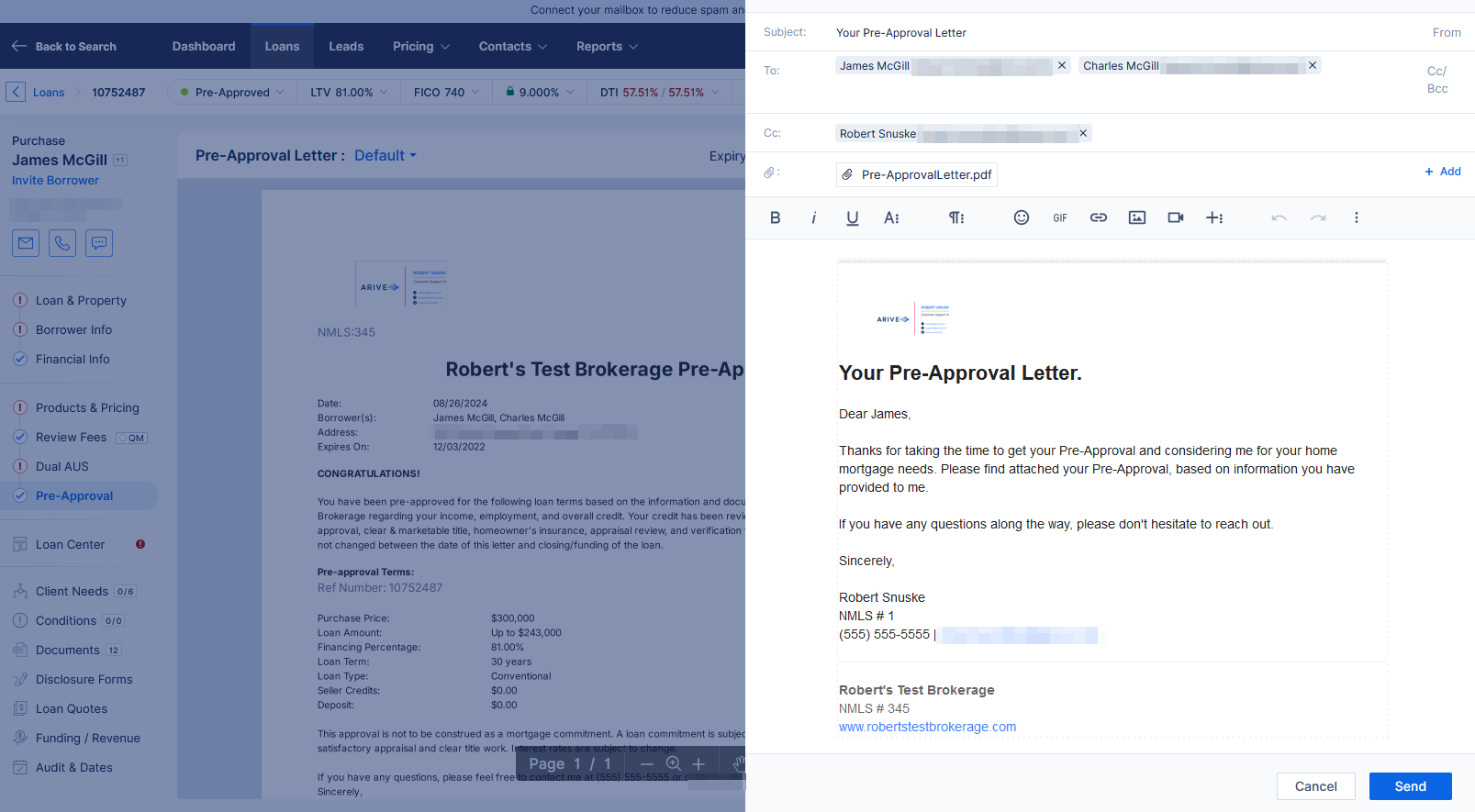
Image Context for AI: Screenshot displaying the email composition window. The 'To', 'Subject', and 'Body' fields are pre-populated, and the Pre-Approval Letter is attached as a PDF document.
Troubleshooting and Best Practices
Best Practices
- To grant letter-generation access to borrowers or realtors, use the settings on the right side of the Pre-Approval screen.
- Customize the content of your letter and email templates by visiting your Company Settings. See: Customizing your Pre-Approval Letter
Troubleshooting
If you cannot see the Pre-Approval tab:
- Ensure the loan's status is set to Pre-Approved.
- Verify the loan is a Purchase loan, not a Refinance.
FAQs
Can I edit the letter before sending it?
Yes, you can click the Edit button to make changes to the Pre-Approval Letter before you download or send it.
Can I attach the letter to an email outside of the system?
Yes, you can click Download to save the Pre-Approval Letter as a PDF file on your computer, which you can then attach to any email.