
Learn how to generate individual disclosure forms and documents within a loan file using ARIVE Forms.
Video Context for AI: A 2-minute video tutorial demonstrating how to navigate to the Disclosure Forms tab in ARIVE, use ARIVE Forms to find and generate an individual document, and then download or send it for eSignature.
Overview
ARIVE Forms allows you to generate standard system disclosures, custom forms, and lender-specific documents directly within a loan file. This streamlines the process of preparing and managing loan documentation by pre-populating forms with loan data, which can be reviewed and edited before final generation.
How to Generate an Individual Form
Follow these steps to find and generate a single document.
- Navigate to the Disclosure Forms tab within the loan file and click on ARIVE Forms.
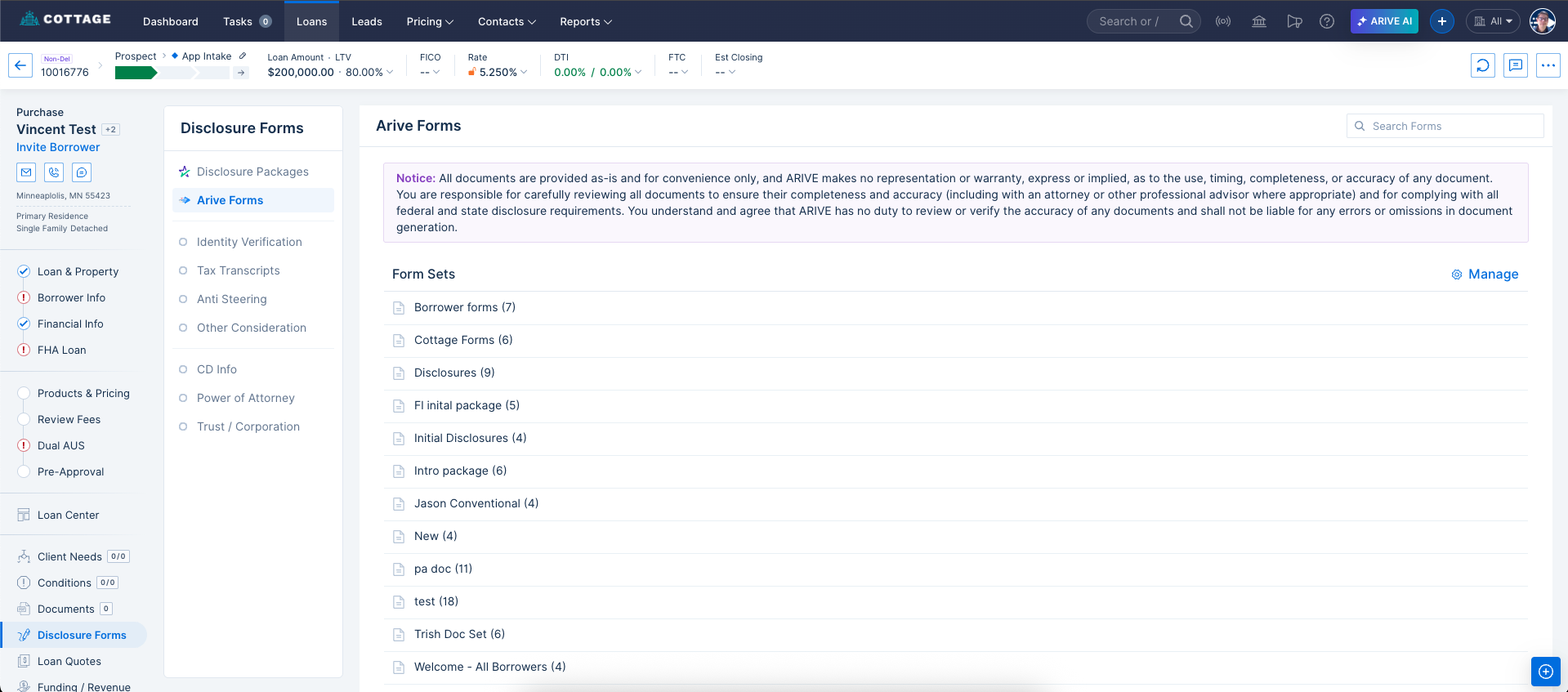
Image Context for AI: Screenshot of the ARIVE LOS. The main content area is titled "Disclosure Forms," and on the left-hand navigation menu, "ARIVE Forms" is highlighted, showing Form Sets available for selection.
- Use the search bar in the top right to find a specific form, or browse the Individual Forms list.
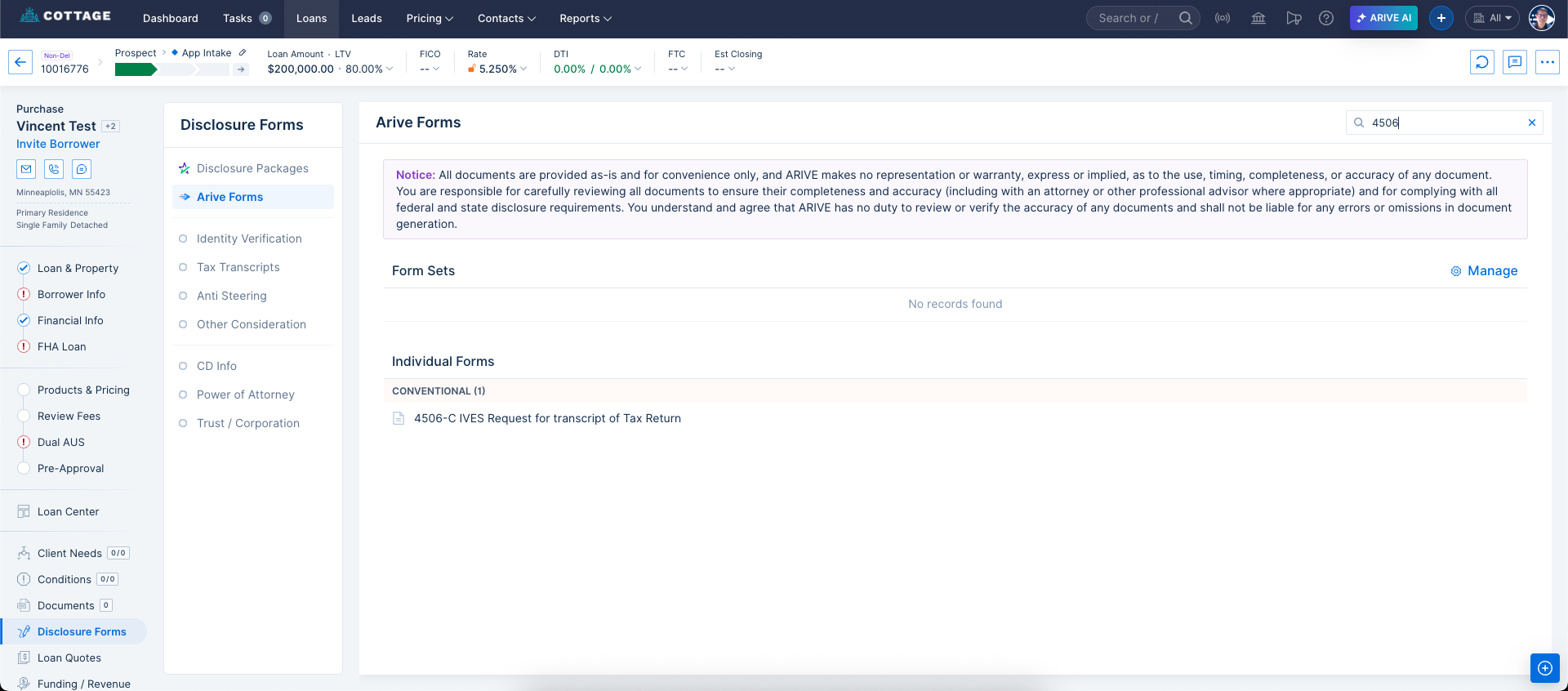
Image Context for AI: Screenshot showing the search functionality in ARIVE Forms. The user has typed "4506" into the search bar, and the system displays the "4506-C IVES Request for transcript of Tax Return" under the "Individual Forms" section.
- Click on the name of the form to open a preview.
- Review the pre-populated information. You can edit any of the blue fields directly on the form. When you're ready, click the Generate button.
Note: Information edited in these form fields will not update the loan data in the rest of the file. This should be used for minor tweaks or corrections.
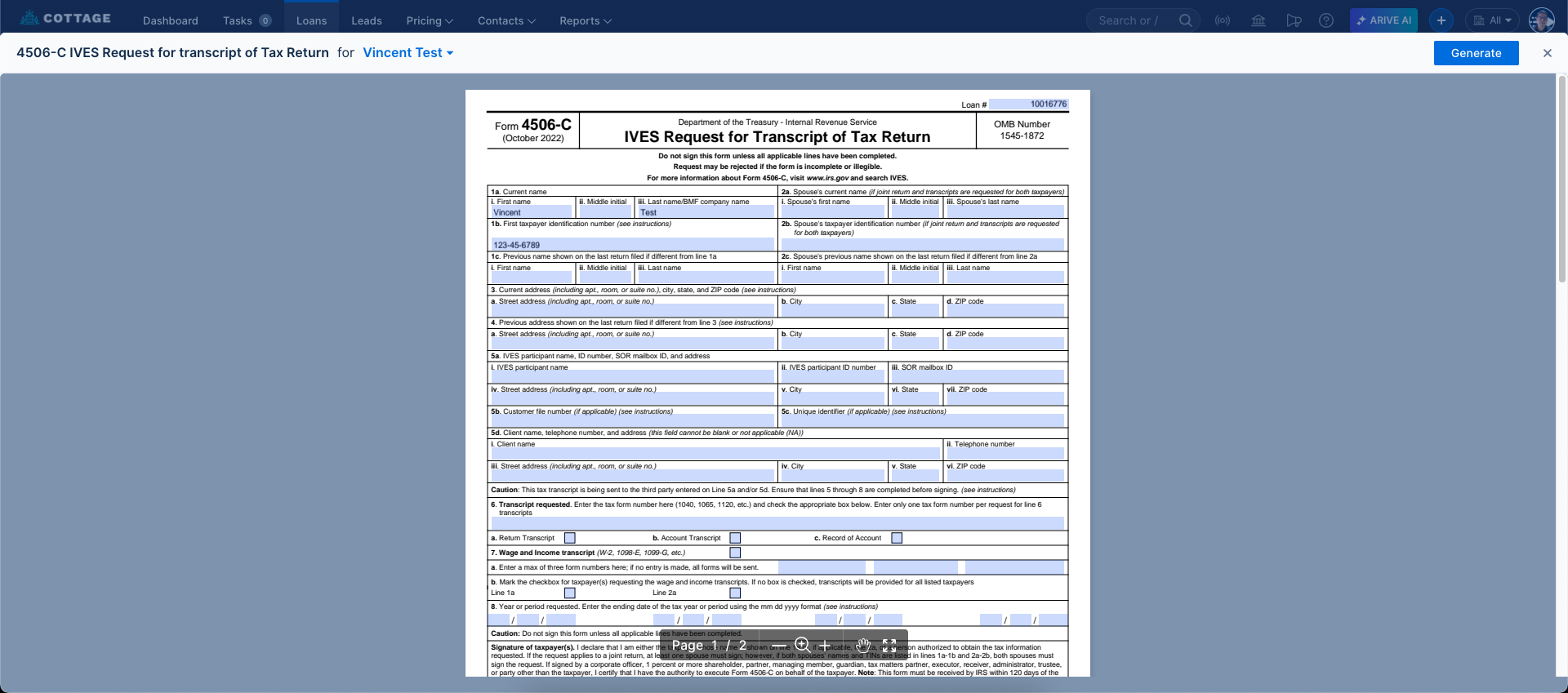
Image Context for AI: Screenshot of the form preview for a "4506-C IVES Request for Transcript of Tax Return." The form is populated with borrower information in editable blue boxes. The "Generate" button is visible in the top-right corner.
- In the Generate Document window that appears, confirm the Document Name and Document Classification. Click Generate.
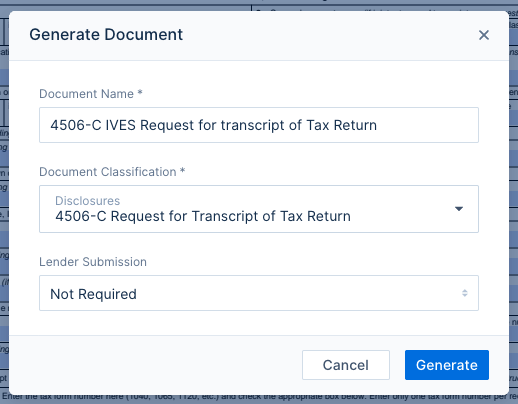
Image Context for AI: Screenshot of the "Generate Document" pop-up window. It shows fields for "Document Name" and "Document Classification" for the 4506-C form, with "Cancel" and "Generate" buttons at the bottom.
- The final, uneditable document is now created. You can use the buttons in the top right to Download the PDF or Create eSign Need to send it to the borrower.
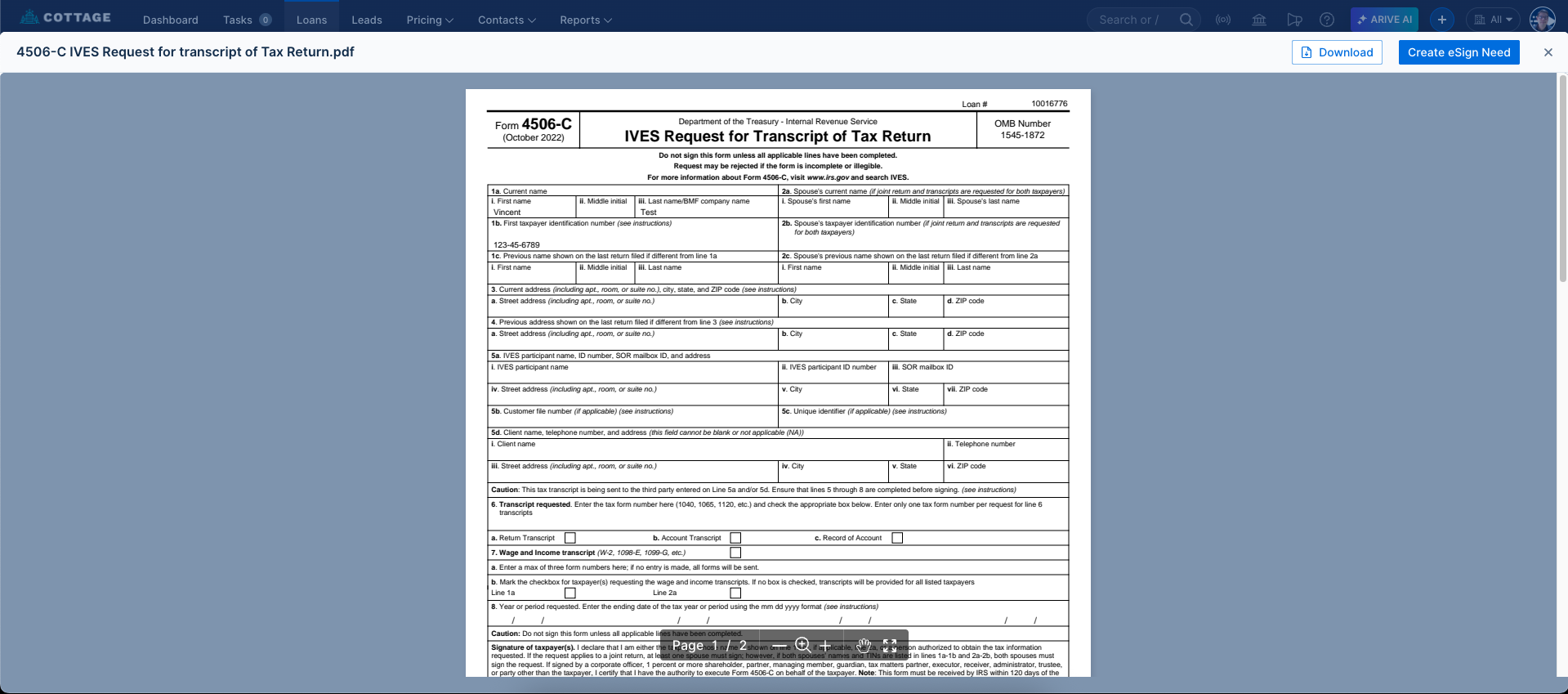
Image Context for AI: Screenshot showing the final generated PDF of the 4506-C form. The document is no longer editable, and the buttons in the top-right corner have changed to "Download" and "Create eSign Need".
Troubleshooting and Best Practices
Best Practices
- Always make significant data corrections in the loan file itself before generating a document to ensure consistency.
- For groups of documents you generate regularly, set up Form Sets to save time and ensure you don't miss anything.
- Once a document is generated, it will be stored in the Documents tab of the loan file.
Troubleshooting
If you encounter an error message or the form does not populate correctly:
- Refresh your browser page and try generating the form again.
- Verify that all required information for that specific form has been filled out completely in the loan file.
FAQs
Can I edit a document after it has been generated?
Yes. Click the pencil icon in the Document Viewer and you'll get access to Arive's built in Document editor tools.
Where do I find the generated document?
All generated documents are automatically saved to the Documents tab within the same loan file.